QAD 2017 Enterprise Edition
>
User Guides
>
Lean Manufacturing
>
Flow Scheduling
>
Creating and Maintaining Flow Schedules
Creating and Maintaining Flow Schedules
You can create schedules to produce items on a specific flow production line within a site. A flow schedule consists of a group of flow scheduled orders, each with a required quantity and a due date within the planning period associated with the schedule, as well as an optional reference to a demand order and existing work order.
There are three ways to create flow scheduled orders:
• Enter them manually using Flow Schedule Maintenance (17.13.3). You can also use this program to update existing flow schedules—for example, to modify the sequence in which the production line completes its work on a given day or move orders from one day to another as priorities change. See
Using Flow Schedule Maintenance.
• Copy existing orders from an existing flow schedule to a new date range using Flow Schedule Copy (17.13.5). See
Copying Flow Schedules.
Using Flow Schedule Maintenance
Use Flow Schedule Maintenance (17.13.3) to enter or update flow scheduled orders for a production line over a specified planning period.
You can optionally reference existing demand orders and work orders on flow scheduled orders. The system synchronizes due dates and quantities between the flow schedule and referenced work orders. If you do not reference a work order, the system automatically creates a type W (Flow) work order. Type W work orders cannot be updated or processed using any of the programs in the Work Orders module.
After you enter or update schedules, the system calculates production line resource usage based on setup data. Depending on records defined for the schedule code associated with the flow schedule, the system displays resource usage and flex fence data. Additionally, if you have defined one or more flow rate codes for items on the production line, the system optionally displays usage data based on different scenarios; for example, the effect of adding a machine or an extra worker to the production line. You can use these displays to determine how effectively your production line can meet the requirements of the schedule.
See
Flow Schedule Analysis for more information.
Important: To avoid locking a large number of records during flow schedule entry or maintenance and to provide a method of viewing a schedule before updating the database, the system uses temporary tables to record transactions. Data is not written to the database until you are finished and are ready to save the schedule. Since no records are locked, it is possible for two users to make conflicting changes to the same schedule. While the system in most cases can detect whether existing records have been modified, it is safer to implement a business process that prevents multiple users from maintaining schedules for the same production line at the same time.
This program consists of the following three frames:
• A header frame, which lets you specify which production line will use the flow schedule, the due date for which you want to enter or update orders, and information used to calculate usage data.
• A display frame, which lets you select existing orders on the flow schedule for maintenance.
• A data-entry frame, which lets you enter new orders on the flow schedule or update existing orders.
Additional warnings, prompts, and summary frames may display, based on header settings and base data setup.
Flow Schedule Header
In the first frame, enter basic data to identify the flow schedule and determine how the system displays data while you are maintaining it.
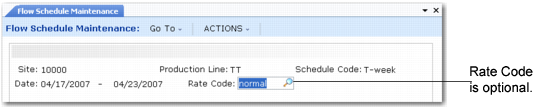
Flow Schedule Maintenance (17.13.3), Header Frame
Site
Enter the site where this flow scheduled order will be produced.
This must be a valid site defined in Site Maintenance, and it must be a site for which the production line has been defined in Production Line Maintenance.
Production Line
Enter the production line that will produce the items on this flow scheduled order.
This must be a valid production line defined for this site in Production Line Maintenance.
Schedule Code
Enter the schedule code that applies to this flow scheduled order. This must be a valid schedule code defined in Schedule Code Maintenance.
If a default schedule code has been defined for this production line in Production Line Maintenance, that value defaults to this field. You can change it as needed.
Schedule codes determine basic information about the schedule that the system uses to calculate dates, determine production rates, and control which types of data display in Flow Schedule Maintenance.
Date
Enter the date this flow schedule applies to. The field defaults to the current date. The system uses this date to determine the schedule to be created or modified.
You can change the field as needed, but it cannot be earlier than the starting date for the schedule specified in Schedule Code Maintenance.
After you complete the flow schedule header, the system uses the following setup data to calculate the date range in which this schedule falls:
• The start date specified in Schedule Code Maintenance
• The number of calendar days in the planning period associated with the schedule code, specified in Planning Period Maintenance
That range then displays in this field.
Rate Code
Optionally enter the code representing the flow rate for the items on this schedule. If this is a new schedule, the field defaults from the production line, if it specifies a default rate code. Otherwise, the default for a new schedule is blank. On an existing schedule, the value defaults from when you entered or last modified the schedule.
If you enter a value, it is validated against codes entered in Generalized Code Maintenance for field flcr_rate_code.
To determine the effects of alternate production scenarios, such as adding or subtracting machines from the production line, associate flow rates with rate codes in Rate Code by Item Maintenance or Rate Code by Type/Group Maintenance. (See
Defining Flow Rate Codes.) When you enter a valid value in Rate Code and Display Physical Usage Recap is Yes for the schedule code specified, the system displays the effects of each flow rate associated with items on the schedule.
Note: If you enter a value in this field and rate codes have not been defined for all the items on the schedule, the system displays an error message during processing.
Scheduled Order Details
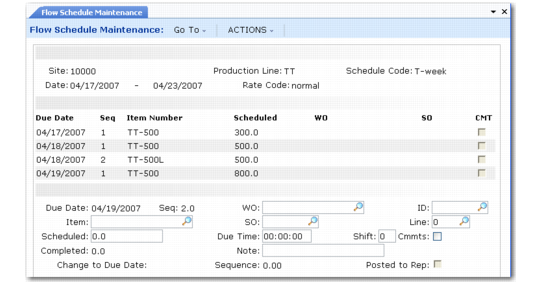
After you complete these fields, the system lists the existing orders for the scheduling period. To update an order, select it and choose Go. You can then update many of the fields in the bottom frame.
To enter a new order, select any line and change the Date and Seq fields to a unique combination. The system clears the fields so you can enter a new order assigned to that date and sequence.
Flow Schedule Maintenance (17.13.3), Display and Entry Frames
Due Date
Enter the due date for this item. This cannot be earlier than the first day of the period being maintained.
If the due date is later than the end of the period you are maintaining, the system displays a warning. Although information entered for such a date is stored, it is not used in usage calculations during the current session. Next time you access the schedule for this period, that detail record does not display. Instead, open the schedule that includes the specified date to view or modify that record.
You can enter the same due date for an item more than once on a schedule. However, each instance must have a different sequence number to indicate the production line’s priorities.
If you enter an existing date/sequence number combination, the system displays data for that record. You can update most of the fields. The Change to Due Date and Seq fields are also enabled so that you can update the due date and sequence for this record.
If you enter a valid value in Work Order, the system validates that this is the same as the work order due date. If it is not, a warning message displays. The system updates the work order to match the flow schedule due date.
After a work order is linked to a flow schedule, the system synchronizes the schedule due date. You can update it here, and changes are reflected in Work Order Maintenance. However, you cannot update it in that program.
Sequence
Enter a sequence number indicating the order in which this production line will perform the scheduled activities on this day. You can update these numbers when priorities change; for example, in response to a rush sales order from a key customer.
Each due date on a flow schedule must have a unique series of sequence numbers; a number cannot be repeated on the same date.
To have the system assign the next available sequence number on this due date, enter 0 (zero).
If you enter an existing date/sequence number combination, the system displays data for that record. You can update most of the fields. The Change to Due Date and Seq fields are also enabled so that you can update the date and sequence fields.
The field accepts a decimal value, which you can use to insert a new schedule between two existing entries. For example, if you already have entries for item A on 5/25 with sequence numbers 1 and 2, but you want to resequence the schedule by adding another item A order before the current sequence 2, enter 1.5 in Sequence. After you complete the schedule, the system updates the sequence numbers in the middle frame to 1, 2, and 3.
Item
Enter the number of the item to be produced. This must be valid item for this site and production line, already defined in Production Line Item Maintenance.
An item number can be included on a flow schedule more than once, as long as each instance has a different due date/sequence combination.
If you enter a valid value in Work Order, the system verifies that this is the item on the work order. If you enter a sales order and line, the system also validates the item number.
Scheduled
Enter the quantity of the item to be produced by this production line on the specified date.
The scheduled quantity must be expressed in the stocking unit of measure for the item. If this is different from the unit of measure, weight, or volume specified in Schedule Code Maintenance for the schedule code referenced on this flow scheduled order, a conversion factor must exist in Unit of Measure Maintenance. Otherwise, the system displays an error message.
If you enter a valid value in Work Order, the system validates that this is the same as the work order quantity. If it is not, a warning message displays. The system updates the work order to match the flow schedule quantity.
After a work order is linked to a flow schedule, the system synchronizes the schedule quantity. You can update it either here or in Work Order Maintenance.
Completed
This system-maintained field displays the quantity received for this flow scheduled order. See
Receiving Completed Flow Scheduled Orders.
Work Order and ID
Optionally enter the number or ID of an existing work order to be associated with this flow scheduled order.
The work order must be for the same item or the system displays an error. In addition, if the work order due date and quantity are not the same as the flow schedule due date and quantity, warning messages display. The system then updates the work order record to match the due date and quantity on the flow schedule.
Additionally, the system automatically references a work order when you use Import MRP Orders to Schedule to add a scheduled order for an item with a purchase/manufacture code other than W (Flow manufactured) or L (Line manufactured). You cannot update the displayed values.
When you enter both work order and sales order numbers, the system determines whether the sales order is for a configured item that has been released to a type F (final assembly) work order using Sales Order Release to Work Order (8.13). If so, the work order must be the one associated with the sales order. Otherwise, an error message displays.
When you reference a work order on a flow schedule, the system synchronizes data between the Flow Scheduling and Work Orders modules. For example, you can receive completed orders using Work Order Receipt (16.11), Work Order Receipt Backflush (16.12), or Flow Schedule Receipts (17.13.7). Each program updates the Completed field in both Flow Schedule Maintenance and Work Order Maintenance.
These fields are enabled only when you are entering a new scheduled order. You cannot update them later.
Sales Order
Optionally enter the number of the demand order that created the demand to be filled by this flow scheduled order. This can be a sales order, a return material authorization (RMA) issue, a customer scheduled order, or a material order.
If you enter a value in this field, the system validates it against existing values in the sales order master table. It confirms that the specified item is included on the demand order only if you also specify a line number. Otherwise, it just validates that the order exists.
When you enter both work order and sales order numbers, the system determines whether the sales order is for a configured item that has been released to a type F (final assembly) work order. If so, the work order must be the one associated with the sales order. Otherwise, an error message displays.
Line
Optionally enter the line number of the specified demand order.
If you enter a line number, the system validates the following:
• That the line item exists on the specified demand order
• That the line is for the specified item
Due Time
Optionally enter the time of day that this flow scheduled order should be completed.
Enter the time in HH:MM:SS format based on a 24-hour clock. For example, enter 1:30 p.m. as 13:30:00.
This field is for reference. It appears on some reports and inquiries, and can be used to introduce a greater level of detail into the sequence of activities on a production line.
Comments
Indicate whether you want to enter comments related to this flow scheduled order.
When this field is Yes, the system displays a standard transaction comments screen when you click Next. You can enter unlimited comments, with each comment up to 99 pages long.
You can also use the Note field to enter a brief comment up to 24 characters long without using the transaction comments screen.
Note
Optionally enter a brief text comment associated with this flow scheduled order.
This field is limited to 24 characters. To enter more extensive text, set Comments to Yes.
Posted to Repetitive
This system-maintained field indicates whether an order has been exported for scheduling with the Repetitive or Advanced Repetitive module using Export Schedule to Repetitive (17.13.10). When it is Yes, you can no longer process this flow scheduled order using programs on the Flow menu. See
Exporting Flow Schedules to Repetitive.
Two additional fields can be updated only when you are modifying an existing flow scheduled order:
Change to Due Date
Enter a new due date for this flow scheduled order. This cannot be earlier than the first day of the period being maintained.
If the date you enter is later than the period you are maintaining, the system displays a warning. Although information entered for such a date is stored, it is not used in usage calculations during the current session. Next time you access the schedule for this period, that flow schedule does not display. Instead, open the schedule for the appropriate period to view or modify it.
Sequence
Enter a new sequence number for this flow scheduled order.
The sequence number can be a decimal. For example, to resequence an order to fall between existing order sequence numbers 1 and 2, set this field to 1.5. After you click Next, the system renumbers the order lines as 1, 2, and 3.
Flow Schedule Analysis
When you finish entering or updating data, click Back when the cursor is in the Due Date field to return to the second frame, and then click Back again. Based on setup data and settings in Schedule Code Maintenance, you can use these frames to analyze how well the production line can meet the requirements shown in the schedule before you write the schedule to the database. See
Defining Schedule Codes.
If the setup data is not available for a recap frame, the system does not display the frame regardless of the setting in Schedule Code Maintenance. For example, if you have not set up appropriate flex fence parameters in Flex Fence Maintenance, the recap frame and warning messages do not display.
Schedule Summary
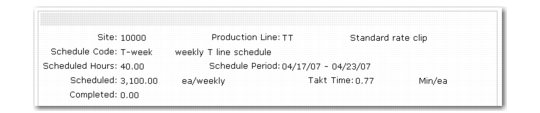
The system first displays a frame of summary data that includes the following:
• Basic schedule information from the header.
• Number of hours on the schedule.
• Scheduling rate expression associated with the schedule code used; for example, tons per week.
• Quantities scheduled and completed.
• Takt time, also known as operational cycle time, for the current schedule on the production line. In this frame, Takt time is always displayed as the number of minutes needed to make one unit. This indicates the pace at which the production line operates to meet the current schedule. See
Takt Time.
Schedule Summary Frame
Flex Fence Data
Flex fences are tools for determining whether the total required quantity to be produced on the schedule you are entering is within a specified percentage of the current period’s requirements. See
Flex Fences.
A flex fence data frame displays under these circumstances:
• The schedule you are maintaining is for a future planning period, rather than the current one.
• You have specified flex fence parameters that apply to this flow schedule. See
Defining Flex Fences.
• Display Flex Fences Recap is Yes for the applicable schedule code record in Schedule Code Maintenance.
When production requirements are outside the percentage specified in Flex Fence Maintenance, the system also displays a warning message in addition to the flex fence data summary.
Flex Fence Data Frame
Physical Usage Data
The system displays a frame of physical usage data, expressed as the percentage of target and maximum production line capacity represented by total requirements for the planning period, under the following circumstances:
• You have associated target and maximum rates either with the applicable schedule code in Production Line Maintenance, or with the production line in Schedule Code Maintenance.
• Display Physical Usage Recap is Yes for the applicable schedule code record in Schedule Code Maintenance.
Physical Usage Frame
Time Usage Data
You can use time usage calculations to determine the effects of alternate resource scenarios on the production line’s ability to meet schedule requirements effectively. See
Checking Time Usage in a Schedule.
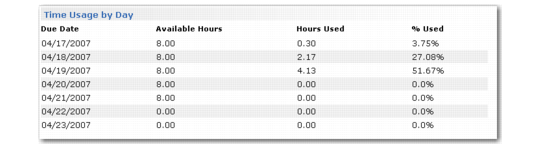
The system displays time usage data in two formats—for the entire schedule period or for each individual day in the period—only under the following circumstances:
• You have associated flow rate codes with items in either Rate Code by Item Maintenance or Rate Code by Type/Group Maintenance.
• You enter a valid rate code in the header of Flow Schedule Maintenance.
• The appropriate field—Display Time Usage Recap or Display Daily Time Usage Recap—is Yes for the applicable schedule code record in Schedule Code Maintenance.
Time Usage Frame
Time Usage by Day Frame
Completing the Flow Schedule
After displaying the appropriate data summaries, the system prompts you to take an action regarding the flow schedule by entering one of following values:
1: Accept new flow schedules and changes to existing schedules. The system displays a status screen during processing, followed by a summary of the number of schedules processed for each day of the period. Updated records are written to the database from the temporary table used during data entry.
2: Edit the schedule. The system returns to the summary frame so you can continue to enter or update records. Changes made or new records entered during this session are not yet saved in the database.
3: Cancel. The system clears the temporary table created during this session, and the program returns to the header frame. No changes are saved in the database. Any new or modified data you entered in the program is discarded; existing schedules saved during earlier sessions are not affected.
Note: Pressing End also clears the temporary table and returns the program to the header frame.
Importing MRP Planned Orders to a Flow Schedule
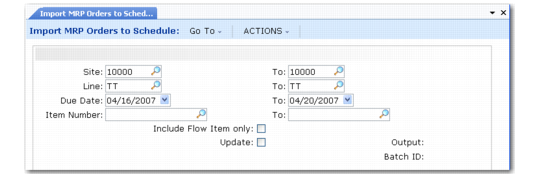
Use Import MRP Orders to Schedule (17.13.9) to select planned work orders for specified items and add them to flow schedules for the appropriate production lines.
Import MRP Orders to Schedule (17.13.9)
Enter selection criteria for the items that will have planned orders added to flow schedules. To limit the selection to items that are usually produced on a flow line, set Include Flow Items Only to Yes. Set Update to No to review a report on the effects of running this program before updating the database.
When you click Next, the system looks for MRP-planned (status P) work orders for the items matching the selection criteria. If the item is not assigned to a production line in Production Line Item Maintenance, it is skipped. If it is assigned to multiple production lines, the system uses the Preference value from Production Line Item Maintenance to determine the production line where the order will be scheduled. See
Associating Items with Production Lines.
Based on the planned order due date, the system assigns each work order to the production line flow schedule for the appropriate period. If a schedule already exists for that date, the system assigns the next available sequence number. After importing the orders to flow schedules, you can update sequence and date information using Flow Schedule Maintenance.
If the item on an imported schedule has a purchase/manufacture code of W (flow), the system changes the work order type to W. (See
Purchase/Manufacture Codes.) Otherwise, the work order type is left blank. In either case, the system sets the work order status to E (exploded). It then follows standard work order processing: Bill of material (BOM) and routing records are created based on item master data, and the product structure is re-exploded using the latest BOM and routing information available. The release date is calculated based on the due date.
After importing MRP planned orders to flow schedules, process them the same way you do other flow scheduled orders.
Copying Flow Schedules
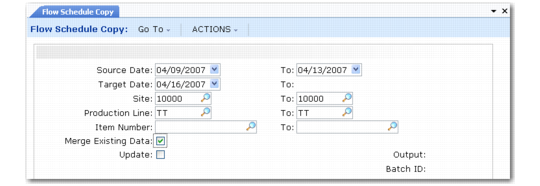
Use Flow Schedule Copy (17.13.5) to copy existing flow scheduled orders to new flow schedules.
The copied order includes much of the same data as the original, such as site, production line, item number, and schedule quantity. The due date is modified based on the specified target date range. Other values in the new record are blank even if the source order included values in the corresponding fields; for example, the system does not copy references to sales orders or work orders, and the Completed field is set to 0 (zero).
For each flow scheduled order copied, the system creates a new type W (flow) work order just as it does when you enter a new order using Flow Schedule Maintenance.
Flow Schedule Copy (17.13.5)
Enter the range of dates you want schedules to be copied from, as well as the target start date for the newly created schedules. Using the specified selection criteria and a calculated target date range based on due dates for existing schedules, the system copies existing flow schedules to the corresponding dates in the target date range.
For example, you enter a source date range of 5/15/02 to 5/22/02 and a target date of 6/15/02. The systems finds schedules with due dates of
5/16, 5/19 and 5/20 that match the selection criteria. It copies the data from those schedules into new schedules with due dates of 6/16, 6/19, and 6/20.
To see the effects of this program without actually copying orders, set Update to No. Then review the output report, adjust selection criteria as required, and run the program again with Update set to Yes.
Merging Data
In some cases, you might be copying a scheduled order to a new date range that already includes a matching record for the item.
Use the Merge Existing Data field to indicate how the system should manage a copied order when this occurs.
No: The system does not create a new schedule for that order. On the output report line for that order, Source From Due Date is blank and Existing Schedule displays Yes.
Yes: The system adds the quantity from the copied order to the existing flow scheduled order. On the output report line for that order, the same due date displays in both Source From Due Date and Schedule Due Date. Additionally, Existing Schedule displays Yes.
The system also adds the quantity to the associated work order for the target date. This can be either the system-generated type W work order or the standard work order referenced in the Work Order field. See
Work Orders.