Define Processes
Use Kanban Process Maintenance (17.1.3) to define production processes that are sources for kanban loops. You can specify characteristics of the process items for each kanban loop the process supports, including ranges of routing operations that produce the item.
You also can associate items with processes in Kanban Master Maintenance and then update the process-related characteristics as needed using this program. See
Define Loops in Kanban Master Maintenance.
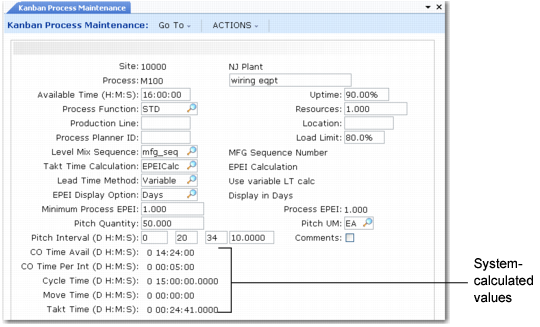
Use the initial frame to define information about the process itself, including the site where it is located and a unique identifier. Several display-only fields are updated automatically when you run one of the following programs:
• Basic Process Calculations (17.2.3); see
here.
• The kanban workbenches; see
here.
Kanban Process Maintenance (17.1.3)
Available Time
Optionally enter the time, in hours, minutes, and seconds, that this process is typically available for production during a working day. The system uses this value in capacity calculations for supermarket and kanban sizing activities.
Note: You cannot enter a value greater than 24 hours.
You can have the system calculate this value using Basic Process Calculations when Available Time is set to Yes. The calculation is based on the process calendar defined in Process Calendar Maintenance (17.1.13), along with the number of days specified when you run Basic Process Calculations.
This value defaults to the kanban workbenches. If you modify it in Kanban Process Workbench and save your changes, the system updates this field.
Process Function
Specify the way this process is used in a kanban loop. Valid values are:
• STD (Standard): This process is not a pacemaker or a FIFO lane.
• PACE: This is a pacemaker process. In a lean manufacturing environment, the pacemaker is the process that responds most directly to demand from the end customer. Typically, it is associated with a limiting resource that controls the maximum speed at which the process can operate. See
Pacemakers.
When you run Preliminary Level Schedule Report (17.14.2), you can limit the selection of processes to pacemakers. You can update process information using Level Mix Workbench only for pacemaker processes.
• FIFO: This process represents a FIFO lane. FIFO lanes are a flow-control technique used between two manufacturing processes. The first process receives the signal to produce from the supermarket (or from a FIFO lane from a previous process) and moves material to the following process. The product produced at the second process is run in the order it is received. The completed material is then moved to the supermarket or to another FIFO lane.
Only FIFO processes can be included in the FIFO Lane Detail frame in Kanban Master Maintenance.
Uptime
Specify the percentage of the standard work day when this process is available to do work. For example, if the machines used on this process are typically down for routine maintenance 5% of the time, set this field to 95.00. The default is 100%.
This value defaults to the kanban workbenches. If you modify it in Kanban Process Workbench and save your changes, the system updates this field.
Resources
Enter the number of resources assigned to this process. The default is 1. You cannot enter a negative number.
When it calculates the amount of time this process is available to manufacture kanban items, the system uses this value as a multiplier for the Available Time field. For example, if the process is available for 7 hours each day but has 2 machines available, enter 2.0 in Resources. Process calculations then are based on a total of 14 available hours.
Production Line
If you use flow schedules, specify the production line associated with this process. Production lines must be defined in Production Line Maintenance (17.13.1.4) in the Flow Scheduling module.
Note: When Process Function is set to PACE, the system verifies that the specified production line is not referenced by another pacemaker process at the same site.
The system uses the specified production line when you run Level Mix Workbench to determine which flow schedules need to be updated or created.
Location
Optionally enter a location code associated with this process. This value must be defined in Location Maintenance (1.1.18).
When Component/Op Transactions is Yes in the Card Control Data frame of Kanban Master Maintenance for a loop supplied by this process, the system backflushes component materials from this location when the card is recorded using Kanban Fill/Receive. When this field is blank, the system uses item-site and item master data to determine the backflush location.
Load Limit
Specify the percentage of the total calculated time available during the EPE interval that the system can use for planning the load on a kanban process. This value defaults from Kanban Control.
If the planned load for a process based on the time required for setups and cycle time is greater than this percentage, the system displays a warning message in the workbench.
Process Planner ID
Optionally enter a code representing the person who is responsible for planning this process. When you run Level Mix Workbench, you can select processes based on this code.
This field is validated against values defined in Generalized Codes Maintenance for field name knp_planner_id.
Note: This is not the same as the buyer/planner code used elsewhere in the system.
Level Mix Sequence
Specify how the system determines the order in which items are processed when you use Level Mix Workbench.
• MFG_SEQ: This is the default for new process item records. The system uses the value in the Manufacturing Sequence field in the Kanban Process Detail frame. The workbench finds the last order processed (either the last item in a frozen period or, if no periods are frozen, the last item in the day just prior to the first schedule date used), and then increments by 1. For example, there are 10 items in the process with Manufacturing Sequence values of 1 through 10. If the last item processed was sequence number 4, then the workbench starts with item 5. When item 10 is processed, the system loops back to sequence number 1.
• OPER_ASC: The system uses the number of operators required in ascending order to determine the item sequence. The logic is similar to MFG_SEQ except the number of operators is used instead of the Manufacturing Sequence number. The system starts with the next item (using ascending number of operators as the sort criteria) and loops around after the item with the lowest number of operators is processed. If multiple items exist with the same number of operators, the items are processed in ascending sequence of item number. The number of operators required is calculated by Basic Process Calculations or Kanban Process Workbench. For example, you can use this method if you want to start the day with the minimum number of operators on the shop floor, and add operators as needed during the day.
• OPER_DSC: This is similar to OPER_ASC, except that the system begins by selecting the item that requires the highest number of operators. This option is useful when you start the day with the most operators that will be needed, then reduce the number as tasks are completed.
Note: When you use one of the operator-based methods, Level Mix Workbench uses the required-operator values as of the time you launch the program. If you add, delete, or change orders from within the workbench, the system does not adjust the required number of operators before generating the level schedule.
Takt Time Calculation
Takt time is the time in seconds required to produce one unit at the customer’s rate of demand. Enter the source of the system-generated takt time calculation for this kanban process. Valid values are:
• EPEICalc: The system calculates takt time when you run Basic Process Calculations or Kanban Process Workbench.
• LvlMixWB: The system calculates takt time when you run Level Mix Workbench. This is valid only for pacemaker processes.
Note: If you run Level Mix Workbench for a process and click Save, the system updates takt time regardless of the value of this field and sets the Takt Time Calculation field to LvlMixWB.
Lead Time Method
Specify the method the system uses in the kanban workbenches for calculating the lead time for items produced by this kanban process. This value defaults from Kanban Control.
Valid values are:
• Variable (the default): The system calculates the item lead time dynamically based on the potential queue of other items. The item lead time is the sum of the setup and cycle times for the order quantity of all other items produced by the process, plus the setup and cycle time for one kanban quantity of the item itself.
• Fixed: The system sets the item lead time to the replenishment time for the loop specified in Kanban Master Maintenance.
EPEI Display Option
Specify the unit of time used in the EPE Interval field for this process:
• Months
• Weeks
• Days (default)
• Hours
• Minutes
• Seconds
The EPE interval is the minimum time a process needs to make all the items it produces based on average demand. This is often expressed in days. For example, when you are using days as the display option, an EPEI of 0.5 means that, allowing for changeover times, the process can produce all of its items twice each day.
Minimum Process EPEI
Optionally enter the minimum every-part-every interval (EPEI) for this process. This value defaults from Kanban Control.
This field displays in the time units specified in the EPEI Display Option field.
Note: This may not be the same as the Kanban Control value, which is entered in decimal days.
Specify a minimum process EPEI, for example, when you never want to set up the machines in your processes more than once each day. If the calculated EPEI is less than the specified minimum, the system uses the minimum value instead.
Pitch Quantity
Enter the item quantity associated with the pitch for this process. This should be a multiple of the value specified in the Kanban Quantity field for all the process items in the Card Tracking Control frame of Kanban Master Maintenance. Otherwise, the system displays a warning message and recommends an appropriate value to enter in the field.
The system multiplies this value by the takt time to determine the pitch interval.
Pitch is a management time frame representing the frequency at which you withdraw finished goods from a pacemaker process as well as the corresponding amount of schedule you can release to that process.
Note: Current functionality supports only fixed-pitch processes. If the user-specified process pitch quantity is not a common multiple of all the kanban quantities of the loops using the process, the system applies a threshold of 100X the largest kanban size when calculating a recommended pitch size. Otherwise—when a process supports many loops with various kanban quantities—the quantity recommended could be unrealistically large. The calculation time involved could also have a significant impact on system performance.
As soon as the calculated lowest common multiple exceeds the threshold, the system assumes that this is a variable-pitch process. It displays a message recommending that you set the pitch to the largest kanban quantity.
Pitch Interval
Optionally enter the time frame over which performance of this kanban process is measured based on the value of Pitch Quantity.
When you run Basic Process Calculations with Pitch Interval set to Yes, the system updates this field by multiplying the pitch quantity by the takt time.
Pitch UM
Enter the unit of measure associated with the value specified in Pitch Quantity.
If this is not the same as the UM specified in Item Master Maintenance (1.4.1), a conversion must be defined in Unit of Measure Maintenance (1.13). The conversion factor displays in Kanban Process Workbench.
Comments
Enter Yes to update or enter comments related to this kanban process; otherwise, enter No. Comments defaults to Yes if comments are already associated with the process; otherwise, the default is No.
When Comments is Yes, the transaction comments screen displays for you to enter or review comments regarding the process.
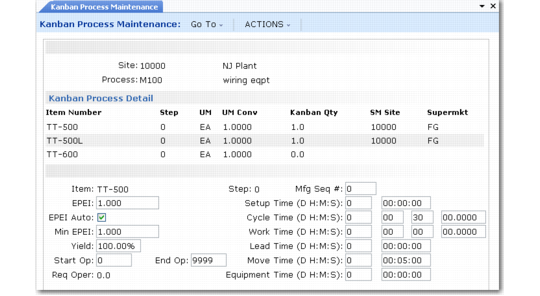
The system next displays summary lines of kanban items that have already been defined for this process. If this process has been specified as the source of any kanban loops in Kanban Master Maintenance, item records associated with those loops default to the Kanban Process Detail summary frame. Use the fields at the bottom of the screen to update or add process item details as needed.
Note: When creating a new loop based on records imported using Kanban Workbench Import (17.2.17), the system adds new item detail records to an existing process as needed when the source type for the new loop is Process. See
Kanban Process Items.
Kanban Process Maintenance, Process Detail Frames
Item and Step
Specify an item number/process step combination defined in Kanban Item Master Maintenance.
Using step numbers lets you identify an item at a stage of the manufacturing cycle independent of any associated routing information.
Note: Although an item can be handled by multiple processes, it can go through only one pacemaker at each step. You cannot assign an item at a step to more than one process at the same site that has Process Function set to PACE.
Mfg Seq Number
Optionally enter a number to indicate the sequence in which this item is manufactured relative to all items in this process. The default is 0 (zero).
When you run Level Mix Workbench for a process that has Level Mix Sequence set to MFG_SEQ, the system uses this number to determine the scheduling sequence.
The system does not validate this number. If you leave it set to the default or assign the same sequence number to more than one item, the system sequences items alphanumerically by item number.
EPEI
Optionally enter an EPE interval for the individual item. To prevent the system from overwriting the field when it calculates the overall process EPEI, set EPEI Auto to No.
Use EPEI Display Option in the first frame to control which unit of time the system uses.
EPEI Auto
Specify whether the system automatically calculates the EPE interval for this process.
• Yes: The system updates the EPEI field when you run Basic Process Calculations or Kanban Process Workbench for this process, overwriting any manually entered value. This is the default for new process item records.
• No: You can manually enter a value in the EPEI field. System calculations do not update that field, and requirements for the item are not included in EPEI calculations.
You can use manual EPEI entry to prevent the system from including rarely produced items in process EPEI calculations. In that case, the EPEI value is for reference only.
Note: EPEI is updated automatically only when the system determines that adequate time exists to perform the required changeovers and production cycles. If not, a warning message displays when the calculation is being done, and EPEI is left set to 0 (zero) regardless of the EPEI Auto setting.
Minimum EPEI
Optionally enter the minimum EPEI for this item. This value defaults from Kanban Item Master Maintenance.
This field displays in the time units specified in the EPEI Display Option field.
Note: This may not be the same as the Kanban Item Master Maintenance value, which is entered in decimal days.
Specify a minimum item EPEI, for example, when you never want to set up the machines to make a given item more than once every three days. If the calculated process EPEI is less than the specified minimum item EPEI and EPEI Auto is Yes, the system uses the minimum value instead.
Start Op and End Op
Enter a range of routing operations that will be considered in determining the setup, cycle, and work time for this process.
When you run Process Item Operation Rollup for this process, the system uses this range to select operations from the routing specified in Kanban Item Master Maintenance. If one is not specified, the item number is used to search for a routing. See
Roll Up Item Data.
If you do not want to use times from routing records, you can optionally enter times for the process in the appropriate fields.
Note: The system overwrites manual yield and time entries with calculated values based on this operation range if you run Process Item Operation Rollup for this process.
Req Oper
Based on the current demand, this is the number of operators needed to meet the production requirements. The system calculates this value as the item work time (in seconds) divided by the process takt time.
Yield
Yield is the percentage of any order expected to be in usable condition after this process. Optionally enter the normal yield percentage for this item at this process. This value defaults from Item-Site Planning Maintenance or Item Master Maintenance.
When you run Kanban Process Item Rollup, the system multiplies the yield values of all the individual specified operations and sets this field to the result.
Note: The system calculation overwrites any manual entry in this field.
When you modify the Yield % (Revised) field in Kanban Process Workbench and save your changes, the system updates this field.
The system uses yield in calculating EPEI in Basic Process Calculations, as well as Kanban Process Workbench. Additionally, yield is factored into average demand calculations when considering future demand based on exploded MRP detail records.
Setup Time
Optionally enter the time, in days, hours, minutes, and seconds, required to prepare the process to manufacture this item, independent of order quantity. This value is used in process EPEI calculations.
When you run Kanban Process Item Rollup, the system sets this value to the total of all the setup times defined in Routing Maintenance for the specified operations.
Cycle Time
Optionally enter the total time interval, in days, hours, minutes, and seconds, between individual items being completed by this process. When the process consists of multiple operations that run simultaneously, this is typically the run time for the longest operation. This value is used in process EPEI calculations.
You can enter the number of seconds as a decimal value.
You can have the system determine this value by running Kanban Process Item Rollup. The field is set to the longest run time among the operations in the Start/End Op range.
Note: When you roll up routing times, rounding may display a slightly different result than manual calculations of the values specified for operations. However, the database stores the number to 10 decimal places, and this level of precision is available to EPEI calculations.
Work Time
Optionally enter the total time, in days, hours, minutes, and seconds, required by all operations included in the process to complete one unit of this item.
You can enter the number of seconds as a decimal value.
You can have the system determine this value by running Kanban Process Item Rollup. The field is set to the total of the run times for all the operations in the Start/End Op range.
Lead Time
Optionally enter the total time, in days, hours, minutes, and seconds, required to deliver this kanban item.
This value is currently for reference only.
Move Time
Optionally enter the total time, in days, hours, minutes, and seconds, required to move items between operations in this process.
This value is currently for reference only.
Equip Time
Optionally enter the total time, in days, hours, minutes, and seconds, required by automated equipment to complete items within this process. For example, you can use this field to contrast machine time with labor, which is represented by work time.
This value is currently for reference only.