Print Cards
Two programs let you print either a single specified card or a range of cards:
• Use Kanban Card Print (17.3.4) to enter a kanban ID or scan a single card for printing.
• Use Kanban Multi-Card Print (17.3.5) to select cards by ranges of selection criteria. For example, you can print just the cards in one loop. You also can choose to print only one card type—replenishment or move—for two-card loops, and limit the selection to:
• Active cards
• Cards that have not previously been printed
• Cards that are set to print automatically after specific kanban transactions are recorded. See
Auto-Print.
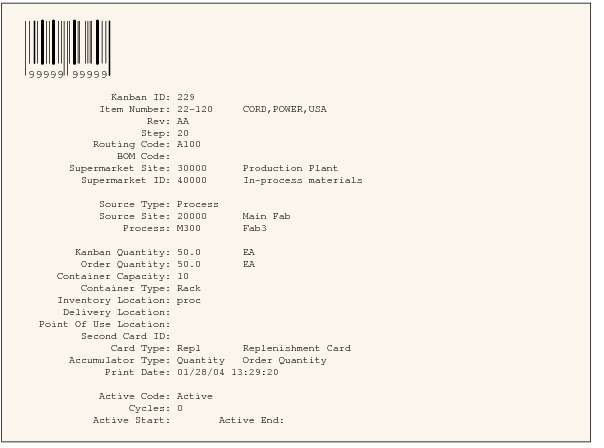
Sample Kanban Card Output shows an example of a printed kanban card.
Sample Kanban Card Output
Note: Whether item and kanban ID barcodes print on the card is determined by settings in Kanban Master Maintenance, which default from Kanban Control. See
Print Kanban ID Barcode.
You also can print newly created or reactivated cards directly from one of the following programs when you use card reconciliation to synchronize the actual number of active cards with the optimum number:
• Kanban Sizing Workbench
• Kanban Process Workbench
• Supermarket Workbench
• Kanban Card Management