Define Control Settings
Use two programs to define general controls, as well as to establish default values for new requisitions:
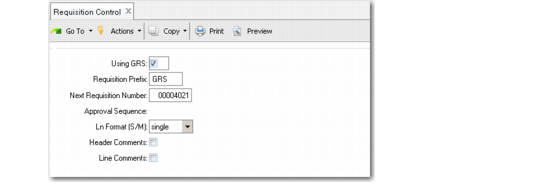
• In Requisition Control (5.2.1.24), enable GRS functionality and define other operational control settings.
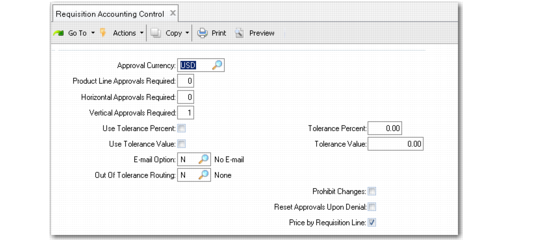
• In Requisition Accounting Control (36.9.3), specify operational settings that have an impact on financial activities, such as approval routing options.
Requisition Control (5.2.1.24)
Using GRS
Enter Yes to activate GRS.
Requisition Prefix
Enter an optional one- to three-character prefix for purchase requisition numbers. For example, you might want to make your purchase requisitions easy to identify by adding a prefix of RQ. When you add a new requisition and leave Requisition Number blank, it is automatically set to the prefix code followed by the next sequential number.
Note: Prefix codes restrict the size of the numeric portion of the ID. The combined length cannot exceed eight characters.
Next Requisition Number
This field displays the next automatic purchase requisition number for system-assigned numbers. When setting a default starting number, remember that purchase requisition numbers are alphanumeric and sort in that sequence: requisitions 10, 20, and 100 sort in the sequence 10, 100, 20. Start with a large number (such as 10000) so that requisitions sort in sequence.
Approval Sequence
This field is included for future use.
Ln Format (S/M)
Specify the default method for entering purchase requisition line items—single-line or multiple-line. Multiple-line mode displays several lines on a single screen, but only allows input or modification of basic data. Single-line mode displays all data fields for one line per screen. This value can be changed at any time on individual requisitions.
Header Comments
Enter Yes if comments are normally entered on each requisition header. Information associated with the header usually applies to the entire requisition and prints at the top of the requisition. The field can be changed manually on a requisition. If you do not normally use header comments, set this field to No to avoid being prompted each time with the comment entry screen.
Line Comments
Enter Yes if comments are normally entered on each requisition line. The field can be changed manually on a requisition. If you normally do not use comments, set this field to No to avoid being prompted each time with the comment entry screen.
Requisition Accounting Control (36.9.3)
Approval Currency
Specify a valid, active currency to be used in defining approval levels. The default is the domain base currency.
Requisitions can be created in more than one currency. GRS converts other currencies to the approval currency as part of the approval process. A valid exchange rate must exist for this currency during approval.
Product Line Approvals Required
Specify the minimum number of approvers needed to approve direct material requisitions before they can be placed on a purchase order.
Horizontal Approvals Required
Specify the minimum number of category-oriented approvers needed to approve each category within a requisition before it can be placed on a purchase order.
Vertical Approvals Required
Specify the minimum number of organization-oriented approvers needed to approve requisitions before they can be placed on a purchase order. Job approvers are included in this number.
Use Tolerance Percent
Enter Yes if you want the system to check the cost of an item shown on the requisition against the actual cost specified on the purchase order. If this field is Yes and you enter a value in Tolerance Percent, the system compares the requisition maximum cost to the PO cost if the buyer increases the cost after copying the approved line to the PO. If the percentage is exceeded when the requisition line is added to the PO, GRS prompts the buyer to mark the line out of tolerance. See
Out-of-Tolerance Conditions.
Tolerance Percent
Specify the default allowable percentage difference between the maximum cost shown on a requisition line item and the cost entered on the purchase order.
Use Tolerance Value
Indicate whether you want to use Tolerance Value. Processing works similarly to Use Tolerance Percent.
Note: If you set both Use Tolerance Percent and Use Tolerance Value to Yes, GRS uses the smaller of the two to determine if lines are out of tolerance.
Tolerance Value
Specify the default allowable cost difference between the maximum cost shown on a requisition line item and the cost entered on the purchase order. Processing works similarly to Tolerance Percent.
E-mail Option
Enter the default e-mail mode. Valid settings are N, R, and E.
• Set to N (none), the default, if you do not want to use the system-generated e-mail features of GRS. Users cannot override this setting on individual requisitions. See
System-Generated E‑Mail.
• Set to R (regular) or E (extended) to make this the default e-mail mode for all requisitions. Users can change the default setting on individual requisitions.
Out of Tolerance Routing
When Use Tolerance Percent or Use Tolerance Value is Yes, enter the code indicating the default routing for requisitions when the buyer chooses to route an out-of-tolerance line:
• R (requestor)
• L (last approver)
• F (first approver)
• N (none)
If you set the field to None, the Route To field on the out-of-tolerance routing screen defaults to blank.
Prohibit Changes to Approved Requisitions
Enter Yes to prohibit changes to an approved requisition. When Yes, only buyers can edit a requisition. If you are not a buyer, an error message displays if you attempt to edit any requisition fields.
Reset Approvals Upon Denial
Enter Yes to reset the approval status for all approvers upon denial. When one approver denies the requisition, the status of all other existing approvers is reset, regardless of their original approval status. The system routes the requisition back to the requester or originator. Approval Status Inquiry (5.2.15) displays the reset approval status as a blank status for all existing approvers.
Price by Requisition Line Due Date
Specify how the requisition line pricing date is determined.
Yes: Pricing is based on the requisition line due date (rqd_due_date).
No: Pricing is based on the requisition date, which is found only in the header (rqm_req_date).
Note: For consistent Requisition and Purchasing pricing, Price By Requisition Line Due Date should have the same setting as Price By PO Line Due Date in Purchasing Accounting Control.