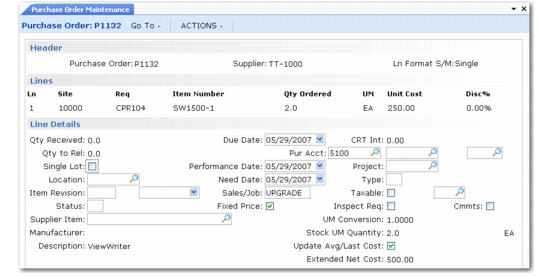
PO Line Items
Enter line items in single or multiple entry format. Single entry lets you customize due dates, sites, tax statuses, and other information for each line item. Multiple entry lets you enter basic information such as item number, quantity, and price for several lines on a single screen. The default format is specified in Purchasing Control (5.24).
Purchase Order Line Items
Site
Enter the site where the item is to be delivered. If requirements change, you can modify individual line items to redirect delivery to another site. You cannot change the site after receipts have been recorded against the line item.
Item Number
Enter the number of the item to be ordered. the item numbers determines whether the item is an inventory item, memo item, or supplier item. If the item number you enter is not in the item master, the system automatically treats the line as a memo purchase. See
Type for details about memo items.
Set up supplier items in Supplier Item Maintenance (1.19).
When you enter a supplier item, the system displays the inventory item number, the default purchasing unit of measure, and quote cost.
Qty Ordered
Enter an order quantity. When you print a purchase order, it reflects the open order quantity. You can change the order quantity as needed. If receipts have already been recorded against the order, the printed order no longer shows the original order quantity.
Unit of Measure
Enter a unit of measure for the item. This value can differ from the standard unit of measure specified in the item master. The system can process receipts in either the standard or alternate unit of measure. When entering alternate UMs, use conversion factors to simplify line item entry and retain accurate planning and reporting. If a conversion factor exists, the system automatically accesses it to update the item unit cost for the alternate UM. If no conversion factor exists, an error message displays. Enter a value in UM Conversion; the default is 1.000.
Example: A company buys steel rods in boxes of 100 but maintains inventory and planning records for each unit. The conversion is set up for EA to BX, and the conversion factor is 100.
Unit Cost
If a price table or discount table is specified in the header, the system checks the line item against that list. If a match in the order currency is found, the default unit cost is calculated using the listed value. If a price list is not specified in the header, the system determines the unit cost of an item to be one of the following:
• Supplier item price, if one exists
• Item master GL cost, if one exists
• Requisition cost
If you specify a minimum and/or maximum price in a price list, the system verifies the calculated (or user-entered) net cost against it. If the net cost is outside the minimum/maximum range, the system displays an error message and replaces the line item net cost with either the maximum or minimum price from the price list, as appropriate. You can also use price lists to define specific discounts or markups at different quantity levels. The purchase order prints the unit cost after discount.
Note: You can apply quantity-based pricing to both discrete purchase orders and scheduled purchase orders.
Disc %
Enter the percentage, if any, by which the unit price is decreased.
Location
Enter the location where the item is to be received. The default location depends on whether Inspection Required is Yes in Item-Site Planning Maintenance (1.4.17) or Item Master Maintenance (1.4.1). When it is Yes, the location defaults in this order:
• The inspection location specified for the site and item in Item-Site Planning Maintenance.
• The inspection location defined for the site in Site Maintenance (1.1.13).
• The inspection location defined in Purchasing Control (5.24).
When Inspection Required is No, location defaults in this order:
• The default item-site location defined in Item-Site Inventory Data Maintenance (1.4.16).
• The default item location defined in Item Master Maintenance.
Note: If you manually change Inspection Required to Yes, you must re-enter the location afterwards.
Item Revision, Item Revision Date
Enter the code representing the revision level of the item. This field is validated against predefined values entered in Generalized Codes Maintenance (36.2.3) for field pod_rev. This field defaults from the Revision field in Item-Site Planning Maintenance (1.4.17). If no revision level exists there, it defaults from the Revision field in Item Master Maintenance (1.4.1).
Optionally, specify the date the line item revision level is effective. The default is blank. If blank, no revision date prints in Purchase Order Print (5.10) or Blanket Order Print (5.3.5).
Note: Do not confuse the item revision with the order revision. Order revision indicates whether changes have been made to the order; it has no default. Item revision indicates changes have been made to the engineering version of the item; the level defaults from either Item-Site Planning Maintenance or Item Master Maintenance.
Status
This code indicates whether an item or order is open (blank), canceled (X), or closed (C). Even if individual items are closed or canceled, the order can remain open.
When a line item is completely received, the system changes its status to closed. Once all line items are closed, the system changes the order status to closed.
Manually close an order or line item by changing the status to C or X. Line items and purchase orders that have been canceled or closed can be reinstated by changing the status code. However, it is not necessary to reopen items or orders to process returns.
When you cancel an order or line item, the system retains a record of unreceived quantities but excludes them from open order reports and MRP.
Note: To have the system automatically cancel an ordered item if the quantity received is less than ordered, set Cancel Back Orders to Yes in Purchasing Control (5.24).
Supplier Item
Some suppliers require their item numbers to be on orders. In such cases, enter the supplier’s item number here.
Note: If a supplier needs more information, use line item comments.
You can set up cross-references between items defined with Item Master Maintenance (1.4.1) and a supplier’s item numbers. This lets you enter either your item number or the supplier’s, and enables both numbers to be printed on orders.
Enter supplier items in Supplier Item Maintenance (1.19). For each supplier item, you can specify the unit of measure, lead time, quote price and quantity, currency, and references for its manufacturer and manufacturer item number.
Supplier items appear on printed purchase requisitions and purchase requisition reports. The buyer can review requirements for an item and compare lead times and prices for various suppliers.
The system uses the supplier number to set the default unit of measure. It also sets the default unit cost to supplier quote cost when a price is not found on a price list and:
• Currency for the order is the same as for the supplier item.
• Order quantity is at least as great as the quote quantity.
• Unit of measure is the same as for the supplier item.
Due Date
Enter the date when items are due to be received at the specified site. Defaults from the header.
Perform Date
Enter the supplier’s promised delivery date, or leave blank to default to the due date.
Need Date
Enter the date items must be available for shipping or issuing to manufacturing. Need date should equal the due date plus any inspection lead time. If the line item references a requisition, the need date defaults from the requisition need date. If no requisition number is entered and need date is left blank, the need date defaults from the line item due date.
Sales/Job Number
Enter an optional code associating the purchase order with a specific sales or job number. If entered on the header, the number displays on each order line, but can be overridden there.
Purchases Account
Specify an expense or asset account used for memo purchases only, although the field also displays when entering inventory and subcontract line items. This must be a valid, active account of type Standard. This account defaults from the Purchases account for the supplier.
When a quantity is received against a memo item, a GL transaction is created to debit Purchases and credit Expensed Item Receipts.
Project
Enter an optional code identifying the default GL project associated with the purchase order. If you specify a value, it defaults to each line item and can be changed as needed.
Type
This field determines the effect on inventory, planning, and cost accounting when the item is received in a purchase order. Type defaults from Memo Order Type in Item-Site Inventory Data Maintenance (1.4.16), if defined for the order line site; otherwise, it defaults from Item Master Maintenance (1.4.1).
Blank: This line item is received into inventory. When the receipt is processed, inventory balances are increased and a GL transaction debits the Inventory account. Inventory items are considered supply by MRP.
Non-blank: This item does not affect inventory and does not create an Inventory GL transaction. For a non-inventory item, type defaults to M (memo). Memo items are expensed or capitalized upon receipt, depending on the Purchases account for the item. Memo items have no effect on MRP.
S: Subcontract. This line item is for a subcontract operation. A work order number, lot ID, and operation are specified on the order and on the receipt. When the receipt is processed, work order operation status is updated and a GL transaction debits the WIP account from the work order.
B: Blanket. This line item is for a blanket order. The system sets the line type to B in Blanket Order Maintenance and you cannot change it. You cannot specify B on any other type of order.
This field is validated against values defined in Generalized Codes Maintenance for field name pod_type.
Although subcontract items are in the item master, they are received to work orders rather than to inventory. As a result, MRP does not consider them a source of supply since these quantities are already included in the work order. You can enter the work order number, the lot ID, and operation for the subcontractor or leave them blank. If left blank, a warning message displays to remind you that a work order ID is required when you receive subcontract items. The system needs the work order ID to obtain shipper information during the receipt. You can still create the purchase order.
The system automatically updates the work order number and operation if:
• A new cumulative ID is created through an Advanced Repetitive transaction.
Taxable
Indicate whether the item is taxable. Items purchased for resale are normally not taxable. The taxable status on the purchase order header displays as the default for each line item, but it can be changed.
Inspection Required
Indicate if the item is to be inspected after receipt. This field defaults from item master data. If Yes, the system searches for an inspection location in this order:
• The inspection location specified for the site and item in Item-Site Planning Maintenance (1.4.17)
• The inspection location defined for the site in Site Maintenance (1.1.13)
• The inspection location defined in Purchasing Control (5.24)
If No, the location defaults to the item location specified in the item inventory data.
Update Average/Last Cost
Indicate whether the purchase order is to be reflected in the current cost of the item. The update will set the cost to the last cost (that is, this purchase) or to a weighted average cost depending on the setting in Inventory Accounting Control (36.9.2).
If you use the Cost Management module and select average cost for GL as well as current costs, the system updates both current and GL costs.
Note: In a distributed purchasing environment, costs are updated in both the inventory and purchasing databases.