Performance Obligation Tab
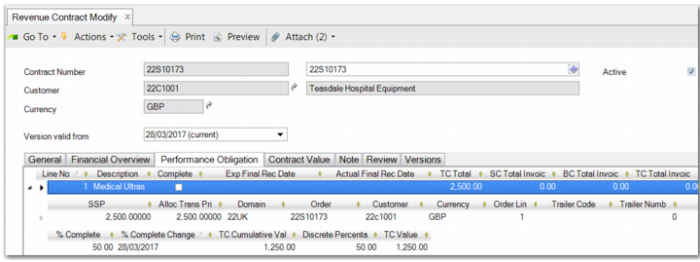
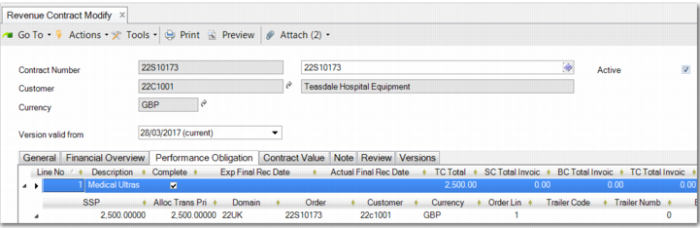
The Performance Obligation tab records all performance obligations on the revenue contract, complete with any linked lines. You can create a performance obligation on the Performance Obligation tab using the context menu. Linked lines allow for sales order lines and trailer charges linked to the performance obligations.
Revenue Contract Modify - Performance Obligation Tab
The columns on a performance obligation line contain important information about the obligation.
Performance Obligation Tab Columns
Column | Description |
Line No | Performance obligation line number. |
Description | Description of the performance obligation. |
On Hold | Indicates whether the performance obligation is on hold. |
Rule Code | Revenue recognition rule used on the performance obligation. |
Rule Type | The type of revenue recognition rule used on the performance obligation. |
Complete | Indicates whether the performance obligation has been completed. |
Exp Final Rec Date | The expected final recognition date for the performance obligation. |
Actual Final Rec Date | The actual final recognition date for the performance obligation. |
TC Total | The total amount of the performance obligation in transaction currency. |
TC SSP Total | The stand-alone selling price total in transaction currency. |
TC/BC/SC Total Invoiced | The total invoiced on the performance obligation in transaction, base, and statutory currency. |
TC/BC/SC Total Deferred | The total deferred on the performance obligation in transaction, base, and statutory currency. |
TC/BC/SC Total Accrued | The total accrued on the performance obligation in transaction, base, and statutory currency. |
TC/BC/SC Total Recognized | The total recognized on the performance obligation in transaction, base, and statutory currency. |
% Complete | The percentage of the performance obligation that has been completed. |
% Complete Change Date | The date at which the percentage complete value was updated. |
% Complete Value | The value of the percentage that is complete. |
Some of the fields on the performance obligation are calculated from the data stored on the performance obligation lines, including:
• The total amount of the performance obligation
• The amount of the performance obligation line invoiced
• The amount of the performance obligation line deferred, accrued, and recognized
History
A history record is created each day that you edit the % Complete field on the performance obligation. If you change this field more than one time in a day, the history record for that day is updated. The revenue calculation uses history records to ensure that the revenue is correctly calculated for the effective date that you run the revenue calculation.
Performance Obligation Form View
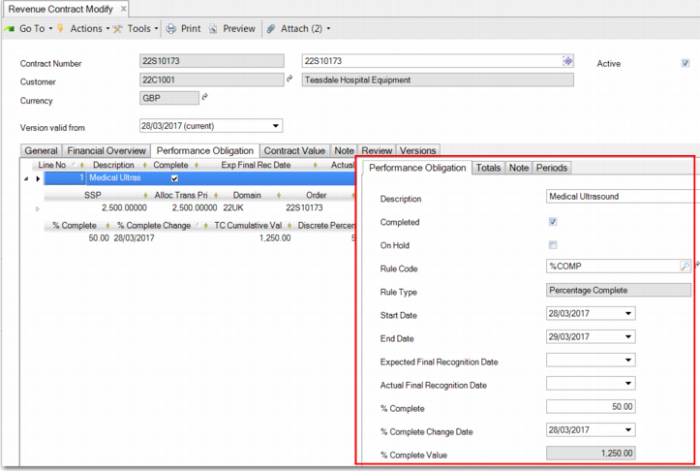
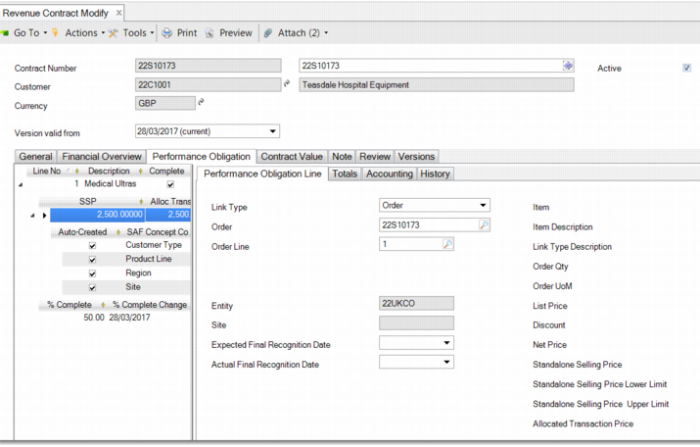
By default, you view all performance obligations defined against the revenue contract in a grid. However, you can also open a form that displays details of a performance obligation in tab format. You display the form view by opening the context menu on any performance obligation and choosing View Detail. The form view is overlaid on the grid view of the Performance Obligation tab, as displayed in
Performance Obligation Tab – Form View.
Performance Obligation Tab – Form View
The form view displays several tabs.
Performance Obligation Tab
The Performance Obligation tab displays the:
• Description
• Completed and On Hold fields
• Rule code and type
• Start and end dates
• Expected and actual final recognition dates
The performance obligation tab displays additional fields, depending on the revenue recognition rule used. For example, if the rule is a percentage complete type rule, additional fields are displayed that enable you to update the complete percentage and the effective date for that percentage.
Note: An API is available for updating the complete percentage and effective date.
Totals Tab
The Totals tab displays the performance obligation total information, including:
• Performance obligation value in transaction currency
• Invoice value in transaction, base, and statutory currency
• Deferred value in transaction, base, and statutory currency
• Accrued value in transaction, base, and statutory currency
• Recognized value in transaction, base, and statutory currency
• Exchange rate information for transaction and base currency
Notes Tab
The Notes tab enables you to enter a note on the selected performance obligation line.
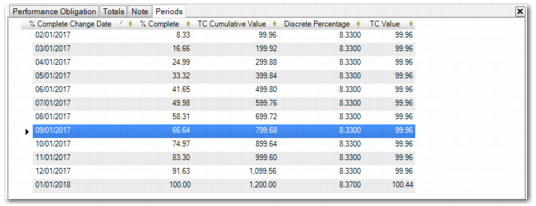
Performance Obligation Tab – Form View Periods
Periodic and Custom Periodic Revenue Recognition Rules
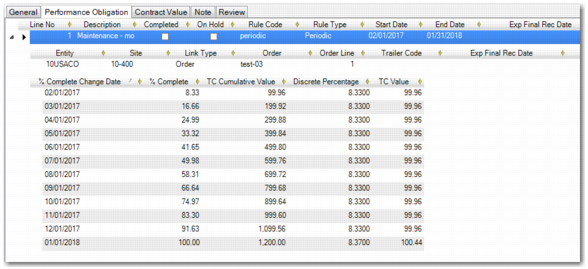
When you create a performance obligation and specify a rule of type Periodic or Custom Periodic, a set of period records is automatically generated when you specify a start and end date. This date range is the time frame over which the revenue of the performance obligation is to be recognized.
Revenue Contract Period Creation
The number of periods generated depends on the period type defined on the revenue recognition rule and the date range you specify. For each generated period, a recognition percentage and recognition value are calculated and stored. These values are derived from the total value of the performance obligation and the number of periods generated.
Example: Ten periods are generated. The performance obligation has a value of $1000. Therefore, each period has a recognition percentage of 10% and a recognition value of $100.
Each period has a recognition date. This date is calculated based on the setting in the Recognition Point field in Revenue Recognition Rule (37.2.1). If the setting is Start of Period, the recognition date is set to be the first day of each period. If the setting is End of Period, the recognition point is set to be the last day of each period. If the rule uses an offset recognition point, the recognition date is set to the first date of the period plus the number of offset days.
There are special exceptions for the first and last periods generated for the performance obligation. For example, the rule uses the start of the period as the recognition point. However, the start date of the performance obligation has been set afterward. In this case, the first period recognition date is set to the start date of the performance obligation.
A similar situation arises when the rule uses the last date of the period as the recognition point and the end date of the performance obligation is before the last day of the last period. In this situation, the recognition date is set to the end date of the performance obligation. This recognition logic is displayed in
Recognition Logic Example.
Recognition Logic Example
Recognition Point | Start of Performance Obligation | End of Performance Obligation | Recognition Date for First Period | Recognition Date for Last Period |
Start | January 15, 2016 | December 15, 2016 | January 15, 2016 | December 1, 2016 |
End | January 15, 2016 | December 15, 2016 | January 31, 2016 | December 15, 2016 |
When the period or custom period rule uses GL periods, the periods created for the performance obligation are defined to fit the GL periods set up in the software.
GL Period Example
Example: A contract is created with a performance obligation to be recognized over a year-long period. The performance obligation has a start date of January 18, 2017, and an end date of January 17, 2018. The Period Type is set to GL Period in Revenue Recognition Rule. The total recognition value is $1000.
During this period, the customer likely receives 12 invoices for the services covered by the performance obligation. However, on the revenue contract, 13 periods are created against the performance obligation, as displayed in
Period Type of GL Period.
Period Type of GL Period
GL Period | Start | End | % Recognized | Recognition Value |
1 | January 18, 2017 | January 31, 2017 | 3.73 | $37.30 |
2 | February 1, 2017 | February 28, 2017 | 8.34 | $83.40 |
3 | March 1, 2017 | March 31, 2017 | 8.34 | $83.40 |
4 | April 1, 2017 | April 30, 2017 | 8.34 | $83.40 |
5 | May 1, 2017 | May 31, 2017 | 8.34 | $83.40 |
6 | June 1, 2017 | June 30, 2017 | 8.34 | $83.40 |
7 | July 1, 2017 | July 31, 2017 | 8.34 | $83.40 |
8 | August 1, 2017 | August 31, 2017 | 8.34 | $83.40 |
9 | September 1, 2017 | September 30, 2017 | 8.34 | $83.40 |
10 | October 1, 2017 | October 31, 2017 | 8.34 | $83.40 |
11 | November 1, 2017 | November 30, 2017 | 8.34 | $83.40 |
12 | December 1, 2017 | December 31, 2017 | 8.34 | $83.40 |
13 | January 1, 2018 | January 17, 2018 | 4.53 | $45.30 |
13 periods are created because revenue contract performance obligation periods are calculated to fit in with the GL periods set up on the system. The contract starts and finishes in the middle of the January periods in 2017 and 2018. Therefore, one of the 12 invoices for the service is split between the 1st and 13th periods on the performance obligation.
The percentage and value of the performance obligation is calculated by working out the percentage of revenue to be recognized daily. This percentage is based on the number of days in the revenue contract period. From this figure, you can calculate the percentage of revenue to be recognized in the first and last periods of the performance obligation.
To simplify accounting, for the remaining periods, the remaining revenue is split evenly across these whole GL periods. However, to split the revenue based on the number of days in each period on the performance obligation, you can change the recognition percentage and value of the difference periods.
Monthly Period Example
If the revenue recognition rule uses a period type other than GL periods, performance obligation periods are calculated differently.
Example: As in the previous example, a contract is created with a performance obligation to be recognized over a year-long period. The performance obligation has a start date of January 18, 2017, and an end date of January 17, 2018. The Period Type is set to Monthly in Revenue Recognition Rule.
This time, only 12 periods are created, as displayed in
Period Type of Monthly.
Period Type of Monthly
GL Period | Start | End |
1 | January 18, 2017 | February 17, 2017 |
2 | February 18, 2017 | March 17, 2017 |
3 | March 18, 2017 | April 17, 2017 |
4 | April 18, 2017 | May 17, 2017 |
5 | May 18, 2017 | June 17, 2017 |
6 | June 18, 2017 | July 17, 2017 |
7 | July 18, 2017 | August 17, 2017 |
8 | August 18, 2017 | September 17, 2017 |
9 | September 18, 2017 | October 17, 2017 |
10 | October 18, 2017 | November 17, 2017 |
11 | November 18, 2017 | December 17, 2017 |
12 | December 18, 2017 | January 17, 2018 |
This time, the performance obligation periods are not tied to the GL periods of the system and are calculated from the start date of the performance obligation. The start date of the performance obligation is January 18, 2017 and the period extends one month into February, meaning the end date of the period is the February 17, 2017.
The value of the performance obligation is split evenly across the performance obligation periods. However, you can choose to change the recognition percentages and values.
The other revenue recognition rule period types—quarterly, bi-annually, and annually—work in a similar way to the monthly period type.
Performance Obligation Lines
You can link sales order lines to a performance obligation regardless of the shipped or invoiced status of the lines. However, you can only link a sales order line to one performance obligation. If you attempt to link a sales order line that has already been added to a performance obligation on an existing revenue contract, you receive an error.
You must delete the sales order line from the performance obligation before you can add it to another contract. Deleting the sales order line triggers reverse postings for it.
Note: You cannot delete a performance obligation line for an item where the contract version date is today and the revenue calculation already ran for today, or where the version is not the current version.
You can also link sales order trailer charges to a single performance obligation. As with sales order lines, you can only link a sales order trailer charge to a single performance obligation. If you attempt to link a sales order trailer charge that has already been added to a performance obligation on an existing revenue contract, you receive an error.
You must delete the trailer line linked to the performance obligation before you can add that line to another revenue contract. Deleting the trailer line triggers reverse postings for it.
Note: You cannot delete a performance obligation line for a trailer where the contract version date is today and the revenue calculation already ran for today, or where the version is not the current version.
A performance obligation consists of a line number, a description, and a revenue recognition rule. The rule defines how and when the revenue contained in the orders attached to the performance obligation can be recognized.
A performance obligation must always have a description. If the Description field is left blank, the software sets the description to the first order line description linked to the performance obligation.
For each performance obligation, you can attach one or more sales order lines. Each order line displays columns with important information, as displayed in
Performance Obligation Order Line Columns.
Performance Obligation Order Line Columns
Column | Description |
Domain | The domain in which the sales order is created. |
Customer | The customer for this sales order. |
Currency | The currency of the sales order. |
Order | The sales order number. |
Order Line | The line of the sales order number. |
Trailer Code/Number | The trailer charge code and number. |
Link Type/Link Type Description | The type of document being linked to the performance obligation and its description. |
TC/SC/BC Invoiced | The invoiced amount of the sales order line in transaction, statutory, and base currency. |
TC/SC/BC Deferred | The deferred amount of the sales order line in transaction, statutory, and base currency. |
TC/SC/BC Recognized | The recognized amount of the sales order line in transaction, statutory, and base currency. |
TC/SC/BC Accrued | The accrued amount of the sales order line in transaction, statutory, and base currency. |
Order Value TC | The order value of the sales order line in transaction currency. |
Net Price | The order price of the item. |
List Price | The list price of the item. |
Discount | The discount that has been applied to the sales order line. |
Site | The site from which the sales order line was shipped. |
Entity | The entity of the sales order line. |
Item Number/Description | The item code and description. |
Order UOM | The unit of measure used on the order. |
Order Qty | The quantity ordered on the order line. |
Sales Account/Description | The GL sales account code and its description. |
Sales Sub-account | The sales sub-account code. |
Sales Cost Center/Project | The sales cost center and project codes. |
SSP Lower/Upper Limit | The SSP upper and lower limits. |
Deferred Revenue Account/Description | The GL deferred account code and its description. |
Deferred Revenue Sub-account/Cost Center/Project | The deferred revenue sub-account, cost center, and project codes. |
Accrued Revenue Account/Description | The GL accrued account code and its description. |
Accrued Revenue Sub-account/Cost Center/Project | The accrued revenue sub-account, cost center, and project codes. |
Exp Final Recognition Date | The expected date by which all the revenue for the line is recognized. |
Actual Final Recognition Date | The actual date on which all the revenue for the line was recognized. |
SSP | The stand-alone selling price for the line. It is used in variable consideration calculations. |
Allocated Trans Price | The allocated transaction price for the line item. It is used in variable consideration calculations. |
SSP Total | The stand-alone selling price total. |
Allocated Trans Price Total | The allocated transaction price total. |
Revenue Contract Performance Obligation Order Line
GL Accounts and Analysis
For each sales order line or trailer charge attached to the performance obligation, three sets of GL accounts and analysis codes are defined:
• Sales revenue
• Deferred revenue
• Accrued revenue
You can only view the GL accounts and analysis codes. The fields are read-only and default based on the sales revenue account and analysis set up on the sales order line or against the definition of the trailer charge. From this sales revenue account, the deferred and accrued revenue GL accounts and analysis are set according to the revenue GL account mappings you have set up. For more details, see
Mapping Revenue GL Accounts.
If a matching GL account mapping record cannot be found, the system uses the deferred and accrued revenue account profiles defined for the customer to set the deferred and accrued revenue accounts and analysis. For more details, see
Assigning Customer Defaults.
Performance Obligation Line Form View
You can also choose to view and maintain the performance obligation linked lines using form view. Display form view by double-clicking a performance obligation line or by using the context menu. The form is displayed over the right-hand portion of the grid, as shown in
Revenue Contract Performance Obligation Order Line Form View.
Revenue Contract Performance Obligation Order Line Form View
The form displays various tabs.
Performance Obligation Line Tab
The Performance Obligation Line tab contains the following information:
• Link type information
• Order
• Order line
• Trailer
• Entity and site information
• Expected and actual final recognition dates
• Item, quantity, and price information
Totals Tab
The Totals tab holds the total information:
• Order value
• Stand-alone selling price (for link type order only)
• Allocated transaction price (for link type order only)
• Invoice value in transaction currency, base currency, and statutory currency
• Deferred value in transaction currency, base currency, and statutory currency
• Accrued value in transaction currency, base currency, and statutory currency
• Recognized value in transaction currency, base currency, and statutory currency
Accounting Tab
The Accounting displays GL account information and the SAF Defaults. Three sets of accounts and analysis are displayed.
• Sales account
• Deferred revenue account
• Accrual revenue account
The sales account and its analysis—division, cost center, and project—are gathered from different places depending on the line type. When the type is a sales order line, the details are gathered from the line itself and from the trailer code details for the trailer charge line.
The SAF defaults section contains the SAF concepts, values, and descriptions used on the performance obligation line, which are reused in the revenue recognition postings and calculation. The SAFs can be either:
• System SAFs, which are retrieved for sales order lines or trailer charges based on the SAF structures linked to the sales GL, cost center, or project. You cannot update or delete system SAFs.
• SAFs that you enter manually. You can update or delete manually entered SAFs.
History Tab
You can view updates to the SSP and allocated transaction prices on the performance obligation lines. The tab displays the SSP and allocated transaction price history and the effective date for each change. For more details, see
History Record.
Acceptance Tab
You can also view and maintain invoice sub-records in form view on the Acceptance tab. It displays the invoices created from the sales order line linked against the performance obligation line. For more details, see
Invoices.
History Record
A history of changes to certain fields is kept for the performance obligation line. These history records are created each time you edit the Standalone Selling Price or Allocated Transaction Price fields.
A history record is kept each day. If you make more than one change to either field on any day, the history record for that day is updated. The revenue calculation uses the history records to ensure that the revenue is correctly calculated for the effective date that you run the revenue calculation.
Invoices
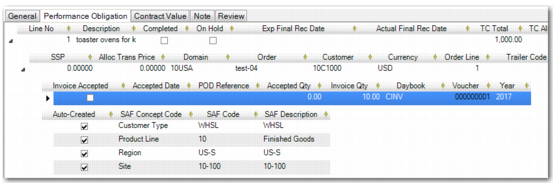
If the performance obligation uses a rule defined as being a customer acceptance rule, you can view more invoice information in the form of sub-records to the linked lines of the performance obligation, as displayed in
Invoice Sub-records.
Invoice Sub-records
Column | Description |
Invoice Accepted | When selected, this column indicates that the invoice has been accepted by the customer. |
Accepted Date | The date when the customer accepted the invoice. |
POD Reference | The proof of delivery reference—a 40-character field to hold tracking numbers from the carrier. |
Year | The year the invoice was created. |
Daybook | The daybook used for the invoice. |
Voucher | The invoice voucher number. |
Revenue Contract Modify – Invoice Accepted Field
If you select the Invoice Accepted field, it indicates that the invoice revenue can be recognized. When you run the revenue calculation process for the contract, recognition postings are created.
If the customer acceptance revenue recognition rule also uses of proof of delivery, you must enter a value in the POD Reference field. This field records the delivery number from the commercial shipment company handling the delivery of the goods to the customer. If you leave the field blank and select the Invoice Selected field, you receive an error stating that the Proof of Delivery field must contain a value. However, the system does not validate any value entered in the Proof of Delivery field.
When the Invoice Accepted field is not selected, the revenue calculation defers the revenue of the invoice to the deferred revenue GL account you defined on the linked line record of the performance obligation.
Net Prices and Deferred and Recognized Amounts
All currency values—invoiced, deferred, accrued, and recognized—are net values. Therefore, these values are net of taxes, both excluded and included.
The net price of a linked line on a performance obligation can change over the lifetime of the revenue contract because an order line assigned to a performance obligation can be delivered in multiple shipments and multiple invoices. The prices charged for the goods can vary over time and tax rates can also change, affecting the calculated net price.
For a partially shipped invoice, the net price is calculated from the sales order line. However, after the sales order has been fully shipped and invoiced, the net price is calculated from the final invoice generated for the sales order line.
GL Accounts
For each order line linked to the performance obligation, there must be:
• A sales account
• A deferred revenue account
• An accrued revenue account
The sales account and analysis defaults to the sales account and analysis defined on the order line.
The deferred revenue and the accrued revenue accounts default as follows:
1 The system checks whether there is a GL account mapping available, based on the sales account and the sales analysis. If a mapping exists, the deferred and accrued revenue account and analysis defined on the mapping are used.
2 When no GL account mapping is available, the default deferred and accrued revenue account profiles are used to find GL accounts. The analysis fields are populated using the default values defined in the GL accounts used.
3 When no default account profiles are set for the customer, the accounts remain blank and you must enter GL accounts and analysis manually.
You cannot save the revenue contract until the deferred revenue account has been set. You can use any standard GL account defined in the system. The only restriction is that the deferred revenue account cannot be set to use the same GL as the sales account.
The accrued revenue account is also mandatory. As with the deferred revenue account, it must be an active standard GL account and it cannot be set to use the same GL account as the sales account. In addition, it cannot be set to the same GL account as the deferred revenue account.
Note: The usual restrictions on the use of analysis codes apply when creating and modifying revenue contracts. Analysis codes must be active and available for use in the current entity. All analysis codes are validated against defined COA masks.
Adding Obligations by Order
You can also create performance obligations by sales order using the context menu. Click the context menu item Add Obligations by Order, which displays a browse that enables you to select sales orders. When you select a sales order, a performance obligation is created for each sales order line. The rule of the performance obligation is set as the default rule on the customer record.
Note: The revenue recognition calculation creates transactions when deferring and recognizing revenue. These transactions are created when the orders and shipments have been invoiced or the system can accrue revenue ahead of invoicing if the performance obligation has been satisfied. You can also use the context menu to view these transactions and invoices.