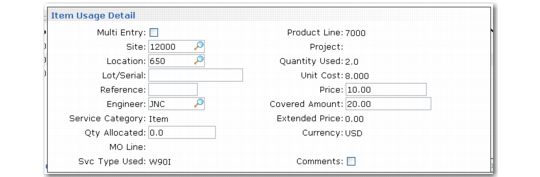
Item Usage Detail Frame
Set Det to Yes in the Item Usage frame to display the Item Usage Detail frame illustrated in
Item Usage Detail Frame.
Item Usage Detail Frame
Multi Entry
Defaults to No unless the quantity used is greater than one and the issued item has Lot/Serial Control set to S in the item master. If Yes, a detail frame appears so you can enter a site, lot/serial, location, and reference for each item you consumed. You are not performing a detail allocation—you are simply recording detail about items.
Site
Enter the site from which you are issuing the item. This field defaults from the call line item site, unless the item was loaded from a material order. In this case, site, location, lot/serial, and reference default from the MO and cannot be changed.
Location
Enter the inventory location at the site from which you are issuing the item.
Note: You cannot update location when an item is loaded from an MO.
Lot/Serial
If the item is lot/serial controlled, enter the lot or serial number. When lot/serial controlled items are loaded from MOs, this field defaults from the MO line and cannot be changed.
If Load Available Structure is Yes in Service Management Control and the item has Installed Base set to Yes in Service Item Maintenance, you must specify a lot/serial number to add the item to the installed base. The lot/serial number is part of the installed base record. If you are exchanging an installed base item, the system replaces the previous lot/serial number with this one.
Reference
Enter the item’s lot reference number. Lot reference, site, location, and lot/serial number specifically identify inventory quantities. For lot reference, you can use the production lot of the item or a location reference such as a skid, roll, or pallet number.
Note: You cannot update reference when an item is loaded from an MO.
Engineer
Specify the engineer who installed the part. The default is the engineer for the call line item. You can change the value—for example, if more than one engineer responded to the call.
Service Category
Output-only field that defaults from the item’s service category in Service Item Maintenance (11.7.3). If none, the system uses the Item Service Category in Call Management Control (11.1.24). The system uses the service category to determine service limits and to search for a default charge code.
Qty Allocated
Specify the quantity of items on this line to allocate. This defaults to zero. Normally, you do not allocate items in Call Activity Recording because you are recording items that you have used. The system issues the inventory immediately in CAR. However, if you are not going to issue the inventory at this time, enter a quantity to allocate. CAR does general allocations only. It does not create detail allocations even if you enter inventory detail.
MO Line
Material order number and line number that corresponds to the call line. MO Line has a value if you have not yet issued the MO item. Otherwise, the field is blank and cannot be updated.
Svc Type Used
Output-only field displaying the service type that determines coverage. The service type the system uses for coverage may not be the same as the one you specified initially. The service type can change when you change the charge code. See
Changing Charge Codes.
Product Line
Output-only field showing the charge product line for item costs.
Project
Output-only field showing the GL project code. See
Project Codes in CAR for details.
Unit Cost
Output-only field showing the cost for one unit of the item. The system derives the cost from the site of the item you are repairing—not the site from which you issued the component.
During inventory processing, the system transfers items to the call line item site and issues them from there. The inventory transfer creates a GL transaction for any variance in costs between the sites.
For the system to find a cost, either:
• The site associated with the item in Item Master Maintenance is the same as the call line-item site, or
• Costs for the issued item at the call line-item site are set up using Item-Site Cost Maintenance.
Otherwise, cost defaults to zero. The cost displays in the Item Cost column in Call Invoice Recording. The system uses the cost to calculate the margin for this service activity.
Price
Defaults from the header’s price list unless this is a fixed price repair. For fixed price repairs, the system displays a zero for all details, which you cannot change. To prevent changes, apply field security to Price.
Price is the price for one unit. If no price exists on the price list, the system uses the item’s list price in the item master. The system calculates Extended Price by subtracting the covered amount from the total price (price * quantity).
Covered Amount
Amount of the total price for which you are not billing the customer. The system determines this amount from the coverage limits for the contract or service type. The covered amount defaults to zero when:
• No coverage exists on the contract or service type.
• The item has exceeded the contract’s service limits.
• The item has exceeded a list price limit.
• The service is for a fixed price. In this case, covered amount cannot be changed.
Covered amount cannot exceed the price times the quantity.
To prevent changes, apply field security to Covered Amount.
Extended Price
The total price minus the covered amount. For fixed price repairs, this field is zero.
Currency
Output-only field displaying the call currency. Defaults from the call header.
Comments
Defaults to Yes if comments exist. Specify Yes to enter or review comments for this item. The system copies comments into Call Invoice Recording. You can print comments on the invoice.