Centralized Management of Validation Data
You can use programs in the Shipper Validation Menu (7.9.11) that provide centralized management of validation rules:
• Export Rules (7.9.11.18)
• Export Profiles (7.9.11.19)
• Import Validation Data (7.9.11.20)
• Shipper Validation Control (7.9.11.24)
A single system administrator can export rule or profile data from a central domain/database to various domains/databases within the network.
Target system database administrators can optionally and selectively import the rule data to their domain/database. This centralized management lets administrators quickly distribute and implement shipper processing validation setup and update data from a single point. They can also synchronize the validation data that a central domain/database uses with all network domain/databases.
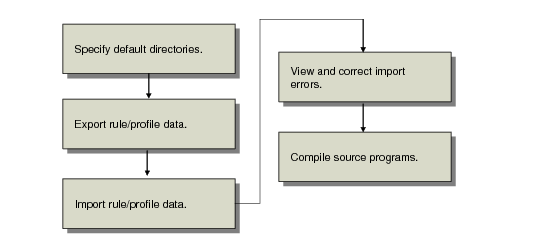
Export and Import Process depicts the basic steps involved when exporting and importing shipper validation data from a central domain/database. Once rule and profile data is imported, you can choose to have the system automatically move or copy successfully imported files from the import directory to the archive directory.
To implement centralized management of rules, ensure that:
• Your system is running Progress OE10.
• You have rules and profiles defined.
Export and Import Process
Specifying Default Directories
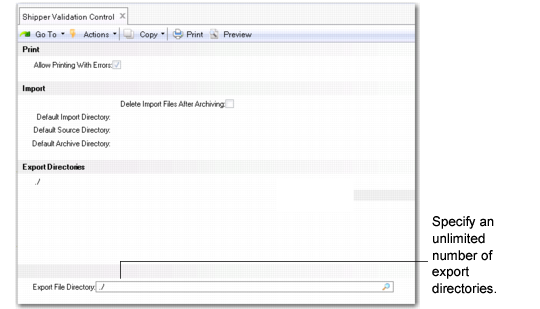
Use Shipper Validation Control (7.9.11.24) to set default directories where the system stores files for exporting, importing, archiving, and to hold custom Progress source programs for compilation.
You can specify an unlimited number of export directories in the Export Directories frame. You can also specify whether the system automatically deletes import files after archiving them.
Shipper Validation Control (7.9.11.24)
Allow Printing with Errors
Indicate whether you can print pre-shippers or shippers that contain shipper validation errors.
No: You cannot print pre-shippers or shippers that contain errors.
Yes (the default): You can print pre-shippers and shippers that contain errors in:
• Pre-Shipper/Shipper Workbench (7.9.2)
• Pre-Shipper/Shipper Print (7.9.4)
• Sales Order Shipper Maintenance (7.9.8)
• Sales Order Shipper Print (7.9.9)
Delete Import Files after Archiving
Indicate whether the system automatically deletes files once you import the files and archive them.
Yes: The system automatically deletes files from the import directory once it copies them to the archive directory.
No: The system does not automatically delete files after archiving them.
Default Import Directory
Specify the directory that holds data for rules and profiles for import. This field defaults to the Import File Directory field in Import Validation Data.
Default Source Code Directory
Specify the directory that holds custom Progress source files associated with field validation definitions. If any exist in the central database, the system exports them along with rule and profile data. When importing, the system stores the custom source programs in the directory you specify here for later compilation. This field defaults to the Source Code Directory field in Import Validation Data.
Default Archive Directory
Specify the directory where the system places files that have been successfully imported. This field defaults to the Archive Directory field in Import Validation Data (7.9.11.20).
Export File Directory
Specify an unlimited number of directories that hold the export file for exporting to target domains/databases. Once you enter a directory, it displays in the Export Directories frame.
When you specify multiple directories, the system outputs the list of directories once you export.
This field defaults to the Export File Directory field in Export Rules (7.9.11.18) and Export Profiles (7.9.11.19).
Exporting Rules
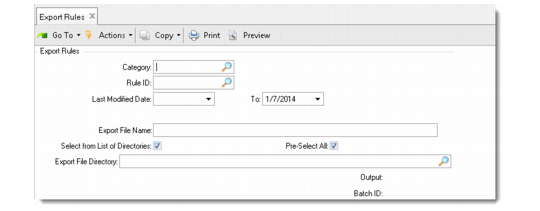
Use Export Rules (7.9.11.18) to export rule records and all associated data needed to re-create the rule in another domain/database.
You can specify a rule category to select all rules and associated data records for that category and an export file name, then run the export. Or, you can specify an individual rule by rule ID and an export file name.
To specify a range of rules, use the Last Modified Date fields.
You can select directories to export from a drop-down list by setting Select from List of Directories to Yes, or you can specify a single directory in Export File Directory. To save time, you can set Pre-Select All to Yes to select all export directories.
The system exports rule data and any custom Progress source code programs to the directories you specify in the Export Directory field.
The system reports Rule ID and other data that are being exported to the output format you specify in the Output field.
Export Rules (7.9.11.18)
Category
Specify a rule category to export that you created in Rule Definition Maintenance (7.9.11.1). The system exports all rules and associated data for that category. If you enter a category, you cannot enter a rule ID in the ID field.
ID
Specify a rule ID to export that you created in Rule Definition Maintenance. If you enter an ID, you cannot enter a rule category in the Category field.
Last Modified Date From/To
Specify a range of dates for which you last modified rules. The system exports all modified rules within the date range.
Export File Name
Specify a file name for the exported rule data. If a file name already exists in the export directory you specify in Export File Directory, the system prompts you to overwrite the file when you export.
Select from List of Directories
Indicate whether the system displays a drop-down list of export directories from which to select one or more export directories.
No: Do not display a list of export directories.
Yes: Display a list of directories to select one or more export directories. The drop-down list defaults from the directories specified in the Export File Directory field in Shipper Validation Control (7.9.11.24). If you set Pre-Select All to Yes, the list displays with an asterisk next to all pre-selected directories. If Yes, you cannot enter an export directory in Export File Directory.
Pre-Select All
Indicate whether all export directories and data are selected for export.
No: Do not pre-select all export directories and data.
Yes: All directories are pre-selected for export. If you set Select from List of Directories to Yes, when the system displays a drop-down list, all pre-selected directories are marked with an asterisk (*).
Export File Directory
Specify a directory to hold the exported rule data. This field defaults from the Default Export Directory field in Shipper Validation Control. If the directory does not exist, the system prompts you to create the directory when you run the export. If Select from List of Directories is Yes, you cannot enter an export file directory.
Along with the rule data you specified in Export Rules, master data, and the Progress source code files associated with field validation definitions, the system also exports the following data that you set up for the rule in Rule Definition Maintenance (7.9.11.1):
• Field validations
• Prompt/validation location
• Allowed values
• Generalized code
• Custom validation program
• Comment
• User field
Exporting Profiles
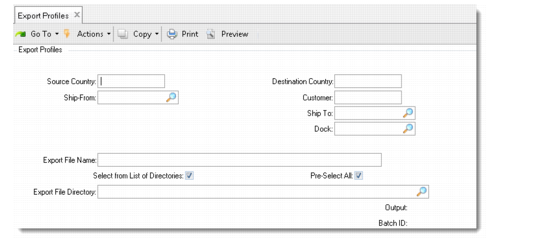
Use Export Profiles (7.9.11.19) to export profiles and their associated Rules records to re-create the profiles and rules in another domain/database.
When you create a profile in Source/Destination Rule Link (7.9.11.5), you set up source and destination address combinations and link existing rules to the combinations. When you export profiles, you specify this same source and destination criteria to export.
You can enter individual selection criteria for the profiles to export, specify a filename, then press Go to export. When you do, the system exports profiles, rules, and associated data for your selection.
Or, you can leave the selection criteria blank and specify an export file name to export all data associated with the profiles.
You can select directories to export from a drop-down list by setting Select from List of Directories to Yes, or you can specify a single directory in Export File Directory. To save time, you can set Pre-Select All to Yes to select all export directories.
The system reports profile and other data that are being exported to the output format you specify in the Output field.
When target database administrators import validation data, the import process uses the selection criteria information to delete profiles from the target database that do not exist in the data being exported from the central database.
Note: To import profiles, set Allow Import to Yes in Source/Destination Rule Link (7.9.11.5).
Export Profiles (7.9.11.19)
The selection criteria fields are the same as those in Source/Destination Rule Link (7.9.11.5). Refer to the section that describes that program for field descriptions. The remaining fields in the program include the following:
Export File Name
Specify a file name for the exported profile data. If a file name already exists in the export directory you specify in Export File Directory, the system prompts you to overwrite the file when you export.
Select from List of Directories
Indicate whether the system displays a drop-down list of directories from which to select the export directory.
No: Do not display a list of directories.
Yes: Display a list of directories from which to select the export directories. The drop-down list defaults from the directories specified in the Export File Directory field in Shipper Validation Control (7.9.11.24). If you set Pre-Select All to Yes, the list displays with an asterisk next to all pre-selected directories.
Pre-Select All
Indicate whether all export directories are selected for export.
No: Do not pre-select all export directories.
Yes: All files are pre-selected for export. If you set Select from List of Directories to Yes, when the system displays a drop-down list, all pre-selected directories are marked with an asterisk (*).
Export File Directory
Specify a directory to hold the export file. This field defaults from the Default Export Directory field in Shipper Validation Control. If the directory does not exist, the system prompts you to create the directory when you run the export.
The system uses the export file data when importing to:
• Determine which profiles in the target database to delete that were removed from the central database
• Add or modify profiles, rules, and user fields
Importing Validation Data
Once rule and profile data is exported, you can selectively import the files.
Note: To import of existing profiles and rules, set the Allow Import field in the first frame of Rule Definition Maintenance (7.9.1) to Yes; see
Rule Definition Maintenance (7.9.11.1), Header. If set to No, the import process does not modify or delete records. To import profile data, set the Allow Import field to Yes in Source/Destination Rule Link; see
Source/Destination Rule Link (7.9.11.5). The default for the Allow Import field is Yes.
Begin the import process by reviewing the export output report. Administrators can optionally output the export information that displays when they export rules and profiles to a file that you can review before you import.
Locate the import, archive, and Progress source code directories in Shipper Validation Control. You have the option to overwrite the directory settings when you import in Import Validation Data (7.9.11.20).
You should also note the name of the import file that is located in the import directory. The import file has an .xml extension and is located in the import directory. If the file is in an import directory set by a central database administrator and you plan to specify a different import directory, move the import file to that directory.
When you are ready to import files, use Import Validation Data (7.9.11.20).
Important: The import overwrites existing rule and profile data. This includes the existing links between profiles and rules. The system also deletes profiles from the target database that do not exist in the data being exported from the central database based on the selection criteria. For example, if the selection criteria are for one auto manufacturer, the system deletes any additional profiles that exist for that manufacturer on the target that are not on the import file.
You can select files to import by setting the Select from List of Files to Yes. The system displays a drop-down list of files that you can scroll through to select files to import. Press Enter to select the file. The system marks the file with an asterisk. If you also set Pre-Select All to Yes, all files in the drop-down list are marked with an asterisk. You can deselect files in the list by pressing Enter.
You can specify that the import overwrite only rules by setting Import Rules Only to Yes in Import Validation. You can also specify the import directory where files are ready to be imported and the import file name.
You can simulate the import by setting Update to No. When you do, the system displays the files to load and any error messages. When you are ready to import, set Update to Yes. The system displays the files that successfully imported, the number that were in error, and other import information in the output form you specify in Output.
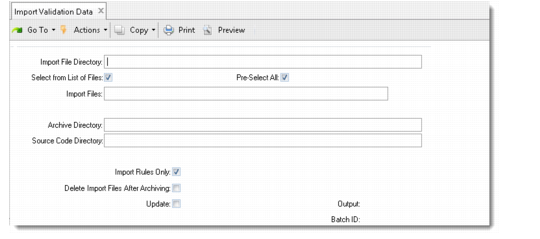
Import Validation Data (7.9.11.20)
Import File Directory
Specify the import directory where the system finds the import files. This field defaults from the Default Import Directory field in Shipper Validation Control (7.9.11.24). If the directory does not exist, the system prompts you to create the directory when you run the import.
Select from List of Files
Indicate whether the system displays a drop-down list of files for you to select files to import.
No: The system does not display a list of files to select files for import.
Yes: The system displays a drop-down list of files for selecting files to import. If you set Pre-Select All to Yes, too, the system pre-selects all files by displaying an asterisk (*) next to the file.
Pre-Select All
Indicate whether all files in the directory entered in the Import File Directory field are pre-selected for import.
No: All files in the specified directory are not pre-selected for import. Files that display in the Import Files field are not checked.
Yes: All files are pre-selected for import. Files that display if you set Select from List of Files to Yes are pre-selected with an asterisk (*).
Import Files
Specify the name of the import file that holds validation data. Import files have an .xml extension. If the file is in a directory other than the directory you specify in the Import File Directory field in Import Validation Data, move the file to the directory you specify.
If you select one or more files, the system processes the import files in the order in which you selected them.
Archive Directory
Specify the archive directory where the system places files that have been successfully imported. This field defaults from the Default Archive Directory field in Shipper Validation Control.
Archived files have a date and timestamp in their suffix in the format: filename.yymmdd-hhmmss.xml
For example, allrules.070801-073010.xml was archived on August 1, 2007, at ten seconds past 7:30.
Source Code Directory
Specify the source code directory where the system places exported Progress source code programs associated with field definitions. Ensure that you compile these programs after importing them.
This field defaults from the Default Source Code Directory field in Shipper Validation Control.
Import Rules Only
Indicate whether to import rules only.
No: The system imports data for profiles, links, and rules.
Yes: The system imports only rule data.
Delete Import Files after Archiving
Indicate whether the system automatically deletes files once you import the files and archive them.
Yes: The system automatically deletes files from the import directory once it copies them to the archive directory.
No: The system does not automatically delete files after archiving them. If you set Copy to Archive Directory to Yes in Import Validation Data, the import files exist in both the Import directory and the archive directory.
Update
Indicate whether the system imports the data you selected.
No: The system does not import data but does display the data to be imported.
Yes: The system imports data, overwriting either rule or profile data or both; creates an import report; it deletes any selected profile records from the target database that are not included in the set of profile records being imported based on the selection criteria.
The system provides fields in Rule Definition Maintenance and Source/Destination Rule Link that indicate:
• When the rule or profile data was last modified and by which user
• When the rule or profile data was last imported and by which user
• The name of file that the system used as the import source
Correcting Import Errors
When you import data using Import Validation Data (7.9.11.20), the system displays a report of the imported data in the program, along with any import errors.
Import errors can occur when the system cannot find records, such as customer/ship-to, dock, or address records that exist in the central database but not in the target database. You can correct these errors by creating the records in the target database.
If the system displays import error messages that indicate a record was not available for import update, ensure the Allow Import field is Yes in Rule Definition Maintenance (7.9.11.1) to import rules and Source/Destination Rule Link (7.9.11.5). After you make these adjustments, run the import again using Import Validation Data.
Compiling Custom Source Programs
In Rule Definition Maintenance (7.9.11.1), you can specify a custom Progress source program as a validation program. When you export rules and profiles, the custom programs associated with field validations are exported, too. Ensure that you compile the programs after you import them. Administrators at the central database specify the source code directory in Shipper Validation Control (7.9.11.24); however, you can specify another directory when you run the import with Import Validation Data (7.9.11.20). During the import, the system copies the custom source code programs to the directory you specify.
Once you compile the custom source code programs, you should put them into the directory where the compiled code is stored.
Note: The compiled programs must reside in the database PROPATH to be seen by the QAD ERP application.
Synchronizing Data
To ensure that validation data is synchronized in target databases with the central database, the system deletes profiles from the target database that do not exist in exported central database profile data. The system deletes profiles based on the profile export selection criteria.
You can review which profiles the system deletes before import by reviewing the export selection criteria for profiles that the system reports when you run an import simulation in Import Validation Data.
You can also review the deleted profile information that displays when you run the actual import.
Central database administrators can also set Display Unreferenced Rules Only to Yes in Rules Report (7.9.11.14) to aid in rule cleanup. Central database administrators should set these fields and run the report before exporting profile and rule data to be imported by target databases.
Displaying Centralized Validation Data
You can view exported rule data when you run Export Rules (7.9.11.18) and exported profile data when you run Export Profiles (7.9.11.19). The system reports imported rules, profiles, and selection criteria when you run Import Validation Data (7.9.11.20).