Assigning Permissions to Roles
Channel Islands UI securable resources are listed in the Permissions tree on Role Permissions. In order to access and view any of these components in the Channel Islands UI, a role must have the Allow check box selected for the corresponding resources in the Permissions Table.
Note: Use role menus to accurately and efficiently set permissions on new roles. See
Role Menu for more information.
Every Channel Islands UI screen corresponds to a view resource that is identified with a resource URI. The view resource is secured based on the business entity associated with the view. The view may require data from other business entities, such as a master screen’s subordinate detail screens, lookups, and services. If a user needs access to a given Channel Islands UI screen, that user’s role needs access to a variety of other resources for the user to have the full functionality of that screen. If the user’s role does not have sufficient permissions for the different resources, the user is presented with an “Error 403: Access Denied, You do not have permission to access the requested page.” For information on identifying dependent resources and missing permissions, see
Role Menu Dependency.
The Channel Islands UI elements are:
Hybrid Browse Screens
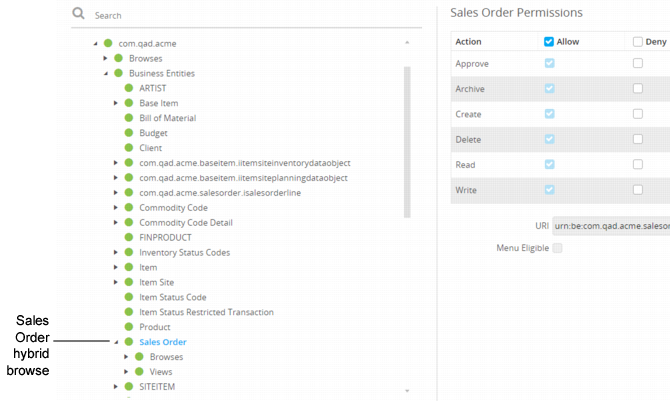
Hybrid browse screens allow you to view both a static data table and the table’s associated, interactive elements, such as a requisition and that requisition’s lines. The secured resources for hybrid browses are located in the Business Entities branch of an app’s secured resources tree, as illustrated in
Hybrid Browse. The associated browse resources, view resources, and Field Groups are collected and can be secured from here. Permissions for hybrid browse screens must be set and managed from the business entity level in order to provide, at a minimum, read access to the screen.
Hybrid Browse
Note: This level of permissions is only for the master hybrid browse screen entity. Associated lookup tables that have not been linked to the business entity in the secureresource.xml file and business entities for related single row edit grids must be configured separately.
Single Row Edit Grids
Once permissions have been set for hybrid browse screens at the business entity level, some of the screen elements may require additional permissions configuration to ensure complete access to all screen elements on the hybrid browse screen. This includes single row edit grid business entities.
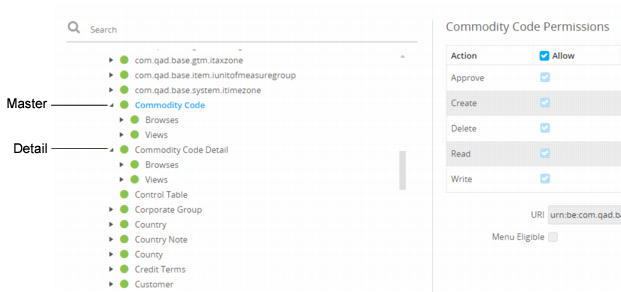
Single row edit grids have their own hybrid browse screens accessible in the grid details window, which means they have their own Business Entity resources that require permission configuration. These resources must be identified and configured in addition to the master entity.
In
Single Row Edit Grid, the ICommodityCodeDetail business entity is the entity for the Commodity Code Items Grid on the ACME Commodity Code Screen. Permissions must be set for the Master entity and the Details entity to provide complete access to the screen.
Single Row Edit Grid
Browses
Browses are the QAD .NET UI, Progress-based “.p” browse programs that serve as power browses or lookup browses. A browse displays data in a read-only table. You cannot edit or delete the existing data, nor add additional records to the browse. You can filter the view.
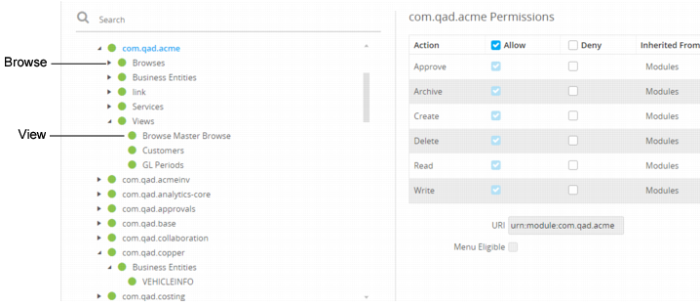
Before a user can open a browse and view its data, you must assign the correct read permissions to both the associated Browse and View resources. Permission to the Browse resource gives the user access to the data that loads into the screen, and permission to the View resource makes the screen available in the Channel Islands UI menus.
To configure access, you must find the associated browse resource in the Browses branch of the Permissions tree and the associated view resource in the Views branch of the Permission tree.
Browse Screen
Lookups and Dashboard Panels
Data linked to lookup tables and dashboard panels are also secured resources. In some cases, these resources are used in multiple places across the Channel Islands UI, such as with a Business Entity and a lookup table on a different screen. When configuring permissions for these resources, access may already have been granted from another place. However, if a lookup table is not associated with a Business Entity, you must set its permissions to read access or users receive an access denied message when they attempt to open the lookup table from the screen. When a dashboard panel does not have read access, the system displays “NO_DATA_RETURNED” in the panels.
Note: This message does not always indicate that access is not configured for dashboard panels. The message also displays if there is actually no data in the back end.
Note: Lookup tables and dashboard panels only require permissions configuration in the associated Browses section of the Secured Resources tab. These screen elements do not have associated view resources.
Fields and Field Groups
Individual fields and groups of fields are resources that can be secured. Fields and field groups only have read and write permissions. If you determine that more fields in your system need to be secured, contact QAD Services.
Note: Because Roles and Permissions are set at the system level, field security also must be set at the system level to avoid fields being inaccessible to users in different apps.
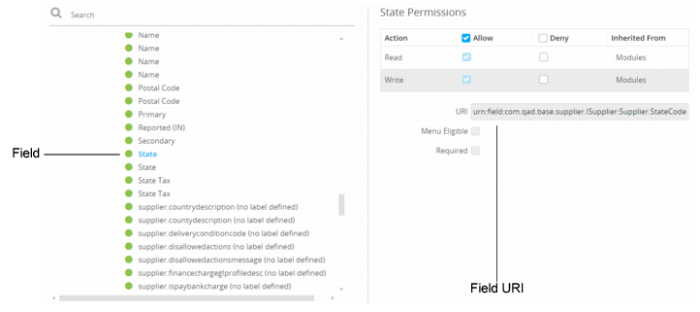
The format of a field URI is: urn:field:com.qad.module.IBusinessEntity:TableName.FieldName. This string consists of the following sections:
urn:field:
• Prefix that identifies this URI as a field.
com.qad.module.IBusinessEntity
• Name of the business entity that owns the field.
TableName
• Name of the table to which this field belongs.
FieldName
• Name of the field.
Fields
Fields can be secured from the Role Permissions screen and can be identified by their URI, which includes the word
field, as shown in
Field.
Field
Field Groups
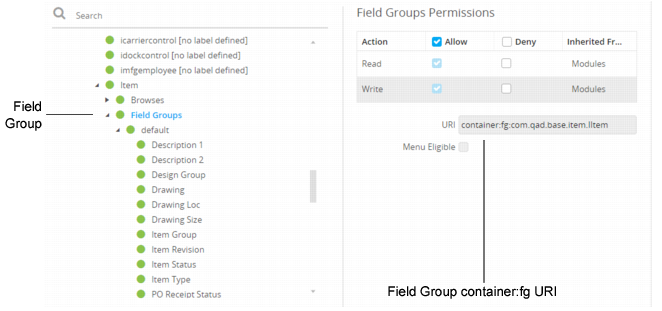
A field group applies permission inheritance to each field within the group. Field groups can be secured from the Role Permissions screen and can be identified by their URI, which includes the words
container:fg, as shown in
Field Groups.
Field Groups
Manually Adding Resources
To add additional secured resources to the Channel Islands UI, contact QAD Services or Support.