General Receipt Information
This section covers the following topics:
• Discusses how transactions are confirmed by either two-phase or single-phase method
• Provides an example of a PO receipt
• Discusses unplanned receipts and provides an example of an unplanned receipt
• Discusses distribution order receipts
Two-Phase or Single-Phase
With all transactions, you can choose how the transaction is confirmed:
• Automatically, when you create the transaction. This is called single-phase.
• Manually, after you create the transaction and after you have had time to check the inventory movement. This is called two-phase.
You can define whether a transaction is single-phase or two-phase as follows:
• Warehouse Maintenance (4.1.1). This sets the default for transactions for the warehouse.See
here.
• Internal Routing Maintenance (4.2.5). The Two-Phase field enables you to specify whether transactions moved under a particular internal routing should be single-phase or two-phase. See
here.
You can check that the inventory has been moved to the location using the Inventory Detail Inquiry (4.9.13).
Example: Purchase Order Receipts
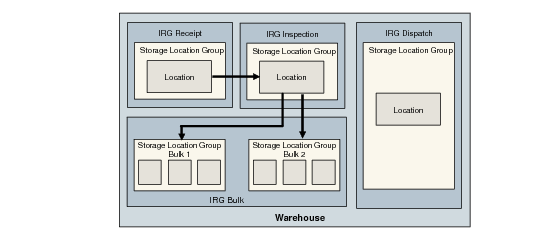
Suppose that you want to make a purchase order receipt of 1000 EA of component A. Because of known problems with a particular supplier, you want to ensure that any receipts of component A always go through the inspection area before they are put away. In addition, you want to allow the receipt to be stored in two storage location groups, Bulk1 and Bulk2.
Sample Purchase Order Receipt illustrates this scenario.
Sample Purchase Order Receipt
The setup would be exactly the same for this transaction as for an unplanned receipt, except that the internal routing would contain an extra step:
• Internal routing RCT-PO:
• Sequence 10: Receipt
• Sequence 20: Inspect
• Sequence 30: Bulk
Also, you would need to:
• Define a storage location group list using Storage Location Group Maintenance (4.3.5).
• Link the storage location group to the item using Item-Warehouse Maintenance (4.4.11).
You would then:
1 Create a purchase order using Purchase Order Maintenance (5.7) for 1000 of component A.
2 Create a receipt of the purchase order using Purchase Order Receipts (5.13.1).
The system then uses the storage location group list associated with the item to look for a location for the put-away. The put-away would occur as follows:
1 Look at the first SLG on the list. If the entire receipt can be put in Bulk1, do the put-away and end the transaction.
2 If Bulk1 has no suitable locations, look in Bulk2. If the entire receipt can be put in Bulk2, do the put-away and end the transaction.
3 If the entire receipt cannot go into one location in Bulk1 or Bulk2 but you have space across several locations, divide the receipt between the locations.
4 If no locations are available, a message displays and lets you select another location.
Unplanned Receipt
Set Allow Blind Receipt in External Device Setup (4.23.22) to specify an unplanned, or blind, receipt. Unplanned receipts let you receive inventory without an order. The system uses the Address field to determine the type of receipt. The value of the field determines whether the receipt is for a purchase, distribution, or sales order. When the address field is blank and you set Allow Blind Receipt to Yes, staff can perform the unplanned receipt.
In the RF Receipt function (1.8), the address field identifies a supplier, a customer, a site, and so on. When more than one address type exists with the same ID, the system prompts staff to confirm the type of receipt. If you leave the Address field blank, you can perform an unplanned receipt.
Example: Suppose you want to make an unplanned receipt of 200 EA of component A.
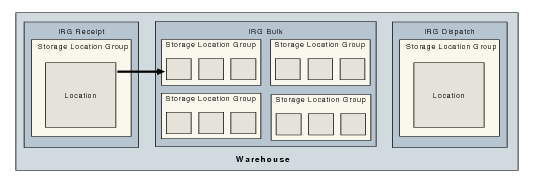
Sample Receipt shows the simplest route for this receipt—that is, from the Receipt area straight into Bulk.
Sample Receipt
You would need to define the following:
1 Define the item component A using Item Master Maintenance (1.4.1). Provide a default location for the component—location, warehouse, or warehouse master list.
2 Link component A to a storage location group in IRG Bulk. Alternatively, link component A to a storage location group list. An SLG list is a list of SLGs that can be considered for storing items. You define an SLG using Storage Location Group Maintenance and then link an item to an SLG or SLG list using Item-Warehouse Maintenance. See
Defining Location Groups.
3 Define an internal routing for transaction type RCT-UNP using
Internal Routing Maintenance (4.2.5) to move the inventory from receipt to bulk. The internal routing would consist of two steps; for example:
• Step 10: Receipt
• Step 20: Bulk
4 Assign the internal routing RCT-UNP to the transaction type RCT‑UNP using
Internal Routing Assignment Maintenance (4.2.9). At this point you could also specify an item, which would mean that all unplanned receipts of this item would in future follow the same internal routing. If you leave the Item field blank, this internal routing would be used for all items arriving as unplanned receipts. See
Internal Routing Assignment Maintenance.
You would then receive 200 EA for component A using Receipts–Unplanned (3.9). Because of the information that you have entered linking the item and locations with an internal routing, the transaction is processed automatically and the inventory can be moved to one of the indicated storage locations.
Distribution Order Receipts
Receipt processing for distribution orders is through the same RF receipt menu option as for any other order receipt. When a new intersite request is created, the default receipt location is the location associated with the item at the receiving site in Item Master Maintenance (1.4.1). The system verifies if the default value is a master list, warehouse, or a location that belongs to the receiving site. If this is not true, the system uses the value specified for Site Location in Warehouse Item-Site Maintenance (4.4.9). This lets you set up warehouse-specific default receipt locations for distribution orders at each site.
When you receive orders with Distribution Order Receipt (12.15.20), the system automatically creates references for items set up as being received in a different unit of measure. This only occurs when the inventory in transit from the supplying site does not contain reference numbers.