Using Additional Functions in the Wave Order Display
You can use additional functions when orders display in Wave Selection:
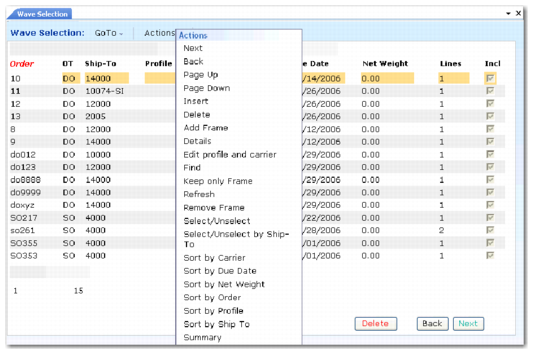
• Remove orders from the wave using either the Keep Only or Remove Frame function.
• Add orders to the wave using wave selection criteria.
• Sort the frame by carrier, due date, ship-to, net weight, order or profile. You can find a line, once you sort.
• Select/deselect all orders of a given ship-to in real time after you sort by ship-to.
• See order details and select/deselect order lines one at a time.
• Edit the Profile or Carrier.
• Display a summary. The summary displays the number of orders and order lines based on the last sort criteria used. For example, first sort by carrier by pressing C; then press M.
• Refresh the frame. When you refresh a frame, the system deletes all orders or order lines having Include set to No.
• Undo the last action. The system will undo only the latest action.
• Display the workload and once displayed, calculate the workload.
• Display a summary of all loads included in a wave selection, add loads to a selection, or deselect closed load orders from a wave.
Additional Functions Menu shows some of the additional functions you can access to manipulate order data in a wave.
Additional Functions Menu
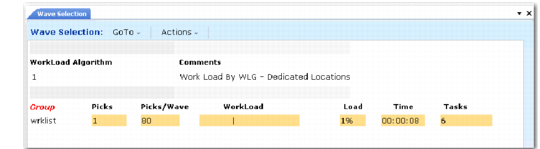
Workload Calculations shows the frame that displays when you display by workload.
Workload Calculations
The workload calculation uses the algorithm you specify in the Workload Algorithm field in Wave Planning Control. You specify whether to use the workload algorithm as the default in Use Default WL Algo.
The system calculates the workload for all WLGs belonging to the workload group that you define in Workload Group Maintenance (4.15.1.9). When you select W to show the workload, the system displays a frame that shows the capacity and workload for all workload groups. You can then select a particular workload group to see individual WLG capacity.
Use the following additional functions in the workload order display:
• Press P to see the details by order. The system displays the number of picks by order and by WLG.
• Press Q to display the ordered quantity by order and by WLG. The system displays the quantities. Quantity information is useful when managing workloads and replenishment, regardless of the UM your warehouse uses.