Auditing Process Work Flow
Use the programs in the Audit Trail Setup Menu (36.12.13) to set up and configure auditing functions.
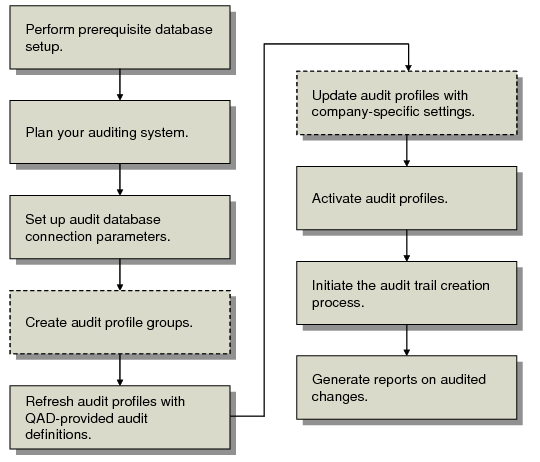
Audit Trail Setup Flow illustrates the auditing process work flow. Use it to set up auditing functions in your environment.
Audit Trail Setup Flow
Before the auditing process can begin, the prerequisite implementation and planning steps must be completed. Implementation steps include specifying the unique OID generator code for the database, adding triggers to the Progress database, creating the audit schema holder in Oracle environments, setting up audit databases, and ensuring that a system administrator group has been defined to monitor auditing notifications.
Planning steps include developing a detailed auditing plan containing a list of the tables to be audited and a detailed data management strategy.
Within the system, the first activity in setting up auditing functions is to create the records that specify the audit database connection parameters and the effective dates using Audit DB Maintenance (36.12.13.11). You also indicate if each audit database is online or offline. For each connection record, you specify a parameter file or the parameters to use for connecting to the audit database.
Note: Electronic signature functionality uses audit databases for archiving signature records when you use E-Signature Archive/Delete (36.12.14.22). You can use the same databases where audit trail information is stored or set up separate audit databases just for archiving signature records. See
Electronic Signatures and Audit Databases.
To avoid repetitive data entry for individual table profiles, create audit groups consisting of sets of related tables to audit in Audit Group Maintenance (36.12.13.1), then refresh the table profiles in Audit Workbench Refresh (36.12.13.4) for each group. Table profiles do not exist until they are manually updated with the QAD-provided information using Audit Workbench Refresh.
An audit group is simply a group of tables. Creating an audit group removes the requirement that each table profile must be refreshed individually. When an audit group is refreshed, profiles for all member tables are automatically refreshed. This saves time and can be used to organize table profiles into functionally similar groups.
After refreshing the table profiles, you can manually update profiles in Audit Workbench Profile Maintenance (36.12.13.5) to turn auditing functions on or off and to specify additional delete event keys. Alternatively, the default QAD-provided delete event keys are used if the profile is not updated.
To begin auditing, activate the profiles with Audit Profile Activation (36.12.13.8). Activated profiles are staged for auditing to begin on a future date; auditing does not occur immediately after a profile is activated. On the specified begin date, the system begins generating auditing information for each table profile.
Start the process that commits audit data to the audit database in Audit Trail Creation Process (36.12.13.23). Generated audit information is temporarily staged in a database table where it is retrieved by the audit trail creation process and committed to the audit database. This approach minimizes the impact of generating audit data on system performance.
Use Audit Trail Report – Existing (36.12.1) and Audit Trail Report – Deleted (36.12.2) to report audit information. You can run reports on the audit data only after it has been committed to an audit database and only if the audit database is still online.