PM Route Workflow Procedure Using PM Templates
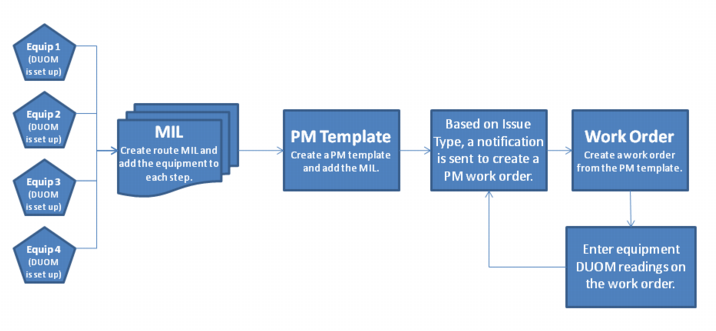
The following procedure shows how to enter DUOM readings for multiple pieces of equipment using work orders with a route MIL issued from a PM template.
PM Route Workflow Procedure Using PM Templates
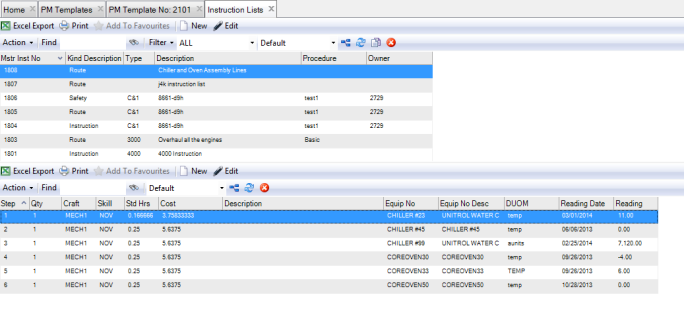
1 Create a route MIL and add steps to the MIL. On each step, attach a piece of equipment. See
Creating an MIL.
Create a Route MIL
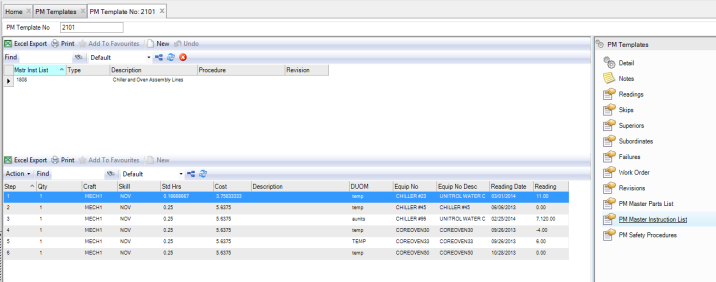
Attach the MIL to the PM Template
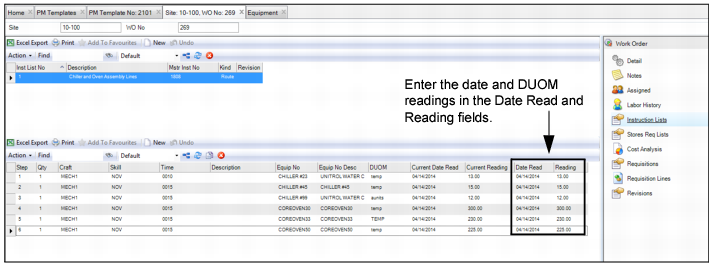
5 To enter the readings, open the work order and select the Instruction List submenu. Enter the date and the readings for each piece of equipment.
Entering Equipment Readings
6 When the next PM is due, as determined by the PM template’s Issue Type, create another work order from the PM template and enter the equipment readings for each machine.