Editing a Requisition
To edit a requisition header, open the requisition header and make the necessary changes. For information about the fields in the requisition header, see
Filling Out the Requisition Header.
Editing a Requisition After Authorization
Important: If you change item cost or quantity on a requisition after it has been authorized, the requisition must be reauthorized. You can select additional fields that, when modified after authorization, require reauthorization of the requisition. See
Req Reroute/Notify Fields.
Change Requisition Status
The Change Status option in the Requisition Action menu allows you to change the status of a requisition to closed (C) or canceled (X). Changing the status of a requisition header changes the status of any requisition lines as well.
Follow these steps to change the requisition status:
1 Select the requisition. Then, select Change Status from the Action menu.
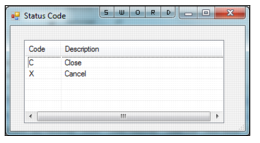
2 The Status Code lookup appears. Double-click to select the new status:
• (C) Close. When you close a requisition, any lines and POs associated with the requisition are also closed.
• (X) Cancel. When you cancel a requisition, any planned orders are also canceled.
Change Requisition Status
Reopening a Canceled Requisition
Any user can reopen a canceled requisition. When the requisition is reopened, the user or mail group specified on the Requisitions Detail tab receives an e-mail.
Note: The reopen option only applies if Reopen PO/Reqs? has been enabled in General|Business Units|Domain on the PO/Reqs tab. Users with the required settings in Roles can reopen requisitions when they have been closed. See
Domain: PO/Reqs Tab.
To reopen a canceled requisition, select the requisition and then select Reopen Canceled Requisition from the Requisition Action menu.
Revisions are updated and track changes when a requisition is reopened, if the setting has been enabled. See
Enable Revision Control.
Modifying Currency on a Requisition
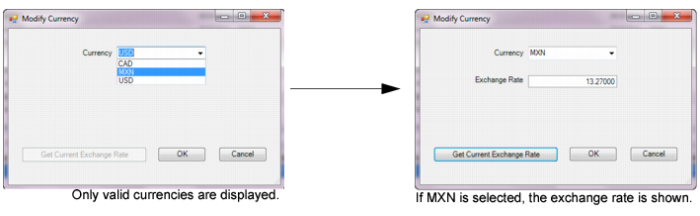
To modify the currency of a requisition, select Modify Currency from the Requisition Action menu.
The Modify Currency option in the Requisition Action menu allows you to select a different currency code for the requisition. If there are receipts against the requisition, you cannot modify the currency. The requisition line items are changed to the new currency and the base currency amount is calculated based on the current exchange rate. Only one currency is allowed per requisition. You can only select currencies valid for this vendor. See
Multicurrency Purchasing.
Requisition: Modify Currency
Viewing History for a Requisition Line
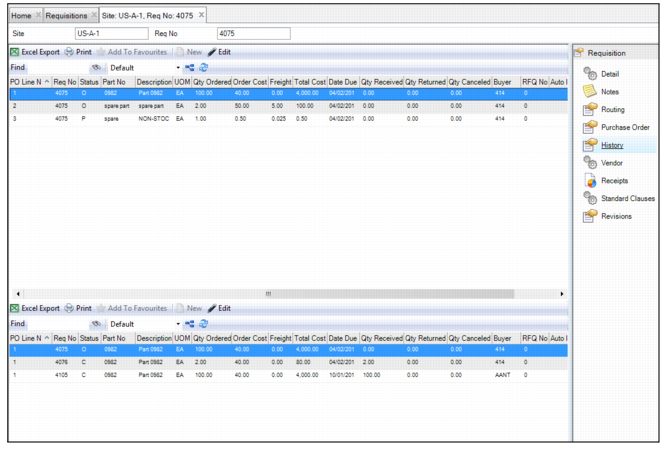
To view the history of a requisition line, open the requisition and select the History submenu.
The upper browse displays the requisition lines. The lower browse shows the transactional history for the selected line across all POs.
Requisition Line History
View the Requisition Vendors
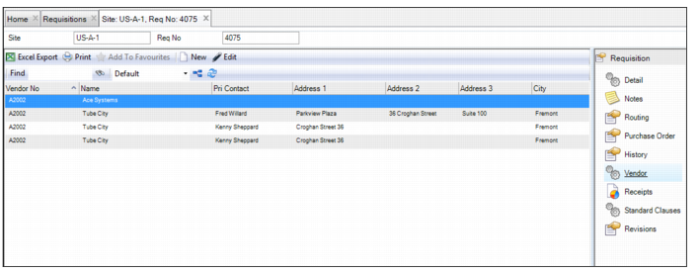
To view the vendors associated with a requisition, open the requisition and select the Vendor submenu. If you need more information, double-click and drill into the vendor record.
Requisition Vendor Submenu
View Received Requisition Lines
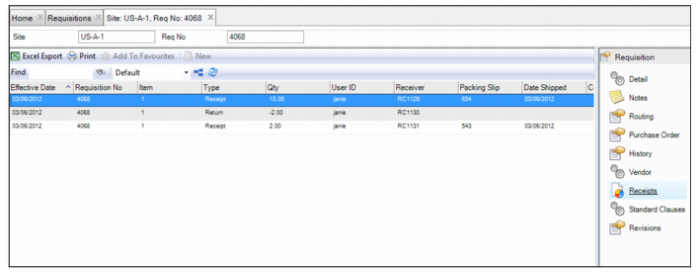
To view the requisition lines that have been received, open the requisition and select the Receipts submenu. This submenu displays the receipt and return history for all the lines associated with the requisition.
Requisition Receipts Submenu
View a Requisition’s Revision History
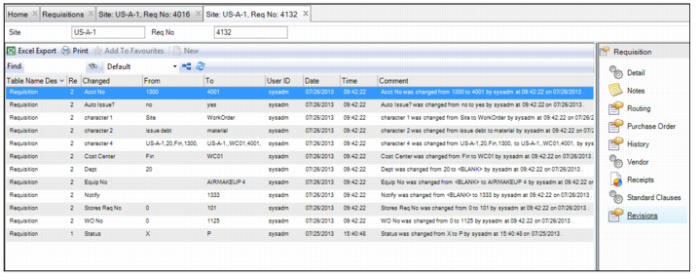
Because many quality systems call for strict record keeping regarding the revisions made to requisitions, the Revisions submenu provides an audit trail of all modifications that are made to this record. The revision records, which are stored in the Revisions submenu and in the Revisions module at General|Revisions, are automatically created when a modification is made to the requisition.
To view the revision history for a requisition, open the requisition and select the Revisions submenu.
Requisition Revisions Submenu