Setting Up Schedule Data
This section covers setting up data used in other customer schedule functions:
• Customer calendars
• Customer order periods
• Customer dock addresses
• Shipping labels
Customer Calendars
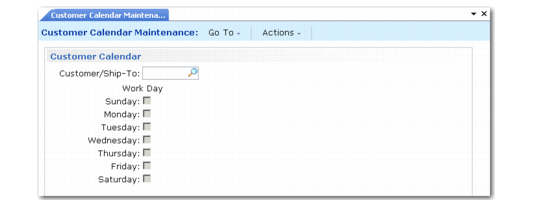
When customers do not work the same days that you do, you should set up customer calendars in Customer Calendar Maintenance (7.3.1). You can create:
• A customer calendar for a standard work week and for nonworking days, such as holidays
• A default customer calendar that applies to all customers/ship-to addresses
• A customer-specific calendar
Customer Calendar Maintenance (7.3.1)
Default Calendar
To create a default customer calendar, leave the Customer/Ship-To field blank in Customer Calendar Maintenance, then specify calendar days for a default customer work week. Specify default customer exceptions in the Customer Non-Work Days frame.
Note: You can still deliver to the customer when your shop floor is closed but the customer is open. To do this, set RSS Calendar Option to 2 in Supplier Scheduled Order Maintenance (5.5.1.13). See
RSS Calendar Option.
Customer-Specific Calendar
You can also create a customer-specific or ship-to-specific calendar. You can use a calendar defined for a customer or ship-to to adjust shipment dates backward during RSS update, when the arrival date falls on a nonoperating day for that customer or ship-to. To do this, enter the code that identifies the customer or ship-to address in the Customer/Ship-To field in Customer Calendar Maintenance. Then specify Yes or No for each day of the week that is a work day for the customer. Finally, enter exceptions and holidays that override the normal work days in the Customers Non-Work Days frame.
Specifying a Customer Calendar for Required Ship Schedules
The system can use a customer calendar when it creates the required ship schedule (RSS) so that releases do not occur on nonworking days. To do this, set up customer calendars before running Required Ship Schedule Update (7.5.5) or Selective Req Ship Sched Update (7.5.6). Use the RSS Calendar Option field to specify the calendar option you want the system to use in the following programs:
• Customer Schedules Control (7.3.24) and
Container/Shipper Control (7.9.24)
• Customer Data Maintenance (2.1.1)
• Customer Scheduled Order Maintenance (7.3.13)
You can modify the field at any time. RSS Calendar Option in Customer Schedules Control and Container/Shipper Control sets the field in Customer Data Maintenance. RSS Calendar Option in Customer Data Maintenance sets the field in Customer Scheduled Order Maintenance.
When you modify RSS Calendar Option in Customer Scheduled Order Maintenance (7.3.13), the system stores a value indicating the schedule has changed. When you run Required Ship Schedule Update (7.5.5) or Selective Required Ship Schedule Update (7.5.6), the system recalculates the customer’s receipt quantities and dates for all schedules that have changed and uses the calendar option you specify in Customer Scheduled Order Maintenance to calculate dates.
If you specify 1 in the RSS Calendar Option field, the system searches for calendars in this order:
1 Ship-to-specific calendar
2 Customer-specific calendar (if the ship-to is different from the customer ID)
3 Default customer calendar
4 Site-specific shop calendar
5 Default shop calendar
If you specify Option 2, the system uses numbers 1 through 3 to search for customer calendars. The system makes no calendar adjustments if it cannot find a customer calendar of any type.
When you specify Option 3, you indicate that the system should not adjust the initial and final RSS dates by shop or customer calendars.
Note: If you set netting logic to 5, the system uses a calendar to determine the days over which to spread the excess planning quantity, regardless of how you set RSS Calendar Option. See
Netting Logic.
Customer Order Periods
Use Customer Order Period Maintenance (7.3.3) to set up customer order periods. You can then match your shipment planning calendar to customer order periods. For example, some trading partners develop and require you to use period numbers that correspond to specific dates.
Customer order periods are used in detail screens such as Customer Plan Schedule Maintenance (7.5.1).
Dock Addresses
Your customers may have multiple docks at a ship-to location and may specify which dock to use for a particular shipment. Assign a dock address to a ship-to customer with Dock Maintenance (7.3.6).
You must first use Business Relation Modify (36.1.4.3.2) to specify addresses with the dock address type. Only the dock addresses defined for the business relation associated with the address specified for Customer/Ship-To can be selected.
You can assign the dock address in Customer Scheduled Order Maintenance (7.3.13) as the default ship-to for the order. The dock should also be entered in Sales Order Shipper Maintenance (7.9.8) during shipment processing. Tax calculations use the ship-to site address.
Shipping Labels
Shipping labels are barcode labels that you can define and print for single-item-number containers, mixed-content containers, and master containers (such as pallets) of single-item-number subcontainers. The labels enable shipments to be received with barcode readers. Labels can replace printed shipper documents used as packing lists in some supplier-customer relationships.
To implement shipping labels, you must create a shipping label template file for each type of label required for each customer. The three label types are master, mixed, and single. These templates control the data format, the bar size, printed boundary lines, and other printed information. Templates are specific to your operation, to barcode reading equipment used by your customers, and to your industry.
You can select from a wide array of barcode label design software in creating templates. Each third-party package may have different requirements for creating a template.
In addition to creating template files, you must have a barcode-capable printer. You may need to add printer-control codes in the Bar Code Control frame in Printer Setup Maintenance (36.13.2), depending on the third-party software selected. The printer codes are usually described in the printer hardware manufacturer’s documentation. Escape codes for many of the standard printer types should be provided in the documentation of the third-party barcode template design software that you choose.
Enter template values in Shipping Label Definition Maintenance (7.3.11). Each of these template values corresponds to an order field value. At print time, they are converted to barcode symbols.
Template Values lists template values and the field data that replaces them.
See User Guide: QAD System Administration for details.
Template Values
Template Value | Data Field | Entry Program |
000001 | Container ID | Container Workbench |
000002 | Shipper ID | Sales Order Shipper Maintenance |
000003 | Customer Item | Customer Item Maintenance |
000004 | Item Number | Item Master Maintenance |
000005 | Description | Item Master Maintenance |
000006 | Quantity | Container Workbench, SO Shipper Maintenance |
000007 | Purchase Order | Customer Scheduled Order Maintenance |
000008 | Supplier | Supplier Scheduled Order Maintenance |
000009 | Ship-From Name | Company Address Maintenance |
000010 | Net Weight | Item Master Maintenance |
000011 | Gross Weight | Item Master Maintenance |
000012 | Number of Sub-containers | Container Workbench |
000013 | UM | Item Master Maintenance |
000014 | Special 1 barcoded data value | Container Workbench |
000015 | Special 2 barcoded data value | Container Workbench |
000016 | Special 3 barcoded data value | Container Workbench |
000017 | Special 4 barcoded data value | Container Workbench |
000018 | Special 1 text data value | Container Workbench |
000019 | Special 2 text data value | Container Workbench |
000020 | Special 3 text data value | Container Workbench |
000021 | Special 4 text data value | Container Workbench |
When the system sends labels to the printer, it checks the entire shipment structure. Label-related information from container and shipper maintenance must be complete and accurate. A label referencing the shipper ID is printed for each container in the shipment. The system prints:
• Master-load labels when multiple single-item-number containers are shipped in another container
• Mixed-load labels when multiple item numbers are shipped in a container
• Single-load labels when a single item number is packed in a container
When you define templates, you specify where template files are located in your file system. You also indicate the label type: mixed, master, or single.
Some customers may use their own identification number for you. If so, you must create a cross-reference between the customer’s ID number for you and the system internal site so that the customer’s ID number prints on the shipping label. Use Site Ship-from ID Maintenance (7.3.10) to create these cross-references. The shipping label supplier ID is printed on the shipping label by the Shipping Label Print function (7.7.7).