Creating Scheduled Orders
Create a supplier scheduled order in Supplier Scheduled Order Maintenance (5.5.1.13). You must define several parameters that the system uses to calculate receipt, planning, and shipping schedules for individual items that have been entered on separate purchase order lines. This order provides the framework for a contract, but has no delivery dates.
After you enter an order ID and supplier code, additional detail frames display. The first contains shipping and credit information for the whole order. The next contains line-item information such as item numbers, ship-to data, line-item details, schedule details, and optional comments.
Note: You cannot edit a scheduled order in Purchase Order Maintenance (5.7), if you try, the system displays an error message.
Header
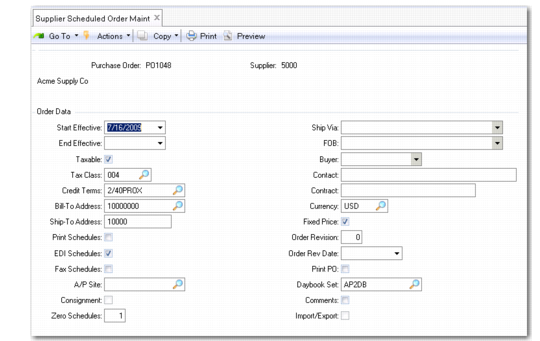
Several values in the header frame indicate how schedules based on this order are delivered to suppliers. Schedules can be printed, transmitted using EDI eCommerce, or sent by FAX, depending on the values you specify.
Important fields in the header that impact schedule processing are described following
Supplier Scheduled Order Maintenance (5.5.1.13), Header Frame.
Supplier Scheduled Order Maintenance (5.5.1.13), Header Frame
Start Effective
Specify a start date for this scheduled order. For new orders, the default is blank. However, you cannot leave this field blank; otherwise, an error displays. Enter any date that is before or after the system date and earlier than or the same as the header end date.
The start date defaults to the Line Start Effective field if it is after the system date. If it is earlier than or on the system date, the system date defaults to the Line Start Effective field.
If you change the header start date and line items already exist on the scheduled order, you must specify a start date that is earlier than the line start dates.
End Effective
Specify an end date for this scheduled order or leave blank. If you specify a date, the date must be later than or the same as the header start effective date. If blank, the order is open. The date you enter here defaults to the line End Effective field.
You can close a scheduled order by assigning a date that is earlier than the system date. When you do:
• You cannot add new lines to the order.
• The system automatically closes lines with an end date earlier than the date you specify.
• The system makes all lines with an end date later than the date you specify inactive.
Although the system warns you that the order lines are inactive, you can still change information on the order. You cannot add new lines though.
Zero Schedules
Enter the number of zero schedules the system generates for a supplier when an order is active but no demand exists. A zero schedule is a one-line schedule for zero quantities that suppliers still receive and process until some agreed-upon point in time when the customer stops sending the zero-quantity schedules. You can enter a zero so that the system never creates a zero schedule.
The system uses the Zero Schedules field to determine if the maximum number of zero schedules has been generated for a scheduled order line before creating a new zero schedule in Schedule Update From MRP (5.5.3.1). The system stops generating zero schedules for the combined supplier, order, and line when it reaches the number you specify.
Note: The system count of zero schedules does not include zero schedules you manually create in schedule maintenance programs.
This field defaults from the same-named field in Supplier Schedule Control (5.5.1.24).
Fixed Price
This field sets the default for the line. See
Fixed Price.
Order Revision
Enter a value identifying the revision level of this order. Use revision numbers to identify the most current copy of a document. When an order is initially created, revision defaults to zero.
Each time the order changes, you can manually increase the revision number by 1; however, there are no restrictions on incrementing numbers. A new copy of the document can be printed listing the current information along with the revision number.
When you access an existing order, the system prompts you to specify whether you are making an order revision change when you attempt to leave the header frame. You can specify No and continue accessing the order. If you specify Yes, you must enter a new revision level in the Order Revision field.
The system automatically sets the Print PO field to Yes when you modify the revision level.
Order Rev Date
Specify the date the revision level is effective. The default is blank.
Daybook Set
Specify the daybook set that will be used to number supplier invoices that originate from this scheduled order. The default daybook set is copied from the supplier record in Supplier Data Maintenance (2.3.1), but you can overwrite it with a new value.
See User Guide: Financials for more information on daybook sets.
When you are finished entering values in the header frame, click Next to display the line-item frame.
Line Items
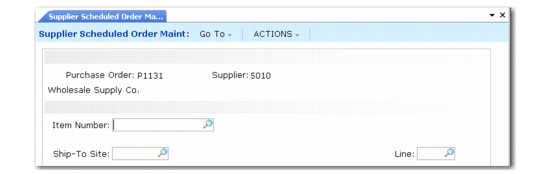
Use fields in the first line-item frame to specify an item to be ordered from the supplier and the site to receive that item. Unique line numbers enable you to enter more than one schedule line for the same item, if needed, as long as each line has a different ship-to site.
Supplier Scheduled Order Maintenance, Item and Ship-To Site
First Order Line item Data Frame
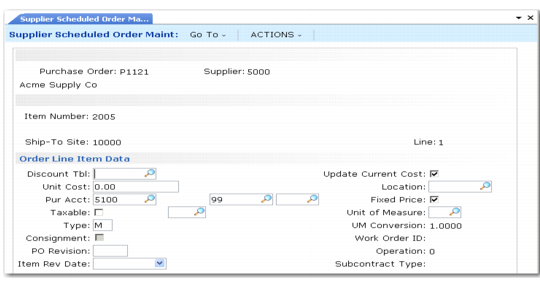
Use fields in the first Order Line Item Data frame to specify pricing and inventory data for the item referenced in the previous frame.
Order Line Item Data, First Frame depicts the frame. Fields that impact schedule processing are described after the figure.
Order Line Item Data, First Frame
Discount Tbl
Enter the discount table for this order. You cannot leave this field blank if you set Schedule Discount Table Req to Yes in Purchasing Control.
The system uses the current date for price list Start and Expire Date comparisons.
For scheduled orders, Price List—in PO Shipper Receipt and Purchase Order Receipts—automatically phases in prices as they become effective when Fixed Prices is set to No on the scheduled order being received.
If a price list exists at the time of receipt and Fixed Price is set to No on the order line, the system uses price list logic to determine the price to post. If no price list exists, the system posts the amount in Purchase Cost.
Create a price list with the item number of the line item, a blank product line, unit-of-measure the same as the stocking unit-of-measure for the item, currency equal to the supplier's, and an amount type of P (price), D (discount), or M (mark-up). Discount tables entered in this field must be created through Supplier Price List Maintenance. Price tables (type L) are not considered for scheduled orders.
Type
This field determines the effect on inventory, planning, and cost accounting when the item is received in a purchase order. Type defaults from Memo Order Type in Item-Site Inventory Data Maintenance (1.4.16), if defined for the order line site; otherwise, it defaults from Item Master Maintenance (1.4.1).
Blank: This line item is received into inventory. When the receipt is processed, inventory balances are increased and a general ledger (GL) transaction debits the Inventory account. Inventory items are considered supply by MRP.
Non-blank: This item does not affect inventory and does not create an Inventory GL transaction. For a non-inventory item, type defaults to M (memo). Memo items are expensed or capitalized upon receipt, depending on the Purchases account for the item. Memo items have no effect on MRP.
S: Subcontract. This line item is for a subcontract operation. A work order number, lot ID, and operation are specified on the order and on the receipt. When the receipt is processed, work order operation status is updated and a GL transaction debits the WIP account from the work order.
B: Blanket. This line item is for a blanket order. The system sets the line type to B in Blanket Order Maintenance, and you cannot change it. You cannot specify B on any other type of order.
Supplier schedules are designed to track the ongoing agreement between supplier and customer for inventory or subcontract items. Therefore, Type codes in Supplier Scheduled Order Maintenance (5.5.1.13) are typically blank (inventory) or subcontract.
Item Revision
Enter the code representing the revision level of the item. This field is validated against predefined values entered in Generalized Codes Maintenance (36.2.13) for field pod_rev. This field defaults from the Revision field in Item-Site Planning Maintenance (1.4.17). If no revision exists there, it defaults from the Revision field in Item Master Maintenance (1.4.1).
Do not confuse the header order revision with the line item revision. Order revision indicates whether changes have been made to the scheduled order; it has no default. Item revision indicates changes have been made to the engineering version of the item; the level defaults from either Item-Site Planning Maintenance (1.4.17) or Item Master Maintenance (1.4.1).
When you copy a schedule line from another schedule line, the new schedule line inherits the source item revision level and date.
When you export schedule information using the following programs, the item revision level and item revision date from the schedule are included in the information:
• Supplier Schedule Gateways (35.4.8)
• 850 Purchase Order Export (35.4.9)
Item Rev Date
Specify the date the item revision level is effective. The default is blank.
Fixed Price
Indicate whether a price lookup should occur at scheduled order receipt or, if you use Evaluated Receipts Settlement (ERS), whether the ERS Processor determines a new invoice cost for the line item when creating an invoice. The difference between the extended cost entered on the PO and the extended cost determined by the ERS Processor for the supplier invoice is posted to the AP Variance account.
Yes: The system does not look up prices during scheduled order receipt and the ERS processor does not determine a new invoice for the line item when creating a supplier invoice.
No: The system looks up prices during scheduled order receipt and copies the value of this field to the receiver. If you use ERS, the ERS processor determines a new invoice cost for the line item when creating a supplier invoice.
The quantity for scheduled order lines typically comes from planning, shipping, or required schedules. For this reason, scheduled order lines typically have a 0 (zero) quantity. Since scheduled orders typically do not have an order quantity to determine a price, PO costs on scheduled orders are not affected; therefore, this field has no effect for scheduled orders when you run Purchase Order Cost Update (5.19). During receipt, the system does, however, look up new prices for scheduled order lines with a discount table and updates the PO cost based on the quantity that you receive.
Work Order ID
Enter the work order ID or cumulative order ID associated with a subcontract item. If you use the Advanced Repetitive module, you can leave this field blank. The system validates this field when the order type is S and automatically updates the ID when it creates a cumulative ID in Advanced Repetitive transactions.
Operation
Specify the operation code for the operation that the subcontractor performs. If you use the Advanced Repetitive module, you can leave this field blank. The system validates this field when the order type is S and automatically updates the operation field when it creates a cumulative ID in Advanced Repetitive (18.22) transactions.
Second Order Line Item Data Frame
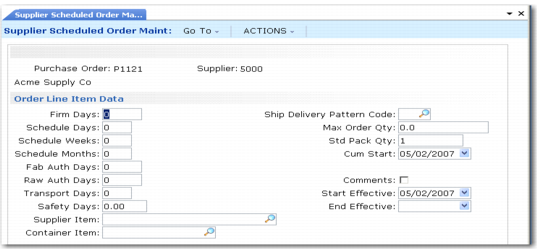
Use fields in the second Order Line Item Data frame to record data that impact the requirements and schedules generated for the associated line item.
Order Line Item Data, Second Frame
Firm Days
Specify the number of days inside the schedule update time fence for scheduled release calculations. These days should not exceed the number specified in Schedule Days.
Quantities and dates within this period are not changed by Schedule Update from MRP (5.5.3.1). Set Firm Days to zero to eliminate the update time fence. Do this when all requirements are released as planned so that the schedule update replans all dates and quantities.
See
Effect of Firm Days for more details.
Note: This value does not affect how MRP uses the Time Fence value defined for the item. Firm Days controls order releases by date and quantity. The item master Time Fence field controls planned orders by date and quantity.
Schedule Days
Specify the number of days of discrete dates and quantities to appear on printed or transmitted releases and on reports and inquiries, including intraday quantities and times. See
Schedule Bucketing for details.
Schedule Weeks
Specify the number of weekly bucketed quantities to appear on printed or transmitted releases and on reports and inquiries following any Schedule Days dates and quantities. Each quantity represents the total requirement for the Monday through Sunday week. Bucketing is for print and reporting purposes only. Internally, the system stores all requirements by discrete dates and quantities.
Schedule Months
Specify the number of monthly bucketed quantities to appear on printed or transmitted releases and on reports and inquiries following weekly buckets and discrete dates and quantities. Each quantity represents the entire month’s requirements from the first Monday up to the first Monday of the following month.
Fab Auth Days, Raw Auth Days
Raw and fabrication authorization commitments are made to give suppliers some protection against sudden and unforeseen reductions in demand.
• Raw quantity is the quantity of product you commit to covering the component costs.
• Fab quantity is the quantity of product you commit to covering manufacturing costs.
Note: Schedule Update from MRP uses these values only if scheduled requirements extend beyond the number of days in the authorization horizon. Otherwise, the authorization horizon equals the schedule days.
Transport Days
This field is normally blank. Specify a value for suppliers who do not ship or take responsibility for shipping, but from whom you pick up or schedule the pickup of orders. Entering a value in Transport Days converts all order dates from receipt dates to shipment dates.
Schedule Update from MRP uses this value to set shipment dates based on delivery dates (delivery date – transport days). It then checks the supplier’s calendar, if one exists, to verify that the shipment date is a workday for the supplier. If not, the update back-schedules to the next supplier workday.
All reports and inquiries check this field to verify whether to print or display delivery dates or shipment dates. When this value is positive, the system uses shipment dates.
Safety Days
Enter the number of calendar days early that the MRP required date will be adjusted. Schedule Update from MRP creates schedule dates from MRP requirement dates this many days early. Specifying these early days provides a safeguard when deliveries may be late.
Supplier Item
Specify the item number by which the supplier identifies this item. The default is blank. Both your item number and the supplier item number display on reports and inquiries, print on order documents, and display during order receipt functions. This helps receiving clerks who receive packing lists that show only supplier item numbers.
Container Item
Optionally enter the item number of the container in which the item will be delivered. The value must be a valid item number defined in Item Master Maintenance (1.4.1).
Ship Delivery Pattern Code
Enter a code for the routine ship or delivery pattern, the days of the week or month when deliveries are required.
Schedule Update from MRP uses ship/delivery patterns to calculate actual supplier schedule required dates. MRP generates quantities, but the quantities are not divided into buckets as they are in customer schedules. MRP may shift quantities to earlier dates, if necessary, as defined by the ship/delivery pattern code.
Example: The pattern specified is 1/3 Monday, Wednesday, Friday (code 26). Supplier Schedule Update from MRP receives a quantity for Thursday. The entire MRP-generated quantity shifts to Wednesday, since Wednesday is the closest date prior to Thursday for this ship/delivery pattern.
You can use ship/delivery pattern codes for both planning and shipping schedules. You would ordinarily use pattern codes only for planning schedules that use bucketed quantities frequently.
SDP codes support both the Organization for Data Exchange by Teletransmission in Europe (ODETTE) and the Automotive Industry Action Group (AIAG) ship/delivery patterns. They are translated to the appropriate industry-standard codes during EDI conversion and transmission.
The system recognizes and supports only the following codes:
blank: Any day, Monday through Sunday | 12 or D: Monday | 25: 1/2 Tuesday, Friday |
01 or 1: First week of month | 13 or E: Tuesday | 26: 1/3 Monday, Wednesday, Friday |
02 or 2: Second week of month | 14 or F: Wednesday | 27: 1/4 Monday, Tuesday, Wednesday, Thursday |
03 or 3: Third week of month | 15 or G: Thursday | 28: 1/3 Monday, Tuesday, Thursday |
04 or 4: Fourth week of month | 16 or H: Friday | 29: 1/3 Monday, Wednesday, Thursday |
05 or 6: 1/2 first and third weeks of month | 20 or 1/5: Monday through Friday | 30: 1/4 Monday, Tuesday, Wednesday, Friday |
06 or 7: 1/2 second and fourth weeks of month | 21 or Q: 1/2 Tuesday, Thursday | 31: 1/4 Tuesday, Wednesday, Thursday, Friday |
07: First day of month | 22 or R: 1/2 Wednesday, Friday | 32: 1/3 Tuesday, Wednesday, Thursday |
10 or A: Any day,
Monday through Friday | 23 or U: 1/2 Monday, Wednesday | 33: 1/6 Monday through Saturday |
11 or B: Any day,
Monday through Saturday | 24: 1/2 Monday, Thursday | 34: 1/7 Monday through Sunday |
Max Order Qty
Enter the maximum quantity to be received before warning messages display when you access the order line. If greater than 0 (zero), all maintenance, inquiry, and update programs display warning messages when the cumulative quantity received is equal to or exceeds this quantity.
Std Pack Qty
Enter the multiple in which orders for this item are shipped. This is similar to Order Multiple in the item master. It displays here because the standard shipment multiple for an item can vary among suppliers. Schedule Update from MRP rounds order quantities up to this multiple.
Order Multiple should generally be blank in the item master for items that are referenced on scheduled orders, since both values are applied to orders during different planning functions (MRP and Schedule Update from MRP).
Cum Start
Enter the date on which this order began to accumulate quantities. This may or may not be the date on which the order was created in your database.
When a line item is first scheduled, the cumulative receipt quantity is zero and the cumulative start date is set to the active start date of the schedule. As receipts are processed, the system updates the cumulative receipt quantity.
Sometimes cumulative receipt quantities must be adjusted manually, usually as dictated by policy. For example, you may reset them to zero at the start of your new fiscal year using Cum Received Reset to Zero (5.5.5.14). The affected cumulative start dates are then changed to that date.
You can also adjust cumulative receipts manually to reflect returned or defective items or losses due to theft using Cumulative Received Maintenance (5.5.5.13). For example, when defective items are returned to the supplier, you may want to process a return and credit without decreasing cumulative quantity.
Start Effective
Enter the start effective date of this order line item or accept the default. The default is the:
• System date, if the header start effective date is earlier than or the same as the system date
• Header start effective date, if the header start effective date is later than the system date
The date cannot be blank and must within the range specified by the header.
End Effective
Enter the end effective date of this order line item, leave blank, or accept the default header End Effective date. If blank, there is no expiration for this line item. If you enter a date, it must be:
• The same as or later than the line start date
• Before the header end date if it is a new line
The system displays a warning if you change the end effective date and firm scheduled quantities exist outside of the date.
Note: The system automatically sets the firm quantities to zero the next time you run Schedule Update from MRP (5.5.3.1) if you enter a line end effective date that is earlier than the previous date. If this is your intention, you should notify suppliers who are committed to the schedule of schedule cancellation of the firm quantities.
The end effective date displays on reports and inquiries.