Creating a Budget Column
If you enter B for Type on the second screen of Column Group Maintenance, the same frame you use to define an actual column displays. For a budget column, complete two additional fields.
Budget Code
The budget code defines a specific set of GLRW budget amounts for a given entity or year. You can store multiple GLRW budgets in the system by assigning different budget codes. This code is required to retrieve the desired set of GLRW budgets. Make sure the value in Year for this column matches the year of the selected budget code.
Set up budget codes in GLRW Budget Maintenance (25.17.4.1). See
Creating GLRW Budget Data.
Roll Budgets
Enter Yes to have the system use actual figures in this column if they are available. For example, if a column is set up for period five and you process the report in period four, there would probably be no actuals for that column and the report would include budget figures. When you run the same report in period five, the column would then include the actual figures.
To determine whether actual data is available, the system uses Current Year and Current Period from GL Report Writer Control (25.17.24).
After you complete the Actual or Budget Query Specifications frame, the Print Control frame displays.
Creating a Calculation Column
Calculation columns let you perform operations on any preceding columns.
If you enter C for Type in the second screen of Column Group Maintenance, a Calculation Column frame appears. It is identical in appearance and function to the Calculation Row frame. See
Creating a Calculation Row.
Print Control for Columns
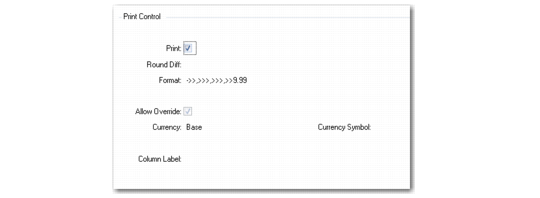
All column types have printing instructions, defined in the final frame of Column Group Maintenance—Print Control. In case of conflict between a row and column, the system uses the Precedence field in Print Controls for the row to determine which value to use.
Column Group Maintenance, Print Control
Print
Leave as Yes to print this column on the report. If No, printing of this column is suppressed and all remaining print options are void.
Rounding
Enter the rounding method used on this report. You can enter this code as a reporting unit code in any of the report definition components—Report Maintenance, Run Report, Row Group Maintenance, or Column Group Maintenance. The code is used to convert units, such as millions to thousands, and round the report amounts. Defined in Reporting Unit Code Maintenance (25.17.12.5).
Format
Set the default format for numeric quantities printed in this column. Defaults from GL Report Writer Control (25.17.24). The field accepts any valid Progress numeric format. To allow override of this default in Report Maintenance or Run Report, set Allow Override to Yes.
Allow Override
Set to Yes to allow the format default to be overridden. If No for both row and column, the system uses the setting for one or the other, depending on the value for Precedence you set in Print Control for the row.
Currency
Enter Base to use the domain base currency defined in Domain Create (36.1.1.1.1). Enter Foreign to use a non-base currency associated with a specific GL account in GL Account Create (25.3.13.1).
The GL Report Writer tables store account balances using both the base currency and the currency set up for the account. This field determines which value is retrieved for the report.
Note: The system does not check your data retrieval specifications to see that the currency is all the same. Make sure the report specifications are set up correctly to avoid mixing different currencies within the cells on the report.
Currency Symbol
Optionally, enter the currency symbol the report displays for this column. For exploded rows, the symbol appears on every line produced on the report. The default is blank.
Column Label
Enter text for the column label, which is printed at the top of each page where this column appears. Default format is flush left. To create centered text, enter the label as [label]. To make the text flush right, enter [label. In addition, you can enter one or more keywords. The system substitutes the actual text. For example, <BY> shows the year you specified for the column.
Keyword | Substitution |
<BP> | Period |
<BY> | Column year |
<BP1> | Lower boundary of the period range |
<BP2> | Upper boundary of the period range |
<BQ> | Column quarter |
<Bucket> | Column year and period (or period range or quarter) |