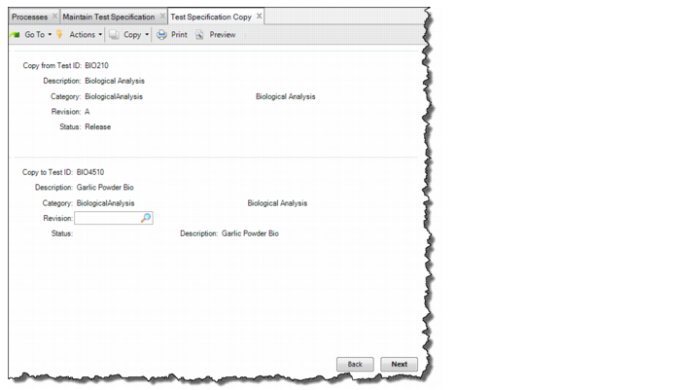
Copying a Test Specification
An alternate method for creating a test specification is to copy the attributes from another test specification or revision.
Note: Copying a test specification is the preferred method for creating a new revision of an existing test specification with the same test ID.
Follow these steps to create a test specification using the Copy button:
1 Select Maintain Test Specification from the Manage Test Specifications process map.
2 Click the Copy button in the upper frame.
3 Enter the relevant information in the fields:
Test Specification Attributes Tab
Copy to Test ID
Enter a unique identifier for the test specification.
Description
Optionally, enter a description of the test ID. The description applies to a test ID, regardless of its revision.
Category
Optionally, enter a valid category defined in Category Maintenance for the test ID.
Revision
Enter the revision or the test specification. The test ID and the revision for a test specification uniquely identify the attributes and specifications for a test specification.
Status
4 Click Next. The system displays all attributes that can be copied. Click Yes to copy the attributes and to create the test specification.
Note: If you create a test specification by using the copy option, the test plan data is not copied and must be added manually.