Workbench Elements
MSW lets you schedule items and set the production order due/release dates and quantities within a certain daily, weekly, or monthly based horizon.
MSW
Capacity Panel
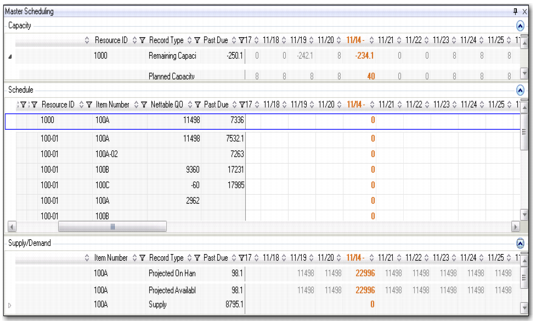
The Capacity Panel displays resource capacity. Use data in this panel to view production order required capacity. The system calculates summaries and displays required capacity and available capacity data in this grid as you enter data in the Schedule Grid. You can expand and collapse the Capacity Panel to show capacity and schedule quantities in weekly and monthly buckets. The weekly and monthly buckets are display only.
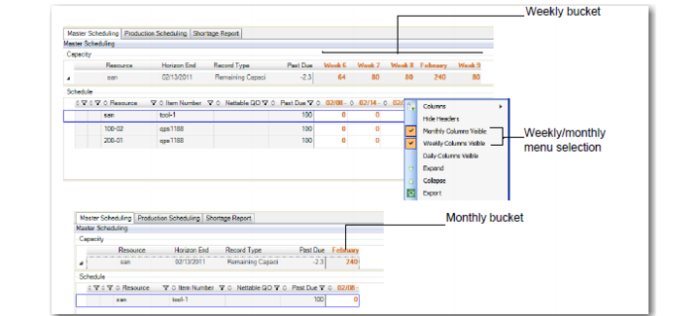
You can display capacity information in daily, weekly, or monthly buckets by using a combination of User Preference and context menu settings; see Figure 2.3. Weekly and monthly buckets are display-only, so when you set the Schedule Grid for weekly/monthly buckets, you cannot edit data.
Note: When you set up weekly or monthly bucket display for the Capacity Panel, the setting applies to the Schedule Grid and Supply/Demand Panel, too.
You can expand the weekly or monthly buckets to daily buckets. You can only edit daily buckets in the Schedule Grid, not the Capacity and Supply/Demand Panels.
Monthly and Weekly Buckets
When you start to create a schedule in the Schedule Grid for the item you selected, the system shows you the capacity impact in real-time. For information on field descriptions, see
Consume Prior Remaining Capacity.
The Capacity Grid’s Required Capacity and Scheduled Quantity rows are based on capacity open quantity. For more information on user exit programs, see
QAD Planning and Scheduling Workbenches Administration Guide.
Schedule Grid
The Schedule Grid displays item supply records; that is, production orders, with bucketed quantities of the production order supply records for the item. The records represent the master production schedule for a given period. The summarized quantity values within the Schedule Grid are production order quantities.
You can expand the Schedule Grid to display capacity in weekly and monthly buckets. The weekly and monthly buckets are display only, though, so you can only edit in daily buckets; see
Monthly and Weekly Buckets.
For more information, see
MSW Schedule Grid Data.
Daily Buckets
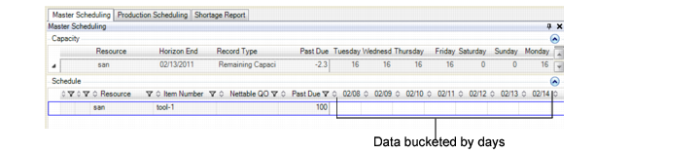
Each supply record is associated with one or more resources. For production orders, resources can be work centers or production lines; for repetitive orders, the resource is the production line. However, you can schedule discrete production orders on both production lines and work centers. Schedule data bucketed by day is appended on the right for the range of days identified in the data selection criteria; see
Data Bucketed by Day. You enter data in this right-hand area.
Data Bucketed by Day
Descriptive and transactional item attributes identify items in the Schedule Grid. Descriptive item attributes are those found in the item master/detail tables; transactional item attributes include scheduled quantities past due and nettable on-hand inventory. Because the system calculates the net past due quantity remaining for an item, you can view item past due quantities as your day begins. This lets you check results of prior shifts. As you scan items, you can monitor inventory levels and easily determine the nettable inventory on hand. You can easily spot inventory levels of concern.
You can make updates to existing quantities in the Schedule Grid. When you do, the system performs POH, required capacity, and other calculations and displays changes. Also, when you make changes to some fields in the Production Order Maintenance Details tab, it can cause changes to capacity. For more information, see
Details Tab.
Planned orders within the scheduling horizon are not included in the POH and resource required capacity calculations in MSW, so planned orders do not display in the Schedule Grid. To view planned orders, drill down to data in the Demand/Supply Grid.
Note: You can also view the orders in the Production Order Maintenance window within MSW.
Supply/Demand Panel
Use the information in the Supply/Demand Panel to view the item’s total demand and total supply data over a period of time. Total demand is from sales, DRP, forecast, seasonal demand, or dependent demand. Total supply is from planned, firm, released production orders, or purchase orders.
The Supply/Demand Panel displays the record type and past due quantities. You can also view cumulative ATP, demand, projected available balance, POH, receipts, seasonal/safety stock, and supply as the record type.
When you enter or update a scheduled quantity in the Schedule Grid, the Supply/Demand Panel is updated to show the remaining open quantity due for the item. Whether the resource selected is a production line or work center, the Supply/Demand Panel displays the quantity and due data from production orders.
When you want more details related to the demand information that shows in the Supply/Demand Panel, you can select the Demand Details tab within Production Order Maintenance to view demand details for the item selected in the Schedule Grid. For more information, see
Working with Supply/Demand Panel Data.
Dynamic Forecast
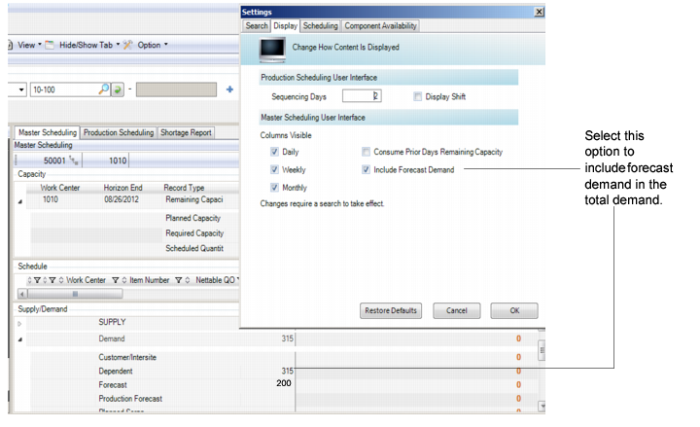
The system includes forecast dynamically in the Supply/Demand Panel when you select the Include Forecast Demand option within the Display tab of the user preferences. You do not have to refresh your search data when you enable Forecast Demand in user preferences as the system includes the forecast demand within the total demand. When you disable Include Forecast Demand, you can still view the forecast demand.
Dynamic Forecast Demand
Seasonal Demand
The system performs the following calculation for each date when a Master Scheduled receipt is due or a seasonal build quantity is made available, causing a net increase in supply. It takes into account all sales order and required ship schedule demand and gross requirements up to the next increase in available supply.
Master Scheduled Receipt – Sales Orders and Required Ship Schedules – Gross Item Requirements – Seasonal Build Net Increases + Seasonal Build Net Decreases = ATP
Past due is not calculated.
Independent/Dependent Demand
Repetitive independent and dependent calculations are based on the following function:
summarize mrp_quantity
Where:
For independent demand, mrp_dataset = sod_det, cs sch_mstr, ds_det, sob_det, pb_sold, pbo_sold
For dependent demand, mrp_dataset = jp_det, wod_det, wo_scrap
The past due independent demand calculation is as follows:
Summarize mrp_quantity prior to the beginning date