Reviewing and Approving a Requisition Using Requisition Approval Maintenance
Requisition Approval Maintenance (5.2.13) is used to review and approve or deny a requisition. It also provides tools for viewing and modifying the requisition.
When Prohibit Changes to Approved Requisitions is Yes in Requisition Accounting Control (36.9.3), the system prohibits anyone other than the buyer from editing an approved requisition.
When you have completed your approval, you use the program to forward the requisition to the next person in the approval process; additional routing options are provided by Requisition Routing Maintenance. (5.2.14)
Requisition Approval Maintenance
When a requisition is ready to be reviewed, the originator begins the approval process as described in
Reviewing and Approving Requisitions. If your company uses automated e-mail, the first person in the approval process receives a message that a requisition is awaiting action. The approver then uses Requisition Approval Maintenance (5.2.13) to look at the requisition. To see a list of requisitions waiting for an approver’s disposition, use Approver’s Open Req. Browse (5.2.16).
Use the View Queue/Dispositioned field in Requisition Approval Maintenance to select a requisition from the queue of items awaiting your attention.
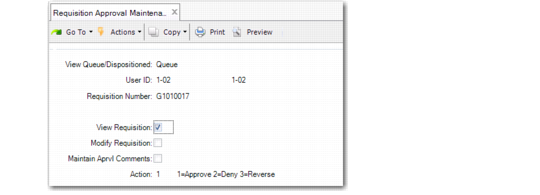
Requisition Approval Maintenance (5.2.13)
View Queue/Dispositioned
Specify which list of requisitions you want to select from. The setting in this field determines which list you see when you use the arrow keys or the lookup browse.
Queue: The list of requisitions that are currently routed to you
Dispositioned: The list of requisitions that you have already acted on
User ID
Displays the user ID of the reviewer or approver. This field defaults to the individual logged on to the system. You can change this to another person’s ID only if you have been designated as this person’s alternate or administrative approver in an approver maintenance program.
Requisition Number
Enter the number of the requisition you want to approve. Use the arrow keys to select from the Queue or Dispositioned list.
View Requisition
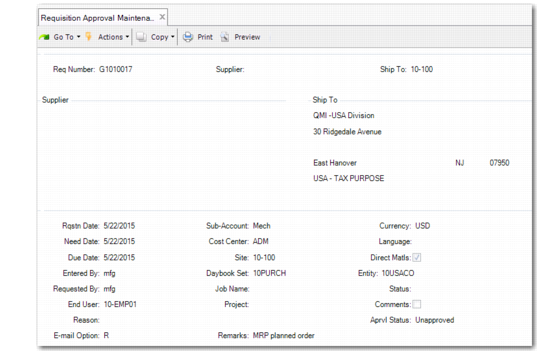
Indicate whether the system should display the requisition in read-only mode, as shown in
Requisition Approval Maintenance, View Requisition Screen. If you select Yes, the requisition is immediately displayed. At the line level, you can then choose the line to display details.
Requisition Approval Maintenance, View Requisition Screen
When you are finished viewing the requisition, press Exit to return to the Requisition Approval Maintenance screen.
Modify Requisition
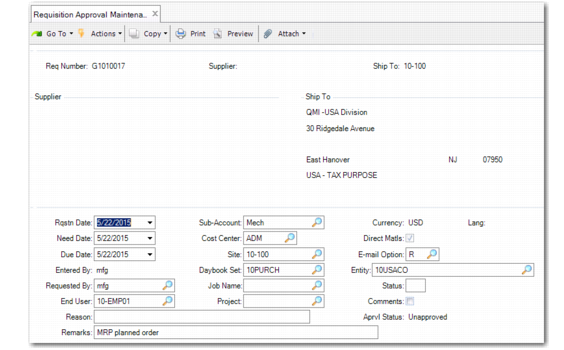
Indicate whether you want to change the requisition. If you select Yes, the requisition is immediately displayed, as shown in
Requisition Approval Maintenance, Modify Requisition Screen. Although the screen label still says Requisition Approval Maintenance, the program can perform all the functions of Requisition Maintenance. Modify the requisition as needed.
If Prohibit Changes to Approved Requisitions is Yes in Requisition Accounting Control (36.9.3), only the buyer can modify an approved requisition. The system displays an error message if you attempt to edit any requisition fields.
Requisition Approval Maintenance, Modify Requisition Screen
When you have completed the changes, press Exit to return to the Requisition Approval Maintenance screen (
Requisition Approval Maintenance (5.2.13)).
Maintain Aprvl Comments
Indicate whether you want to add comments for subsequent approvers to read. If you select Yes, you can enter comments.
Action
Enter the code for one of three possible actions. Enter 1 to approve the requisition, 2 to deny it, or 3 to reverse an earlier action.
If Reset Approvals Upon Denial is Yes in Requisition Accounting Control (36.9.3) and you deny the requisition, the status of all other existing approvers is reset, regardless of their original approval status. The system routes the requisition back to the requester or originator.
After you review, modify, and take action on the requisition, you are prompted to confirm that all the information is correct; if you select Yes, you are prompted to route the requisition. No returns you to the Requisition Approval Maintenance screen.
If you select Yes on the routing prompt, a routing screen (
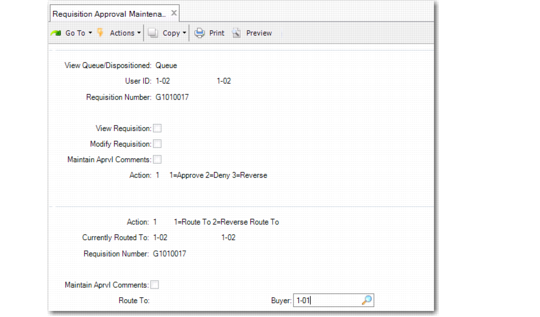
Requisition Approval Maintenance, Routing Screen) lets you route the requisition to the next reviewer. If you select No, the action you indicated takes effect, but the requisition stays in your queue until you route it.
Requisition Approval Maintenance, Routing Screen
Action
Specify the routing action you want to take.
• Select 1 to route the requisition to the person whose user ID you enter in Route To.
• If you change your mind or route the requisition to the wrong person, select 2 to return the requisition to your queue.
Currently Routed To
This field displays the ID of the user in whose queue the requisition resides. You can change this only if you are an alternate or administrative approver for the current routed-to user.
Requisition Number
Enter the number of the requisition you want to route. This defaults to the requisition you have just reviewed.
Maintain Aprvl Comments
Enter Yes if you want to add comments for the next person on the routing to read. The default is No.
Route To
Enter the ID of the next person in the approval process. Use the lookup browse to view the list of appropriate approvers determined by the system based on sub-account, category, and job information.
Buyer
Enter the ID of the person responsible for issuing a purchase order for approved requisition items. Buyers are defined with Buyer Maintenance (5.2.1.20). Unless you are the final person to approve the requisition, you can leave this field blank. However, a reviewer or approver must complete the field before final approval. The buyer is informed by system-generated e-mail when the requisition has been approved.
Final Approval
If your approval is the last one needed, the system displays a message that the requisition is approved and prompts you to route the requisition to Purchasing. If you choose Yes and the Buyer field has not been completed, the cursor advances to Buyer. When you enter the user ID of a valid buyer, the approval process is finished.
However, you can override this system action. If you want another person to review the requisition, choose No. The cursor then moves to the Route To field, and you can specify another user.
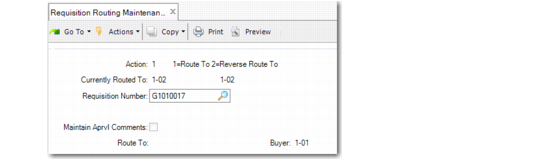
Requisition Routing Maintenance
Requisition Routing Maintenance (5.2.14) can be used instead of Requisition Approval Maintenance to route a requisition to another user. It also offers the ability to reverse a previous routing. For example, you, as a reviewer or approver, might accidentally route a requisition to the wrong person, or you might change your mind about the routing after it has been completed. When you reverse a previous routing, the recipient receives a second e-mail with the message that the requisition is no longer awaiting action.
If Reset Approvals Upon Denial is Yes in Requisition Accounting Control and one approver denies the requisition, the system routes the requisition back to the requester or originator.
Requisition Routing Maintenance (5.2.14)
The fields in Requisition Routing Maintenance are the same as those in the routing screen of Requisition Approval Maintenance.
This completes the approval process. In the next step, the buyer creates a purchase order from the approved requisition lines, as described in
Using Requisitions to Build POs.