Creating a Requisition with Requisition Maintenance
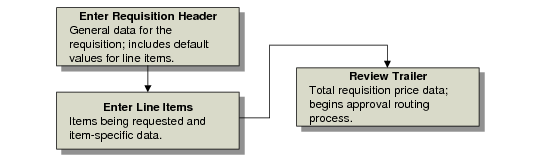
With Requisition Maintenance (5.2.3), you build a requisition in three sections: the header, the line-item detail, and the trailer, as shown in
Requisition Entry Flow.
Requisition Entry Flow
This section provides a field-by-field description of each part of the requisition.
Creating the Purchase Requisition Header
Data items you enter in the requisition header become defaults for each line of the purchase requisition. Header information is divided between two frames. You enter most of the data in the first frame; the second includes optional detailed supplier information.
When you begin entering detailed line-item data, you can modify some of these entries on individual lines.
Note: Some fields are required; valid data must be entered in them or the system does not create the requisition. Other fields are optional; they do not require data for the system to create the requisition. Information in optional fields, such as Comments, can be used as follows:
• Explain the purpose of the requisition.
• When applicable, describe why the item being requested does not follow standards.
• Provide other information that might be needed during the approval or purchasing process.
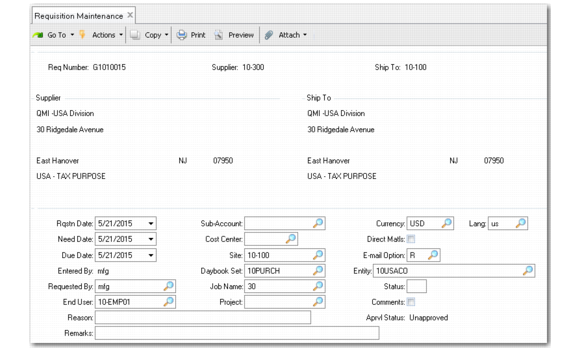
Requisition Maintenance (5.2.3)
Req Number
Required. A unique control number must be assigned to each purchase requisition. You can enter a number of your own or let the system assign a number based on settings in Requisition Control (5.2.1.24). On a new requisition, leave this field blank and press Enter for a system-assigned number. To modify an existing requisition, enter its number.
Supplier
Optional. If you know the supplier, specify the code here. If the supplier has not yet been defined, you can enter the supplier name, address, phone number, and name of contact in header comments.
If you do not specify a supplier, an approver or the buyer will complete this field during the approval process. If you enter a supplier code in the header, that supplier becomes the default for the entire requisition; you can change it at the line-item level.
Ship To
Optional. Enter your company address to which the supplier is to send the goods. The default Ship To is set in Purchasing Control (5.24). If the default is not correct for this order, enter another company address code.
Requisition Date
Required. Enter the date the requisition is created. The default is the current system date.
Need Date
Required. Enter the date the items are required at the end-user’s site. Default is the system date. Need date is used on the purchase order generated from the requisition. It can be later than the due date to allow time for such activities as inspection or transportation from the receiving area to the end user. This date prints on most reports and inquiries. The need date can be changed for each line item. It cannot be earlier than the current date.
Due Date
Required. Enter the date the items are due to be received at the end user’s site. Default is the system date. The system uses this date as the default for all line items on this requisition. However, you can change the due date when entering line-item data. It cannot be earlier than the current date.
Entered By
This reference field displays the login ID of the individual entering the requisition.
Requested By
Required. Enter the ID of the person requesting the items; this must be a valid, active user defined in User Maintenance (36.3.1). The system default is the login ID of the person completing the requisition. If you are using system-generated e-mail in the extended mode, the requestor receives requisition status e-mail.
End User
Required. Enter the employee code of the person for whom the requisitioned items are intended. This person can be either external employee—a user external to QAD ERP and included in the system license count— or an internal employee —a valid user with a user ID, specified in User Maintenance, and not included in the system license count.
When your company uses automatic e-mail notification, this user, either internal or external, can receive e-mail regarding the status of the requisition. If you are using system-generated e‑mail in the extended mode, the end user receives requisition status e-mail.
Reason
Optional. Enter a brief explanation of the requisition for the approvers or purchase reviewers who authorize or deny the request. This field does not appear on the purchase order.
Remarks
Optional. Enter any remarks related to the requisition or to the supplier. This information applies to the entire requisition. It appears on system-generated e-mail messages and is also printed on the purchase order. When a supplier is specified in the header, and remarks for that supplier have been added in Supplier Data Maintenance (2.3.1), those remarks display here.
Sub-Account
Enter the alphanumeric code that identifies the sub-account to be charged with the cost. This field may be required before final approval, depending on the GL setup of your company. It applies to all lines of the requisition.
Cost Center
Enter the alphanumeric code designating the cost center for which the items are being purchased. This field may be required before final approval, depending on the GL setup of your company. It applies to all lines of the requisition.
Site
Required. Enter the site from which the order is being placed. This becomes the default for the line items and can be changed at that level.
Daybook Set
Specify the daybook set that will be used to number supplier invoices that originate from the purchase order associated with this requisition. The default daybook set is copied from the supplier record in Supplier Data Maintenance if the requisition specifies a supplier; otherwise it is blank. You can overwrite this field with a new value.
Entity
Required. Enter the entity code for the requisition. This value is used to determine the list of eligible approvers or reviewers for requisitions for MRO items; that is, requisitions with the Direct Matls field set to No.
The field defaults from Domain/Account Control (36.9.24).
Job Name
Optional. Enter the eight-digit alphanumeric code used to track expenses for a specific event or activity. If the items on this requisition are for a specific job, enter the job name. Otherwise, leave it blank.
The system uses jobs to determine appropriate reviewers and approvers for requisitions. When an approved requisition is copied onto a purchase order, the entry in this field is copied into the Sales/Job field.
Project
Optional. Enter the eight-digit alphanumeric code used to track expenses for a specific event or activity to a GL account. Project is not the same as the Job field, which is used to assign approval authority for requisitions and is not tied to the GL. This value defaults to each line of the requisition.
The system verifies that the project exists and is active and that it is valid with the other account components. When an approved requisition is copied onto a purchase order, the entry in this field is copied into the Project field.
Currency
Required. Enter the currency in which the purchase order will be created. Defaults from the supplier, if specified; otherwise, from the domain base currency.
Requisitions can be created using any currency with a valid exchange rate. Exchange rates are set at the time the requisition is created, then recalculated when the buyer enters the PO price.
Fluctuations in exchange rates can create an out-of-tolerance condition; that is, the purchase price exceeds the maximum cost shown on the requisition line item by more than the out-of-tolerance parameters set in Requisition Accounting Control (36.9.3). See
Out-of-Tolerance Conditions.
Language
Optional. Enter a language code if you want to use a language other than the default language for a requisition. A master comment, created in Master Comment Maintenance (1.12), can be stored in multiple languages using the same master reference code. The system uses language code to select comments in the appropriate language.
Direct Materials
Required. Specify whether this requisition applies to direct (MRP) materials items. The field defaults to No for all maintenance, repair, and operating supplies (MRO) purchases. GRS uses this field to determine whether a product line approval is required.
E-mail Option
Enter an optional e-mail mode: None, Regular, or Extended. This setting defaults from Requisition Accounting Control. If the system administrator has set this field to None, GRS is not using your company e-mail system. See
System-Generated E‑Mail.
If it is set to regular or extended, you can specify the extent to which you want GRS to generate e-mail messages during the approval process. The regular mode (R) sends a minimum number of messages—mainly to the user to whom the requisition is being routed. In the extended mode (E), status messages are sent to the requestor and end user.
Status
Optional. Enter the code identifying the status of the requisition. The system uses this code to determine whether a requisition is to be included on some reports and inquiries:
• Blank indicates the requisition is open.
• X indicates the requisition is canceled. No further activity can be entered against a requisition with this status.
If a requisition or line item has been canceled, it can be reopened by changing the status.
Comments
Optional. Indicate whether you want to add header comments. The default is set in the Header Comments field of Requisition Control. Enter Yes if you want to enter additional information for approvers, purchase reviewers, and buyers to read when processing the requisition. Use comments for such things as new supplier data, item specifications, or special packaging or delivery requirements.
Aprvl Status
This reference field indicates whether the entire requisition is approved, not approved, or out of tolerance. At the header level, this field does not change to Approved until all lines have been approved. If at least one line item is out of tolerance, this field reads Out of Tolerance. If an out-of-tolerance line is changed on an approved requisition, this field reverts to Unapproved.
When you have completed the first frame of the header, click Next; the second frame displays.
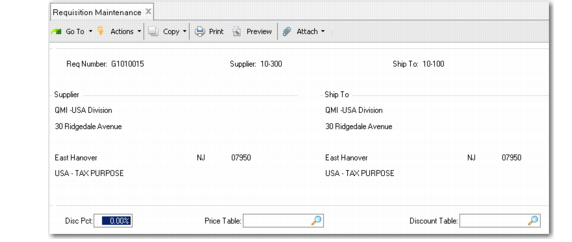
Requisition Maintenance, Second Header Frame
Discount %
Optional. Enter the discount percentage the supplier is allowing for the requisitioned items. This discount percentage is the default for line items; you can change the discount at the line-item level if it varies by item. If a supplier is specified, this defaults from Supplier Data Maintenance (2.3.1).
Price Table
Optional. Specify the price table GRS uses to find the item’s price. If a supplier is specified, this defaults from the supplier record. The entry in this field becomes the default value for the line items.
Disc Table
Specify the discount table GRS uses to look up the discount associated with this item. If a supplier is specified, this defaults from the supplier record. The entry in this field becomes the default value for line items.
You cannot leave this field blank if Discrete Discount Table Req is Yes in Purchasing Control (5.24). If you do, the system displays a warning if Disc Tbl is blank in the requisition header, and at the line level, you cannot complete line-item entry without entering a valid discount table.
Note: When you update the Price Tbl or Disc Tbl field on the header, the system prompts you to update line items. If you choose to make the updates, the system follows these rules:
• If the header specifies a supplier, the system updates the price or discount table only on line items that match the header supplier.
• If Supplier is blank in the header, the system updates only lines with a blank Supplier field.
In addition, these fields are validated against the Price Table Required field in Purchasing Control.
Entering Line Items
You can enter line-item data in two modes—single-line or multiple-line—based on the setting of the Ln Format (S/M) field in Requisition Control (5.2.1.24). You can alternate between Single and Multi when you are entering line items.
In multiple-line mode, you can enter just the basic data for from 8 to 16 items—depending on your computer system—on a single screen. This basic data includes supplier data, site, item number, quantity, unit of measure, unit cost, and discount percentage. All other information defaults from the header.
Note: If you need to change any of the other header information for a line item, you must use single-line mode, which displays detailed data for only one line on each screen. To change from multiple- to single-line mode, click Back until the cursor appears in the Ln Format field; then enter S and click Next.
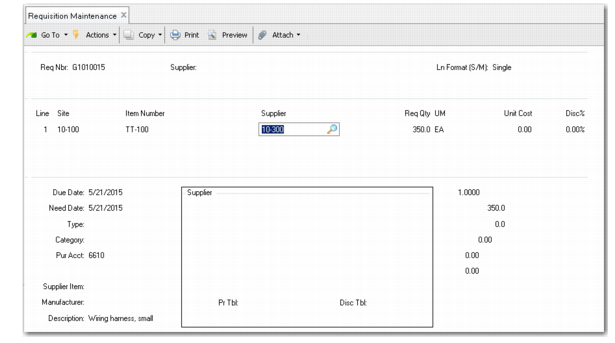
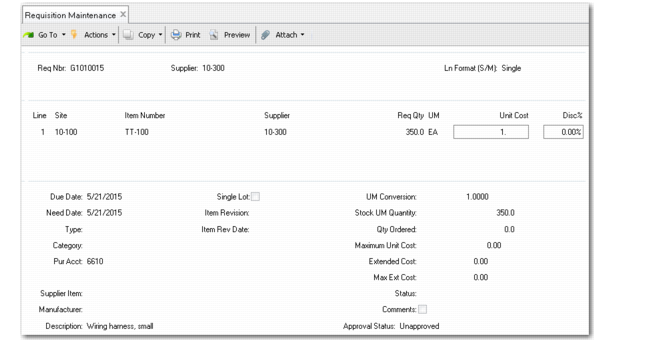
Requisition Maintenance, Line Frame
Line
Required. Enter a unique identifier for each line of the requisition. Press Enter to create a new line number. The line number is used to identify individual requisition lines during the review, approval, and purchase order process. To view or modify an existing line item, enter the number of the line or use Next/Previous to scroll through the list of line items.
Site
This value defaults from the header, but can be changed for each line item.
Item Number
Optional. Enter the catalog or stock identifier used for the inventory system. For memo item purchases, enter a brief description of the item being purchased. For other purchases, enter the item number from the item master. You can enter additional information in line-item comments, if needed.
Note: Memo items are not defined in Item Master Maintenance.
Supplier
This value defaults from the header, but can be changed for each line item. When you advance to this field, a pop-up window prompts you for an optional price table and discount table.
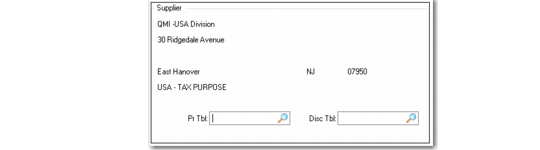
Requisition Maintenance, Supplier Detail Frame
Pr Tbl
Optional. This value defaults from the header, but can be changed for each line item.
Disc Tbl
Optional. This value defaults from the header, but can be changed for each line item.
Note: Line-item price and discount tables may be updated automatically based on changes to the associated fields in the requisition header. See
here.
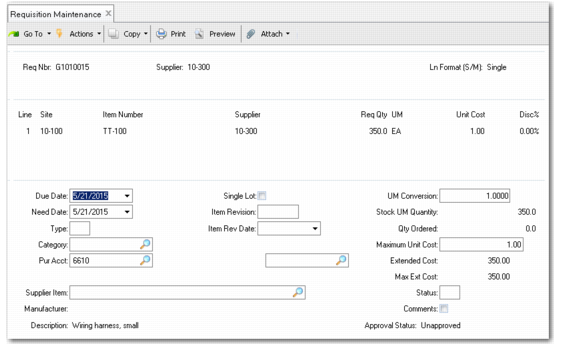
Requisition Maintenance, Line Details
Req Qty
Required. Enter the quantity of the item needed.
UM
Optional. Enter the unit of measure in which goods or services are priced, ordered, and received; for example, EA (each), BX (box), DZ (dozen), LT (lot), or HR (hour). UM is used in the search for a price on the associated price list or discount table. For inventory items, UM defaults from Item Master Maintenance (1.4.1).
The system validates this field against entries in Generalized Codes Maintenance (36.2.13) for field pod_um. If you enter a value different from the one in Item Master Maintenance, the system looks for a conversion factor defined in Unit of Measure Maintenance (1.13). If one is not defined, a warning displays and the UM Conversion field is set to 1.0.
Note: When you add an approved requisition line to a purchase order, a valid conversion must exist or an error displays.
Unit Cost
Optional. Enter the price from the associated price list or discount table. The system uses this information to calculate the extended cost of the line item.
Disc %
This value defaults from the header, but can be changed for each line item.
Requisition Maintenance, Line Details
Due Date
This value defaults from the header, but can be changed for each line item.
Need Date
This value defaults from the header, but can be changed for each line item.
Type
This field determines the type of the requisition line item. When an approved line item is placed on a purchase order, the value in this field determines whether this item is to be received into inventory and considered by planning.
Type defaults from Memo Order Type in Item-Site Inventory Data Maintenance (1.4.16) if defined for the order line site; otherwise, it defaults from Item Master Maintenance (1.4.1).
Blank: This line item is received into inventory. When the receipt is processed, inventory balances are increased and a GL transaction debits the Inventory account. Inventory items are considered supply by MRP.
Non-blank: This item does not affect inventory and does not create a GL transaction. For a non-inventory item, type defaults to M (memo). Memo items are expensed or capitalized upon receipt, depending on the Purchases account for the item. Memo items have no effect on MRP.
Category
Optional. Enter the code specifying a logical grouping of related items by GL account number. Category is used to determine the type of approval required for the item. If you enter an account code in Pur Acct. or if one defaults from the supplier, the system attempts to determine the category. You can override this entry.
Pur Acct
Required before final approval. Enter the GL account code used to record non-inventory purchases. This must be a valid, active account of type Standard. The Purchases account is a combination of the GL account, sub-account, cost center, and project. It defaults from the Purchases account for the supplier when a supplier is specified. The entry in this field depends on the way your company’s GL is set up.
Project
This value defaults from the header, but can be changed for each line item.
Supplier Item
Optional. If the item has been defined in Supplier Item Maintenance (1.19), the system displays the supplier’s item number in this field so it can be referenced on the purchase order.
Manufacturer
Reference field. If the supplier item master includes a manufacturer, it displays in this field.
Description
Optional. If you enter an inventory line item, Description defaults from the item master. If you enter a non-inventory item, “Item Not In Inventory” displays. Clear the field and enter a brief description of the item. This description prints on formal documents such as POs.
Single Lot
Optional. Specify whether each receipt requires a unique lot number. This information is copied onto the purchase order with the approved line item. It defaults from Regulatory Attributes Control (1.22.24). See
QAD Master Data User Guide. Item Revision
Optionally, enter a code representing the revision level of the line item. This field is validated against predefined values entered in Generalized Codes Maintenance for field pdq_rev.
Revision defaults from item master data, but you can change it as needed.
The entry in this field is copied from the approved requisition line into the same named field on the purchase order.
Note: Do not confuse the item revision with the purchase order revision. Purchase order revision indicates whether changes have been made to the purchase order. Item revision indicates changes have been made to the engineering version of the item; the level defaults from either Item-Site Planning Maintenance or Item Master Maintenance.
Revision codes are usually associated with a particular engineering drawing or process. When a change is made, the revision code usually changes. The current revision for an item can be entered manually using Item Master Maintenance or automatically using ECO Maintenance or features of the option Product Change Control module.
Entering a specific revision code on a requisition specifies that the supplier is to deliver a particular version of the item. Usually this is the current revision, but in some cases you might need an earlier or later one.
Item Revision Date
Optionally, specify the date the line item revision level is effective. The default is blank.
UM Conversion
Optional. Enter the factor used to calculate the equivalent amount or value from purchase unit to stock unit of measure (default is 1). This value defaults from the value defined in Unit of Measure Maintenance (1.13), if available.
This field determines correct conversion of both the items and their currency value. For example, your company might control pencils as individual items; however, the supplier might sell them only by boxes containing 24 pencils. In that case, set the value of UM Conversion to 24.
Stock UM Quantity
This reference field displays the requisition quantity converted from the supplier’s unit of measure to the unit of measure in which your company stocks this item.
Quantity Ordered
This reference field displays the actual quantity ordered. The default is zero. When all or part of a requisition line-item quantity is placed on a purchase order, that quantity is reflected in this field.
Maximum Unit Cost
Required. This field lets you specify a higher purchase cost than entered in the Unit Cost field. The default is Unit Cost regardless of the discount percentage, but you can change it manually. The (optionally) higher cost by line item is used to calculate the total cost for which the requisition is approved. The system uses this cost when calculating whether the requisition is within tolerance parameters set in Requisition Accounting Control (36.9.3).
Ext Cost
This reference field displays a calculation using the quantity ordered, unit cost, and discount to determine total extended cost.
Max Ext Cost
This reference field displays a calculation using the quantity ordered and maximum unit cost to determine total maximum extended cost.
Status
Optional. This value identifies the status of the individual requisition line.
• Blank indicates the line item is open.
• X indicates the line item is canceled. No further activity can be entered against a line item with this status.
If a line item has been canceled, it can be reopened by changing the status. When a requisition is canceled at the header level, X displays on all line items.
Comments
Optional. Indicate whether you want to enter comments for this line. This is not the same field as header comments; you can add different comments for each line item if you choose.
• Enter No if you do not want to enter comments.
• Enter Yes if you want to enter additional information about this line item—for example, item specifications or special packaging or delivery requirements.
The system maintains a minimum audit trail of changes to purchase requisitions, so you can use comments to record changes to line items that might be important later for informational or tracking purposes. Line item comments can be copied into the PO in Build PO from Requisitions (5.2.18); the buyer can then choose to print them on the PO.
Subcontract Data Frame
In some manufacturing environments, specific operations or processes may be outsourced to a supplier or subcontractor. Enter a requisition for this type of service by setting the line item type to S. When you click Next, an additional frame lets you access fields related to subcontract operations.
When you reference the requisition on a purchase order or copy the line using Build PO from Requisitions (5.2.18), the system sets the Type field on the PO line to S and copies the subcontract-related fields from the requisition line.
Type describes how the fields in this frame are used in the purchase order.
Requisition Maintenance, Subcontract Data Frame
Completing the Trailer
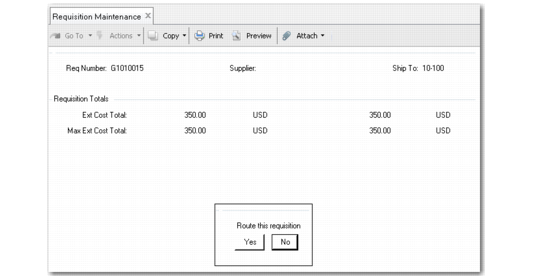
In the final section of Requisition Maintenance, the trailer, you decide whether the requisition is ready to enter the approval process. The first trailer screen displays the total extended cost and maximum extended cost in both the requisition currency (left column) and the approval currency (right column).
Requisition Maintenance, Summary Frame
If you are satisfied that the requisition is correct, choose Yes. A routing frame lets you send the requisition into the approval process.
If you choose not to route the requisition at this time—for example, if you want to wait for additional information on a line item—then exit without adding any routing information. The requisition remains in your queue. You can return to it later by entering its number on the first screen of Requisition Maintenance, or you can use Requisition Routing Maintenance (5.2.14) if the requisition is ready to route. The approval process does not start until you route the requisition to the first approver or reviewer.
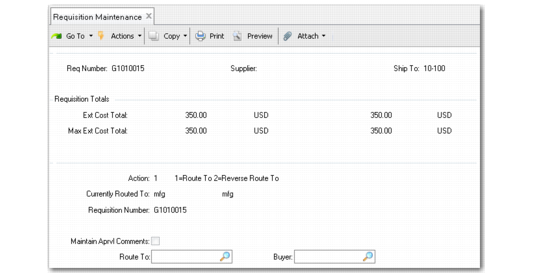
Requisition Maintenance, Routing Frame
Action
Specify the routing action you want to take. For new requisitions entering the approval process, select 1 to route the requisition to the first approver. See
Requisition Routing Maintenance.
Currently Routed To
Enter the code for the user in whose queue the requisition resides. You can change this only if you are an alternate or administrative approver for the current routed-to user.
Requisition Number
Enter the requisition you want to route. This defaults from the requisition you have just completed.
Maintain Aprvl Comments
Enter Yes if you want to add comments for the next person on the routing to read.
Route To
Enter the code for the first person in the approval process. Use the lookup browse to view the list of appropriate approvers determined by the system based on sub-account, cost center, category, and job information. On MRP orders, this is a product-line approver.
Buyer
Enter the employee responsible for issuing a purchase order for approved requisition items. You can leave this field blank. However, a purchase reviewer or approver must complete the field before final approval.
If your company uses the system-generated e-mail feature, the buyer is informed by e-mail when the requisition has been approved. If a default supplier was entered for the requisition, and if a buyer was defined for that supplier in Supplier Data Maintenance (2.3.1), the user ID for the buyer appears in this field. It can be changed to any valid buyer.
When you have completed the routing frame and added approval comments (if any), you are prompted to confirm your actions. This routes the requisition into the approval process.