Installed Base Item Maintenance
Use Installed Base Item Maintenance (11.3.1) to enter new items directly into the installed base or modify data associated with existing ISB records. This function is particularly helpful for companies that manually add items and configurations to the installed base.
Example: A company sold products for several years before implementing the Service/Support Management module. They have several thousand units in the field without corresponding installed base records. They have a choice: either backfill the installed base as end users call with questions and problems, or enter installed base records from existing sales order or service contract records.
Other typical uses for Installed Base Item Maintenance include:
• Extending the warranty expiration date
• Changing the revision level of the item
• Entering and updating preventive maintenance (PM) dates and setting the interval between last/next PM dates
• Deleting obsolete records
• Correcting mistakes such as incorrect serial numbers or wrong classification codes
If an open call, a call that has been moved to history, or an unexpired service quote or contract references an installed base record, you cannot delete it.
Changing ISB Serial Numbers
You can use Installed Base Item Maintenance to modify the serial number of an item in the installed base. This is useful, for example, if the installed base was updated during shipment of a sales order and the wrong serial number was specified on the order. You can simply correct the data here.
However, if an item in the installed based is referenced on an open contract, call, or RMA, changing the serial number is more complex. For open contracts, open calls without call reports, and RMA shipment lines without a quantity shipped, the system updates the reference to the existing serial number to reflect the new number you enter in Installed Base Item Maintenance.
Note: A contract is considered open if the current date is before the contract end date. A call is considered open if it does not have the closed or cancel status specified in Call Management Control.
When an open call with reports exists, an engineer has already begun working on the call item. Typically the engineer verifies the serial number before beginning work. In this case, when you attempt to change the serial number, the system displays a warning and prompts you to continue. If you respond Yes, the serial number is changed on the call and in the installed base record. The system also checks to see if the new serial number is on any open contract and applies the contract coverage if appropriate.
Similarly, if the old serial number is referenced on an RMA line with a quantity shipped, a warning displays and you are prompted to continue.
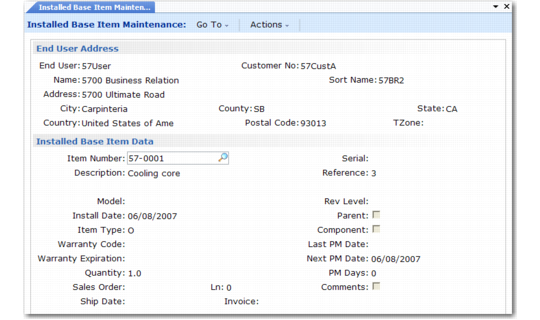
End User Address Frame
After you enter or select a valid end user, the system fills in the fields in this frame from the end user record, for display only.
Installed Base Item Maintenance (11.3.1)
Installed Base Item Data Frame
In this frame, you specify or update information related to the installed base item. The Sales Order, Line, Ship Date, and Invoice Number fields are display only. The system updates them when the item is added to the installed base during invoice post or from Call Activity Recording.
The Parent and Component fields are also set by the system when components are added beneath a parent during invoice post, from Call Activity Recording, or from Installed Configuration Maintenance.
If MTZ is active, the end user’s time zone can affect dates.
Item Number
Identify an item installed at this end-user location. This may be a finished product, such as a computer, or a component, such as a disk drive or memory board. Validation depends on Items Must Exist in Service Management Control. If Yes, the item must be in Item Master Maintenance. If No, you can enter any item number. Use next/previous processing to see the items installed at an end-user site.
Serial
Specify the lot or serial number uniquely identifying the installed item. If the item is defined in the item master to require lot/serial control, this field is required. Invoice post adds serial numbers to the installed base. To change the serial number of an installed base item, use the New Serial field on the pop-up window that displays after you click Next.
Description
Defaults from the first line of the description in Item Master Maintenance.
Reference
You can only update this field for items not serial number controlled. For serialized items, Reference is always zero, since the serial number must be unique. If an item is not serial controlled, the ISB reference number uniquely identifies it in the installed base. The system checks for the last reference number for this item and serial number, increments this by one, and displays this value.
Note: If you add installed items manually, enter a question mark (?) in the Ref field to see the next available reference number.
The ISB reference number is not an inventory reference number. Although each provides a unique pointer to a particular item, one identifies items owned by your end users; the other identifies items in your inventory locations.
Model
Enter the model number associated with this item. For new items, this defaults from Service Item Maintenance. For existing items, the system reads the value from the installed base. You can base call defaults on the model. To ensure consistency, set up values in Generalized Codes Maintenance for field pt_model.
Install Date
For a new item, Install Date defaults from the system date, but you can change it. When Invoice Post and Print creates an installed base record, the install date defaults from the sales order shipping date. If the item has Install Call set to Yes, the system sets the install date to the ship date plus the installation days ahead in Call Management Control. When you close the installation call, however, the system updates Install Date to reflect the call closure date and recalculates the warranty end date.
The system applies these rules for defaulting an install date only if you do not specify an install date in the pop-up window of Sales Order Maintenance or in Installed Base Item Maintenance. The system never overwrites an install date you specify.
Item Type
Defaults from the value for the same field in Service Item Maintenance and is validated against generalized codes for pt_sys_type. Three values are supplied: SW (software), S (system), and O (other). You can add codes in Generalized Codes Maintenance. Specify one code as system level in the System Level field in Service Management Control. You can choose to see only system-level items on the Installed Base Report.
Note: System level normally indicates the top-level item in an installed configuration, but you can apply it to suit your system.
If System Level on Calls is also Yes in Call Management Control, during next/previous processing in the Item field of Call Maintenance the system displays only items marked with this system type.
Warranty Code
The warranty code defaults from service item information.
Warranty Expiration
The system calculates the expiration date by adding the warranty duration to the install date. You can manually change this, but if you specify a warranty, you must also specify an expiration date.
Quantity
Sales order post updates this field by the quantity on the order line, unless the item is serialized, in which case item quantity is always one.
Sales Order, Ln, Ship Date, Invoice Number
These fields are display only. The system updates them when the item is added to the installed base during Invoice Post and Print or from Call Activity Recording. When Call Activity Recording adds an item to the installed base, the system updates Sales Order and Line to reflect the call ID and line number from which the update originated.
Rev Level
An optional code identifying the engineering revision of this item. If this installed base item is in Item Master Maintenance (1.4.1), the value defaults from there.
Parent and Component
These fields are display only, and set when Invoice Post and Print or Call Activity Recording adds components beneath an item in the installed base. Components and parents can also be created manually using Installed Configuration Maintenance.
Last PM Date
The system updates this field when you close a call line with the PM work code for this item. The Last PM Date is the call close date.
Next PM Date
This field is display only. When a call line with the PM work code is closed, the system adds the Days Between PM value in Service Item Maintenance to Last PM Date or, if blank, to Install Date.
If the value in the PM Days field or the Last PM Date field is modified, the system updates the Next PM Date field accordingly. The Next PM date may also be updated when a call is created for this item using the PM work code. In this case, the date of the call will be used as the next PM date.
PM Days
Defaults from the value in Days Between PM in Service Item Maintenance and indicates the PM cycle for this item in calendar days. The system adds this value to the install date initially to determine the Next PM Date field value in Installed Base Item Maintenance. When you close subsequent PM calls or lines with the PM work code, the system adds PM Days to Last PM Date to determine the Next PM Date value.
Comments
Defaults to Yes if comments exist; otherwise defaults to No. If Yes, the standard transaction comments frame displays when you click Next, so you can enter or review comments associated with this installed base item. Comments display on the Installed Base Report.
Installed Base Detail
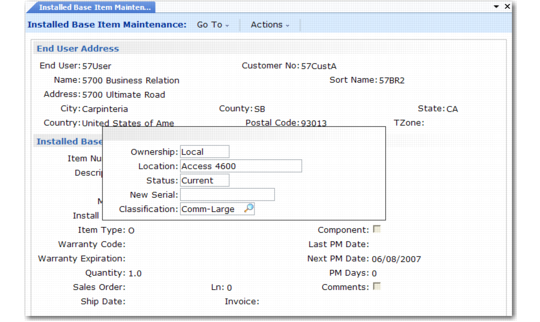
You can add additional details about the installed base item or change its serial number or classification in a final pop-up window.
Installed Base Detail
Ownership
A reference-only field indicating who actually possesses the item. Set up values with Generalized Codes Maintenance for field isb_owner. For a large company, you might enter the department or individual that uses the item.
Location
A reference-only field that describes, in up to 24 characters, the current location of this installed base item at the end-user site. This might be a building location, suite number, or floor.
Status
A user-defined code indicating the status of this installed base item; for example, BETATEST or OBSOLETE. Set up status codes in Generalized Codes Maintenance for the field isb_status.
New Serial
Use this field to change the serial number for an item already in the installed base. See
Changing ISB Serial Numbers for details on this process.
Classification
Enter the unique code you want to use to classify this item in the installed base. Define classification codes in Classification Maintenance.
You can leave this field blank, in which case the item does not belong to any classification.
This field defaults from Service Item Maintenance. When installed base record are created through posting sales orders, as part of RMA processing, or by other service functions, the item is added to the installed base with the classification assigned in Service Item Maintenance.