Time Zones and Call Management
Time zones have their most significant impact on managing calls, since calls represent real time contact with end users. When MTZ is active, most call dates and times display relative to the end user’s time zone, while the system stores them in the domain time zone.
MTZ does not just affect time displays. When the system searches for data based on dates and times, the time it uses is relative to the end user’s time zone. This applies to contract coverage, pricing calculations, and service BOMs and routings.
Call Maintenance (11.1.1.1)
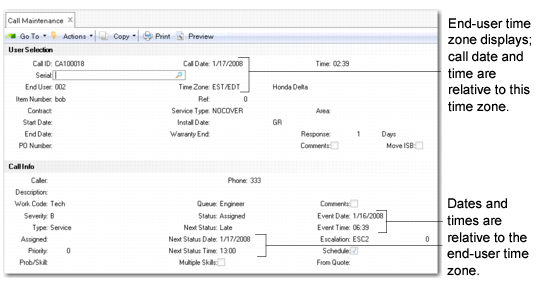
When MTZ is active, the end user’s time zone displays as part of the address information in the Call Maintenance header. If you create the end user directly with Call Maintenance, the system prompts you to specify a time zone for the new end user.
The default call open date and time display relative to the end-user time zone. These fields are updated after you specify an end user, since the system needs to know the end user’s time zone to convert them correctly. You can change the call open date and time when you open a call; afterward they are display only.
Effect of MTZ in Call Maintenance Header Frames
If the user has defined a preferred time zone using Service/Support User Preferences, the date and time associated with call comments reflects this value. Otherwise, they default from the domain time zone. See
User Preferences for details.
The dates and times in the Call Info frame also display relative to the end user’s time zone, including Next Status Date, Next Status Time, Event Date, and Event Time.
Travel and Estimated Time Frame
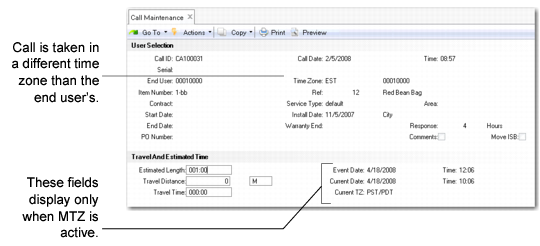
When MTZ is active, the call Event Date and Time values set in the previous frame display on the Travel and Estimated Time frame. The current date, time, and the current time zone also display. The current date and time are relative to the time zone of the current user, if the user has a preferred time zone. Otherwise, the system uses the domain date and time.
Effect of MTZ in Call Maintenance Travel and Estimated Time Frame
Override Scheduling Options Pop-up
If you use engineer scheduling and MTZ is active, Call Maintenance is affected. If Override Scheduling Options is Yes in Engineer Schedule Control, you can modify the Limit by Time Zone and Range of Hours to Consider fields in the scheduling options frame. Otherwise, these fields do not display.
Override Scheduling Options Frame
Limit by Time Zone
Defaults from Engineer Schedule Control and indicates whether the system should consider only engineers with a time zone matching the time zone of the call end user.
The system uses this field in conjunction with Range of Hours to Consider. If you enter zero, the time zones must match exactly. An integer value indicates the number of hours less than or greater than the end-user time zone considered a match for scheduling.
Range of Hours to Consider
Defaults from the value in Engineer Schedule Control. The system considers it only when Limit by Time Zone is Yes.
• It indicates how many other time zones the system can include for scheduling. Blank indicates the engineer’s time zone must exactly match the time zone of the call’s end user.
• An integer value indicates any time zone in a range is a match. The integer represents the number of time zones more or less than the end user’s considered a match for scheduling.
Engineer Availability Frame
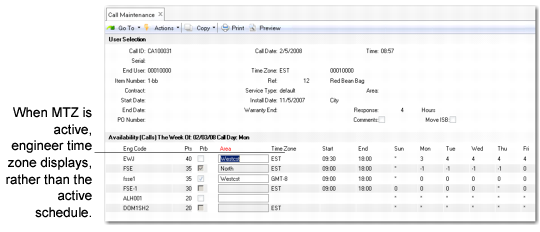
The availability frame, illustrated in
Effect of MTZ in Call Maintenance, displays a time zone column instead of the engineer’s schedule.
Effect of MTZ in Call Maintenance
Call Engineer Schedule Maintenance Frame
When you exit the availability frame, the Call Engineer Schedule Maintenance frame displays. Use this frame to modify the estimated number of hours to be worked and the start date and time.
When MTZ is active, the scheduled start date and time are in the end user’s time zone, which is displayed in the Call Maintenance header. The engineer time zone displays for reference in the Eng TZ column. If MTZ is not active, the engineer’s area displays instead, labeled Eng Area.
Displaying Call Information
When MTZ is active, most SSM inquiries and reports that display call data let you choose how the system presents time information. Choose from a list of display time zones, including some or all of the following:
• Time zone of the call’s end user, from End User Data Maintenance
• Time zone of the call’s assigned engineer, from Engineer Maintenance
• Domain time zone, from the domain record
• Current user’s time zone, from Service/Support User Preferences
Select Other to manually enter any other valid time zone.
Call Inquiry, Display Time Zone illustrates the Display Time Zone frame in Call Inquiry (11.1.1.2).
Call Inquiry, Display Time Zone
Select the option you want to use. If you choose Other, you are prompted to enter a valid time zone.
Note: Display options depend on which program you are using. If a call function does not have an end user or engineer, these options do not appear.
When the display option for a call report is the domain time zone, current user’s time zone, or a time zone you entered, call open dates and times all display in the same time zone. If the display option is the time zone of the call’s end user or assigned engineer and you review a range of calls, you may be viewing dates and times in more than one time zone, since the time zone may differ among end users and engineers.
If you use the call open date as a selection criterion for reporting, the system interprets the date relative to the display time zone you choose.
Example: A company located in Los Angeles, the domain time zone, takes two calls on April 14, one from an end user in Los Angeles and one from an end user in New Zealand.
Now you generate a report in Call Inquiry with a selection date of
04/14/07. If the display option for Call Inquiry is the domain time zone, the system selects both calls. If the display option is the end-user time zone, the system selects only the call from Los Angeles. From the point of view of the end user in New Zealand, you opened the second call on 04/15/07.
Reports and Inquiries Affected
Call inquiries and reports affected by MTZ include the following:
• Call Inquiry (11.1.1.2). The Time Zone Display pop-up appears before the Output field and a field labeled TZ displays your choice. When MTZ is active, the end user’s time zone labeled EUTZ replaces the call area output column.
• Call Detail Inquiry (11.1.1.3). The Time Zone Display pop-up appears before the Output field and a field labeled Display TZ displays your choice. When MTZ is active, the system includes in the report two fields labeled End User TZ and Display TZ. The system uses the display time zone you choose to convert the call’s open and closed dates for output, and the event and next status dates and times in the call history output lines.
• Call Print (11.1.1.4). The Time Zone Display pop-up appears before the Output field and a field labeled Report TZ displays your choice. When MTZ is active, the system includes in the report two fields labeled End User TZ and Report TZ. The system uses the display time zone you choose to convert the call’s open, event, and next status dates and times before displaying them. It also determines how the system interprets Next Date.
• Call Print from Call Maintenance/Escalation Monitor. If you choose to print calls from Call Maintenance or if an escalation step automatically prints a call, you do not have an opportunity to enter a display time zone. In these cases, dates and times are relative to the time zone of the call’s end user.
• Call Print with History (11.1.1.5). Same changes as for Call Print.
• Total Calls by Assigned Inquiry (11.1.19.1) and Total Calls by Queue Inquiry (11.1.19.2). The system compares Date From with the call open date relative to the end user’s time zone.
Recording Call Activity
Call Activity Recording and Call Invoice Recording are both affected by activating MTZ. In general, as in Call Maintenance, most call dates and times are relative to the end user’s time zone. The exception is the tax date. Since it is related to tax tables used system-wide, it is not converted to the end user’s time zone. It remains relative to the domain time zone, like other tax dates in the system.
• The time zone of the call’s end user appears at the top, right-hand corner of the CAR header frame.
• The system bases pricing, charge codes, and limits processing on the call open date relative to the end user’s time zone. It uses the same logic to search for effective dates on BOMs and routings.
• The labor start date and time and end time on the Labor/Expense Detail frame are relative to the end user’s time zone.
• If the Dates field in the Call Line Status frame is Yes, the Display Time Zone selection list lets you specify a time zone to use. This is because the engineer actually doing the work on the call, or a clerical/support person somewhere else, could be entering these dates and times. The Complete Date is an exception. Since no time is associated with the date, it is relative to the end user’s time zone, regardless of the display time zone you choose.
• The Display Time Zone selection list may also appear before the Call Status frame in Call Activity Recording, if you did not select it previously. The time zone affects the display of Complete Date and Time, Close Date and Time, and the Next Status Date and Time fields.
Call Queue Manager (11.1.6)
Like many of the call reports and inquiries, you can select a display time zone from the Call Queue Manager when MTZ is active. The next status date and next status time of each call record display relative to the time zone you select.
If you normally display calls sorted by Next Status Date/Time, be aware of the following. The Next Status Date/Time index is based on the way the system stores call dates and times in the domain time zone. When call dates and times are relative to a different time zone, they may appear to be out of order.
Note: If Queue Manager is 0 in Call Management Control, this sort is used.
In the Call Queue Manager, the call next status date and time in the edit pop-up window also appear relative to the display time zone you select.
Call Generator (11.1.8)
The dates and times in the Call Generator are relative to the time zone of the end user for which you are generating a call. These dates include the call open date and any dates you use as selection criteria, such as ranges of ship dates or next PM dates. The same applies to dates on a field notification you create from the Call Generator.
Escalation Monitor (11.1.13.13)
Dates and times in the Escalation Monitor output remain relative to the domain time zone. However, if an escalation step prints a call, the system assumes it should display the date and time information on the call in the end user’s time zone.
Call Quotes
Call Quote Maintenance (11.1.1.7) resembles Call Activity Recording and supports multiple time zones similarly:
• The time zone of the call end user appears at the top, right-hand corner of the CAR header.
• The quote’s Expire date is relative to the end user’s time zone. The time you opened the quote, relative to the end user’s time zone, determines the expiration time.
• The system bases pricing, charge codes, and limits processing on the call open date relative to the end user’s time zone. It uses the same logic to search for effective dates on BOMs and routings.
• You enter the labor start date and time and end time on the Labor/Expense Detail frame relative to the end user’s time zone.
Call Quote Reports
Call quote reports and inquiries correspond to call reports and inquiries:
• Call Quote Inquiry (11.1.1.8). The Time Zone Display pop-up appears before the Output field, and a field labeled Display TZ displays your choice. Enter an Expire Before value relative to the display time zone; expiration dates display that way in the output.
• Call Quote Detail Inquiry (11.1.1.9). The quote’s expiration date displays relative to the end user’s time zone.
• Call Quote Print (11.1.1.10). The Time Zone Display pop-up appears before the Output field and a field labeled Report TZ displays your choice. When MTZ is active, the system includes two fields labeled End User TZ and Report TZ output. The system uses the display time zone you choose to convert the quote’s open dates and times before displaying them and to interpret the Quote Date value.
Call Quote Release to Recording (11.1.1.11)
You enter the Quote Date range and the Call Date value relative to the end user’s time zone, since the system uses Call Date to find default charge codes and limit coverage.
Copy Call Quote (11.1.1.12)
The end user’s time zone of the source quote appears at the top right of the header and is the time zone for the new quote. You enter the Quote Date and Expire date values—and they display—relative to the end user’s time zone.