Sample Pending Call
This section illustrates how the sequence of frames works using the DEMO profile supplied with the system. This profile closely emulates the flow of control in Call Maintenance, and illustrates most of the features you can implement. You can use it as the basis for developing your own custom profiles by removing fields and frames that you do not use.
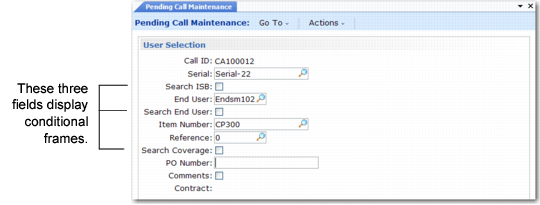
Pending Call Maintenance (11.1.3.1), User Selection illustrates the first frame of Pending Call Maintenance. Some of the features of Call Maintenance that occur based on user input are triggered in this frame by specifying Yes to a field used as a condition. In
Pending Call Maintenance (11.1.3.1), User Selection, the following fields are used like this:
• Search ISB
• Search End User
• Search Coverage
Pending Call Maintenance (11.1.3.1), User Selection
Pending Call Maintenance Example, End User Selection illustrates the frame that displays when you enter Yes to Search End User and
fseusel.p is defined as the program to execute when l-search-enduser is true. This frame is similar to the pop-up that displays in Call Maintenance (see
End User Selection Frame) when you leave the End User field blank and click Next or press Enter. You can find an end-user record by number, sort name, postal code, and telephone number.
If you leave End User blank and click Next in the frame illustrated in
Pending Call Maintenance Example, End User Selection, an additional frame displays where you can create a new end user. This is just like the frame in Call Maintenance, and not illustrated here. See
End User Frame.
Pending Call Maintenance Example, End User Selection
Pending Call Maintenance Example, Installed Base Items illustrates the frame that displays when you enter Yes to Search ISB and
fspcsr1.p is the program to execute when l-search-isb is true. This search must occur after the user has entered a serial number to search for.
Pending Call Maintenance Example, Installed Base Items
The frame in
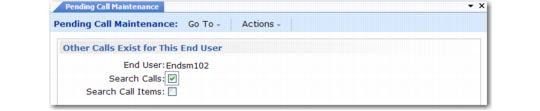
Pending Call Maintenance Example, Other Calls Exist for This End User displays when you add a condition to check for other calls for the specified end user.
Pending Call Maintenance Example, Other Calls Exist for This End User
When
fscpcsr3.p is defined as the program to execute based on the condition that Search Calls is Yes (l-search-call is true), the frame in
Pending Call Maintenance Example, Open Calls for End User displays. A slightly different frame displays when Search Call Items is Yes.
Pending Call Maintenance Example, Open Calls for End User
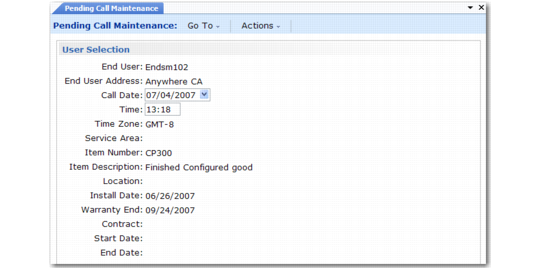
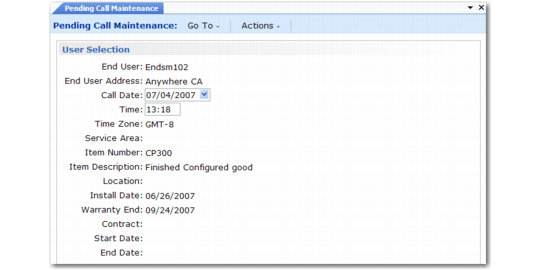
Pending Call Maintenance Example, Second User Selection Frame illustrates the second User Selection frame that lets you modify the call open date and time if necessary.
Pending Call Maintenance Example, Second User Selection Frame
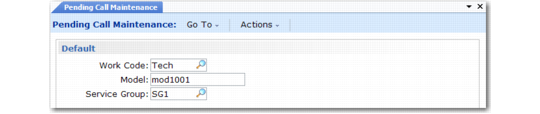
Pending Call Maintenance Example, Default illustrates the Default frame in the DEMO profile. This frame is similar to the pop-up in Call Maintenance that prompts for the same three fields, which comprise the key for call default records defined in Call Default Maintenance. Pending Call Maintenance does not search for call defaults until these three fields have all appeared on a frame, either together or separately.
Pending Call Maintenance Example, Default
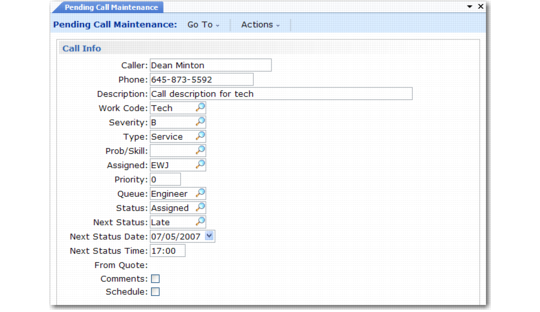
Pending Call Maintenance Example, Call Info illustrates the Call Info frame in the DEMO profile. This frame is similar to the Call Info frame in Call Maintenance, where most of the key fields related to a call are updated.
Pending Call Maintenance Example, Call Info
Because frames in Pending Call Maintenance can include at the most 18 fields, a second frame is needed to accommodate all the fields that display in one frame in Call Maintenance.
Pending Call Maintenance Example, Second Call Info illustrates this frame.
Pending Call Maintenance Example, Second Call Info
When
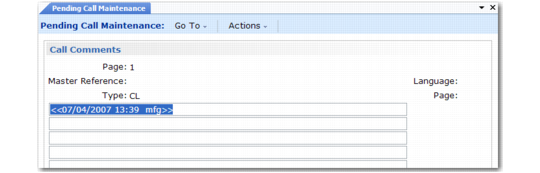
fscammt.p is defined as the program to execute based on the condition that Comments is Yes (l-call-info-comments is true), the frame in
Pending Call Maintenance Example, Comments displays.
Pending Call Maintenance Example, Comments
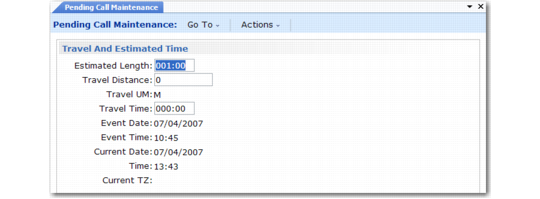
Pending Call Maintenance Example, Travel and Estimated Time illustrates the Travel and Estimated Time frame in the DEMO profile.
Note: Even if this frame is part of a profile, it displays only when Call Time Window is Yes for the user in Service/Support User Preferences (11.21.23) or for the system in Call Management Control (11.1.24).
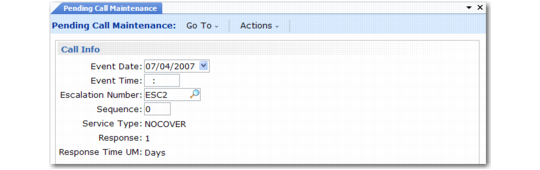
If you are using escalations, the default values for some of the fields in this frame are updated based on the escalation and sequence specified in the previous frames. While pending calls are not escalated when the Escalation Monitor runs, the default next event date and time are affected by an escalation associated with them. Once the pending call is transferred, the next sequence of the escalation will be executed.
The first four fields in this frame always display in Call Maintenance. The remaining fields display only when Multiple Time Zones (MTZ) is enabled in Service Management Control (11.24). These fields will not have values in Pending Call Maintenance when MTZ is not enabled. If you base your profiles on the DEMO profile and do not use MTZ, use Pending Call Frame Maintenance to remove these fields.
Pending Call Maintenance Example, Travel and Estimated Time
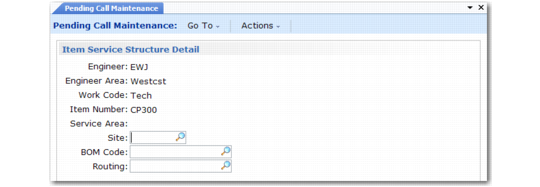
Pending Call Maintenance Example, Item Service Structure Detail illustrates the Item Service Structure Detail frame in the DEMO profile. The fields in this frame all apply to the first line item on the call.
Note: Even if this frame is part of a profile, it displays only when Call Structure Window is Yes for the user in Service/Support User Preferences or for the system in Call Management Control.
Pending Call Maintenance Example, Item Service Structure Detail
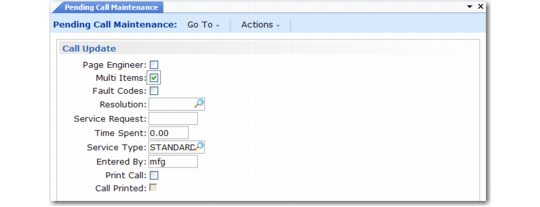
Pending Call Maintenance Example, Call Update illustrates the Call Update frame in the DEMO profile, which is similar to the same frame in Call Maintenance. The fields in this frame apply to the call record, not line items. You can add more lines to the call by setting Multi Items to Yes.
Pending Call Maintenance Example, Call Update
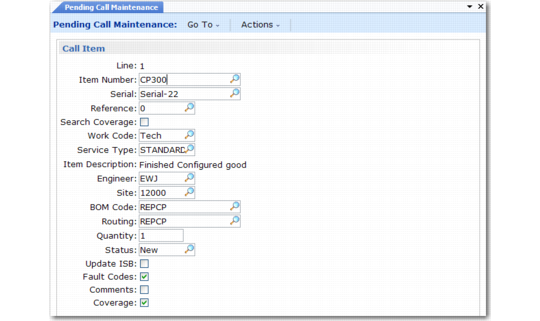
Pending Call Maintenance Example, Call Item illustrates the Call Item frame in the DEMO profile, which displays when Multi Items is Yes in the previous frame. The fields in this frame apply to the indicated call line item. The line number begins with 1 and automatically increments through existing lines each time you click Next. After all existing lines display, clicking Next adds the next line. You cannot use Next/Previous directly in the line number field.
Pending Call Maintenance Example, Call Item
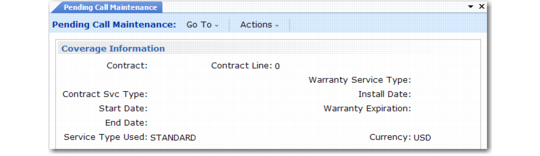
The Coverage Information frame illustrated in
Pending Call Maintenance Example, Coverage Information displays when
fscarmtx.p is specified as the next program to execute when Coverage is Yes (l-coverage is true).
The fields in this frame are display only, like the similar frame in Call Maintenance and Call Activity Recording and for informational purposes only. A second frame is included when coverage limits exist.
Pending Call Maintenance Example, Coverage Information
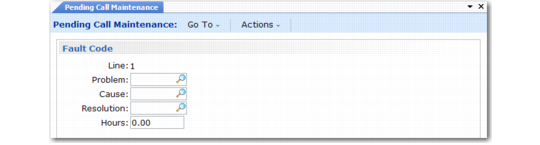
Pending Call Maintenance Example, Fault Code illustrates the Fault Code frame in the DEMO profile that displays when Fault Codes is Yes in the previous Call Item frame. The line number is like the item line number field (see
Pending Call Maintenance Example, Call Item). It begins with 1 and automatically increments through existing lines each time you click Next. After all existing lines display, clicking Next adds the next line. You cannot use Next/Previous directly in the line number field.
Pending Call Maintenance Example, Fault Code
A final frame displays when fspcup2.p is specified as the next program to execute. This frame is used to validate and transfer the pending call to Call Maintenance. This frame is discussed in the following section.
In Call Maintenance, clicking Back at this point returns the cursor to the first call header frame. The DEMO profile has been configured with backward frame sequences, which let you navigate backwards through all frames, except for the second call info and user selection frames. You can modify this design by changing the frame sequence records.