Set Up Control Programs
Settings in the following control programs affect shippers:
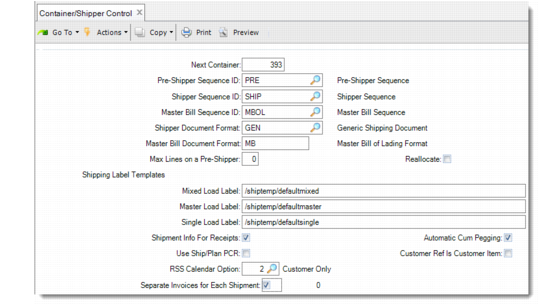
• Container/Shipper Control (7.9.24) sets various processing options that also apply to customer schedules.
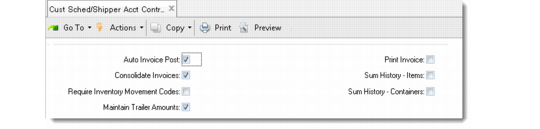
• Cust Sched/Shipper Acct Control (36.9.7) specifies operational accounting parameters that apply to general shipping as well as customer schedules.
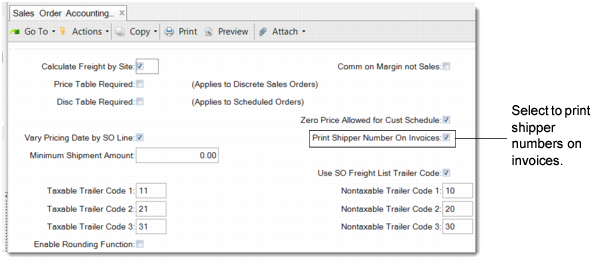
• Sales Order Accounting Control (36.9.6) determines whether shipper numbers are included on printed invoices.
Defining Container/Shipper Processing Options
To enable full global shipping functionality, update Container/Shipper Control to include default pre-shipper, shipper, and master bill of lading sequence IDs and document formats. Changes to Container/Shipper Control automatically update Customer Schedules Control (7.3.24).
In Cust Sched/Shipper Acct Control (36.9.7), specify whether inventory movement codes and shipment information for receipt processing are required and if maintenance of sales order trailer amounts is allowed.
Container/Shipper Control (7.9.24)
Next Container
Enter the next sequential container number to be assigned as a default when creating a container using either Container Workbench (7.7.1) or Pre-Shipper/Shipper Workbench (7.9.2).
Pre-Shipper Sequence ID and Shipper Sequence ID
Enter the NRM sequence codes used for pre-shippers and shippers, respectively. The system uses these codes to generate sequence numbers for all pre-shippers or shippers that do not use inventory movement codes or have no available shipping group. Enter an existing NRM sequence code with a target dataset associated with pre-shippers (abs_id.preship) or shippers (abs_id.shipper). The sequence description appears to the right of the code.
Master Bill Sequence ID
Enter the NRM sequence code used for master bills of lading. The system uses this code to generate sequence numbers for all master bills of lading with no available shipping group. Enter an existing NRM sequence code with a target dataset associated with master bills of lading (abs_id.mbol). The description appears to the right of the code.
Shipper Document Format
Enter a valid document format code applicable to pre-shippers/shippers or leave blank to specify no format code. This format is assigned by default to all pre-shippers/shippers that do not use inventory movement codes or have an available shipping group. The description appears to the right of the code.
Master Bill Document Format
Enter a valid document format code applicable to master bills of lading or leave blank to specify no format code. This format is assigned by default to all master bills of lading that do not use inventory movement codes or have an available shipping group. The description appears to the right of the code.
Max Lines on a Pre-Shipper
Enter the maximum number of lines to print on a pre-shipper created by Picklist/Pre-Shipper–Automatic (7.9.1). If zero, this option has no effect.
Mixed Load Label, Master Load Label, Single Load Label
Enter the name of a template file to be used for mixed load, master load, or single load shipping label formats. These are barcode labels that enable shipments to be received with barcode readers. See
QAD Scheduled Order Management User Guide for information on shipping labels
.Maintain Trailer Amounts
Enter Yes if you want to maintain sales order trailer amounts during shipper maintenance and confirmation. If No, you can still specify trailer amounts using Sales Order (7.1.1) and Pending Invoice Maintenance (7.13.1). This field applies only when the shipper document format is used as an invoice.
Shipment Info for Receipts
This field indicates whether the system prompts for shipment information during material receipt entry. Enter Yes if you want to specify shipment number, ship date, and inventory movement code when entering receipts. If No, the system does not prompt you. The default is No.
Use Ship/Plan PCR
Indicate whether prior cumulative required (PCR) quantities are considered by Required Ship Schedule Update (7.5.5) or Selective Required Ship Schedule Update (7.5.6) when resolving the shipping and planning schedules for netting logic. This field only works when you set Netting Logic to 3 in Customer Scheduled Order Maintenance (7.3.13). See
QAD Scheduled Order Management User Guide for details.
No: The beginning of the planning schedule is replaced by the shipping schedule and no prior cumulative quantities are considered.
Yes: The beginning of the planning schedule is replaced by the shipping schedule and remaining schedule quantities for the current release are adjusted to include the PCR quantities. The difference between the cumulative planning quantity and the cumulative shipping quantity is calculated as of the end of the overlap week and the difference is placed as an adjustment on the first day of the following week. This results in a required shipping schedule that can extend into the next week beyond the customer shipping schedule.
RSS Calendar Option
Enter one of the following to specify which calendar to use:
1 (the default): Use both the customer and shop (manufacturing) calendars to create the RSS.
2: Use only the customer calendar to create the Required Ship Schedule (RSS).
3: Use neither the customer calendar nor shop calendar. The system creates schedule dates without any calendar adjustments.
This field sets the default for the same-named field in Customer Data Maintenance (2.1.1).
Separate Invoices for Each Shipment
This field lets you separately post and print each invoice for each shipment or the consolidated invoice for the shipments in the same tax period or GL period.
Yes: You can select one of the following three options:
• 0 - Always: Separates the invoices for each shipment. 0 is the default setting.
• 1 - Tax Period: Separates the invoices by tax period. Ensure that you set Consolidate Invoices to Yes before posting invoices. If the conditions for invoice consolidation are met, the system combines the invoices for the shipments in the same tax period into one invoice during invoice posting and printing. See
Consolidate Invoices for the conditions.
• 2 - GL Period: Separates the invoices by GL period. Ensure that you set Consolidate Invoices to Yes before posting invoices. If the conditions for invoice consolidation are met, the system combines the invoices for the shipments in the same GL period into one invoice during invoice posting and printing. See
Consolidate Invoices for the conditions.
The Effective Date set in Pre-Shipper/Shipper Confirm is used to check whether the shipment is within a GL period. See
Effective Date for more information.
No: The system does not separate any invoices.
Automatic Cum Pegging
This field lets you optionally disable automatic pegging records for cumulative scheduled orders in:
• Picklist/Pre-Shipper–Automatic (7.9.1)
• Pre-Shipper/Shipper Workbench (7.9.2)
• Shipper Gateway (7.9.22)
Yes (the default): Automatic pegging occurs for cumulative orders.
No: Automatic pegging does not occur.
This field has no effect on required scheduled orders. Automatic pegging always occurs for them.
Customer Ref is Customer Item.
Indicate the default value for the Customer Ref is Customer Item field in Customer Scheduled Order Maintenance (7.3.13). That field determines whether the value entered in the Customer Ref field in Customer Scheduled Order Maintenance must be a valid customer item.
Specifying Yes in Customer Scheduled Order Maintenance has the following effects:
• When you specify a customer item number defined in Customer Item Maintenance (1.16) in the Item field, that customer item number defaults to the Customer Ref and Customer Item field (in the Order Line Item Data frame). The system replaces the value you enter in the Item field with the corresponding internal item number and displays a message to inform you of the change.
• When you enter an item defined in Item Master Maintenance (1.4.1) in the Item field and that internal item corresponds to just one customer item, the corresponding customer item number defaults to Customer Ref and Customer Item.
• When you enter a valid internal item number in the Item field that does not have a corresponding customer item number, an error displays. To avoid the error, change the item or set up a customer item cross-reference in Customer Item Maintenance.
• When you enter a valid internal item number in the Item field that has more than one customer item number, no default displays in the Customer Ref field. You must specify a valid customer item in Customer Ref to continue.
• When you leave the Item field blank and enter a valid customer item in the Customer Ref field, the system enters the corresponding internal item number in the Item field and defaults the value in Customer Ref to the Customer Item field.
Setting this field to No has the following effects:
• When you enter a valid customer item in the Item field, that customer item number defaults to the Customer Item field. The system replaces the value you enter in the Item field with the corresponding internal item number and displays a message to inform you of the change. The customer item number displays next to the Customer Ref field, but the Customer Ref field is not updated.
• When you enter a valid internal item number that corresponds to just one customer item in the Item field, the corresponding customer item displays next to the Customer Ref field and defaults to the Customer Item field; Customer Ref is not updated.
• When you enter an item number that either does not have a corresponding customer item number or has more than one customer item number, then both Customer Item and Customer Ref are left blank. Values entered in Customer Ref are not validated.
Defining Operational Accounting Settings
Use Cust Sched/Shipper Control (36.9.7) to set values for accounting-related aspects of shipment processing.
Cust Sched/Shipper Acct Control (36.9.7)
Auto Invoice Post
This field sets the default value for the Auto Inv Post field in Customer Scheduled Order Maintenance and the Post Invoice field in Pre-Shipper/Shipper Confirm. See
Selecting Confirmation Options.
Consolidate Invoices
This sets the default value for the corresponding field in Pre-Shipper/Shipper Confirm (7.9.5).
Require Inventory Movement Codes
This field indicates whether inventory movement codes are required for newly created pre‑shippers and shippers. If you use movement codes and shipping groups, set this field to Yes to ensure they are always applied. This field should be No if you are not using advanced shipping features or if the setup of inventory movement codes and shipping groups is not complete. The default is No.
Print Invoice
When Post Invoice is Yes, this field determines the default value for the Print Invoice? prompt in Pre-Shipper/Shipper Confirm. Enter Yes to print an invoice when the shipper is confirmed. Otherwise, enter No and print invoices later using Invoice Print or Reprint (7.13.12), or export them in EDI format using Invoice Export (35.4.3). This field has no effect when Post Invoice is No in Pre-Shipper/Shipper Confirm.
Sum History–Items, Sum History–Containers
These settings determine whether Pre-Shipper/Shipper Confirm generates a separate transaction history record for each item or container detail record on a shipper or summarizes transaction history by item or container.
No: A separate transaction history record is generated for each detail record on the shipper.
Yes: A transaction history record is generated for each unique combination of the following shipper detail data: sales order number, line number, item or container number, ship-from site and location, lot or serial number, and reference number.
Setting Sum history–Items and Sum history–Containers to Yes may significantly improve system performance when confirming shippers that reference the same item or container numbers, site and location detail, and sales order information on multiple shipper detail records. The improvement is less significant when you use serial numbers to uniquely identify individual items or containers.
Printing Shipper Numbers on Invoices
The Shipper on Invoice field in Sales Order Accounting Control (36.9.6) lets you specify if you want shipper numbers recorded on invoices.
Sales Order Accounting Control (36.9.6)
Print Shipper Number on Invoices
Indicate whether to print shipper numbers on formal printed invoices.
No: Shipper numbers are for internal purposes only and are not printed on invoices.
Yes: Print shipper numbers on invoices.
When multiple shippers result in a single invoice, all related shippers print on the invoice together with the relevant ship dates.