Storage Location Group Maintenance
When you have defined your warehouse and its internal routing groups (IRGs), the next step is to set up all the storage location groups (SLGs) within each IRG in the warehouse. You do this using Storage Location Group Maintenance (4.3.1). This lets you define a name and a description for each storage location group, and to define fields relating to the control of inventory movements, cycle counts, and picking for locations in the SLG.
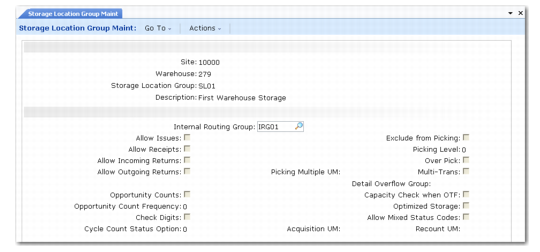
Storage Location Group Maintenance (4.3.1) is shown in
Storage Location Group Maintenance (4.3.1).
Storage Location Group Maintenance (4.3.1)
Enter values in the following fields:
Site
Enter the name of the existing site.
Warehouse
Enter the name of the warehouse in which you want to maintain SLGs.
Storage Location Group
To modify the fields for an existing storage location group, enter its name. To create a new storage location group, enter the name of the SLG.
Description
Enter a description of the storage location group.
Click Next to accept the site, warehouse, and storage location group details and move to the next frame.
Internal Routing Group
Enter the name of the existing IRG to which this storage location group belongs.
When you have specified the IRG, the system displays default values for most of the remaining fields in the frame. The defaults for the first four fields relating to allowing issues and receipts are taken from the default values that were entered for the IRG. The other defaults come from the default values entered for the warehouse.
For each SLG, you can accept the defaults or override them with new values.
Allow Issues
This field controls whether inventory can be issued out of the system from locations in this SLG. Generally, you limit issues to specially designated areas, such as Goods-Out. Enter Yes if stock can be issued; otherwise, enter No.
Allow Receipts
This field controls whether inventory can be received from outside the system into locations in this SLG. Generally, you limit receipts to specially designated areas, such as Goods-In. Enter Yes if stock can be received; otherwise, enter No.
Allow Incoming Returns
This field controls whether inventory can be received into locations in this SLG as part of a returned issue. Generally, you limit incoming returns to specially designated areas, such as Goods-Out Returns or Rejects. Enter Yes if stock returned from a customer can be placed in locations in this SLG; otherwise, enter No.
Allow Outgoing Returns
This field controls whether inventory can be issued from locations in this SLG as part of a returned receipt. Generally, you limit outgoing returns to specially designated areas, such as Goods-In Returns or Rejects. Enter Yes if stock to be returned to a supplier can be issued from locations in this SLG; otherwise, enter No.
Opportunity Counts
Enter Yes to specify that staff can be requested to perform cycle counts while they are at locations within this storage location group; otherwise, enter No.
Warehouse staff perform opportunity counts at the SLG level only. If the quantity drops below a level defined in Item-Warehouse Maintenance (4.4.11) and if the OPC frequency is past the last OPC date, then staff can perform an opportunity count.
Opportunity Count Frequency
If you have entered Yes for Opportunity Counts, enter the frequency, in days, with which counts can be initiated. This field defaults to the locations that you set up within this SLG.
Check Digits
This field specifies whether check digits are to be used for locations that you set up within this storage location group. Enter Yes to specify that entry of the check digit defined for a location is required to confirm movement of stock to that location. You can specify the use of check digits individually for locations within each storage location group. Enter No if check digit entry is not required.
Cycle Count Status Option
Enter a number to define the action that should be performed on the inventory status upon confirmation of a recount or in-tolerance count in this storage location group. In Warehouse Maintenance, you set the default for each SLG in the warehouse. The options are as follows:
0 | No status change. |
1 | Change to Location Status: The status of the inventory is changed to the default inventory status of the location. |
2 | Status change based on Fail Status: The status of the inventory is changed to the good status associated with the current fail status specified in the Warehouse Management Data frame in Inventory Status Code Maintenance (1.1.1). The frame displays only when QAD Warehousing is active. |
Exclude From Picking
Enter Yes if locations within this SLG are to be excluded from picking; otherwise, enter No. If you enter Yes, the other picking fields are not relevant. Generally, you exclude from picking all SLGs in your functional IRGs, such as receipt, inspect, pack, and dispatch.
Picking Level
You can assign a picking level number to each storage location group. You can set default start and end picking levels in Warehouse Maintenance, or by using Warehouse Transaction Type Maintenance (4.7.5). These start and end settings determine the picking levels to be used for the pick. The system then looks for inventory in the storage location groups that correspond to the specified range of picking levels.
Over Pick
This field specifies whether you can pick more stock from locations in this storage location group than is specified in the order. Enter Yes if over picking is allowed; otherwise, enter No.
Note: The Over Pick setting at SLG level is taken into account only if the Control Over Pick at SLG field is set to Yes in Transaction Type Maintenance or Warehouse Transaction Type Maintenance.
This field works in conjunction with the Allow Split field to control whether stock can be picked from locations in the SLG in situations where the quantity required for the pick does not match the unit of measure in which the item is stocked in the location.
Example: If a location contains boxes of 100 of the item, and the required picking quantity is 70 pieces, the following possibilities can be specified:
Over Pick | Allow Split | Result |
Yes | Yes | Pick 70 by splitting a box |
Yes | No | Over pick—take a box of 100 |
No | Yes | Pick 70 by splitting a box |
No | No | No pick from this location |
Picking Multiple UM
Enter the unit of measure (UM) multiples of which must be used when picking inventory from locations in this storage location group.
Example: Inventory could be stored on pallets, with the pallets containing a number of boxes. Each box contains a number of individual items. You might want to allow splitting of the pallet, but restrict such splitting to multiples of whole boxes.
Multi-Trans
Specify whether the system should create multiple transactions when picking in multiples of the UM.
Example: If BX (for Box) is the picking multiple UM, and a box contains 20 EA, for individual items, you have two ways of creating transactions when you pick 40 EA:
Setting | Effect |
Yes | Two transactions each for 1 BX |
No | One transaction for 40 EA |
Detail Overflow Group
Specify a storage location group that the system should use if the locations of the current storage location group cannot contain any additional goods replenished from the main storage area. This overflow storage location group must also be defined in Storage Location Group Maintenance (4.3.1).
The overflow group can be used during wave replenishment when put-away algorithms 150 or 151 are being used.
Capacity Check when OTF
Indicate whether you want the system to verify if this location has sufficient capacity for items when warehouse staff initiate an on-the-fly transfer from the RF device.
A put-away algorithm never selects a location without sufficient capacity, but a forced transfer initiated from the RF can by-pass this check.
Optimized Storage
This field relates to the way put-away of inventory is organized in your warehouse storage locations. Enter Yes for optimized storage, in which the system completely fills one location before moving to another during put-away. Enter No if you want other factors to control put-away, such as the ability to place the entire stock in a single location.
Allow Mixed Status Codes
This field determines whether a single location in this SLG can contain inventory with a mixture of different status codes. Enter Yes to allow mixed status codes; otherwise, enter No. This setting is used by put-away algorithms for all the locations you set up within this SLG.
Acquisition UM
The acquisition UM is used in conjunction with some of the options, such as option 13, of the Alternate UM option from the internal routing definition. This option sets the inventory record UM to the acquisition UM of the destination storage location group.
Recount UM
This field specifies the alternate UM that should result from recounts or in-tolerance counts of inventory in this storage location group. This applies mainly to recounts entered using the system’s cycle counting functions, not the Cycle Count Generation options.
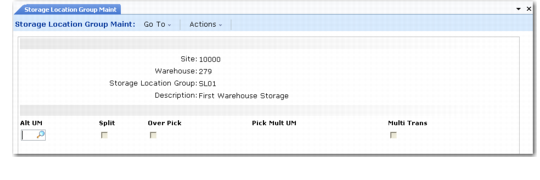
The second Storage Location Group Maintenance frame is shown in
Storage Location Group Maintenance, Second Frame.
Storage Location Group Maintenance, Second Frame
The five fields in this frame define alternate units of measure to be used in relation to inventory in locations in this storage location group. You can specify more than one alternate UM by using more than one line in this frame.
Alt UM
Enter the two character identifier for the Alternate unit of measure.
Split
Enter Yes if splitting this alternate UM is allowed when picking from locations in this SLG. Enter No if splitting the UM is not allowed.
Over Pick
This field specifies whether you can pick more stock from locations in this storage location group than is specified in the order. Enter Yes if over picking in the alternate UM is allowed; otherwise, enter No.
Pick Mult UM
Enter the two-character identifier for the UM multiples which must be used when specifying the quantity to pick.
Multi Trans
Indicate whether the system should produce multiple transactions, one for each of the picking multiple UM, or a single transaction for the total number of items in the base UM.