GL Open Item Reconciliation
Use GL Open Item Reconciliation (25.15.2.13) to reconcile the outstanding balance of a GL open item account with the underlying transaction details. The outstanding balance is the sum of the unmatched transactions on the account. After matching debit transactions with credit transactions, the remaining unmatched transactions reflect the true account balance.
GL open items are typically used for posting accruals; for example, insurance costs for an entire year, broken down into monthly values.
For GL open item accounts, the system tracks matched and unmatched items in a GL open item sub-ledger. The identifier used to mark and link related transactions is called an allocation key. Through the use of allocation keys in GL Open Item Reconciliation (25.15.2.13), debit and credit transactions can be matched and reconciled.
You specify allocation keys when creating the postings on GL open item accounts using Journal Entry Create (25.13.1.1), and in other system functions where you can enter transactions on GL open item accounts. When creating open item postings, the transactions can be created with one of three statuses:
• Link to Open Item, where the movement is linked to an existing allocation key.
• New Open Item, where a new allocation key is assigned to the movement.
• Allocate Later, where the user chooses not to allocate the open item and a normal GL movement is created, without an allocation key.
See
GL Open Item for a description of how to create postings on GL open item accounts and for a list of system functions where you can create postings for GL open item accounts.
The use of allocation keys to reconcile debit and credit transactions is similar to the French accounting concept of Lettrage, where matching debit and credit transactions are assigned the same key, often a letter of the alphabet. However, in Lettrage, the transactions are not matched and netted until the end of the GL period. In GL Open Item Reconciliation (25.15.2.13), debit and credit transactions assigned the same allocation key can also be matched in real time.
Note: If you change a standard GL account to an open item GL account and the account already has transactions posted to it, you can use another function called GL Open Item Initialization (25.15.2.12) to reconcile the historical transactions automatically. See
GL Open Item Initialization.
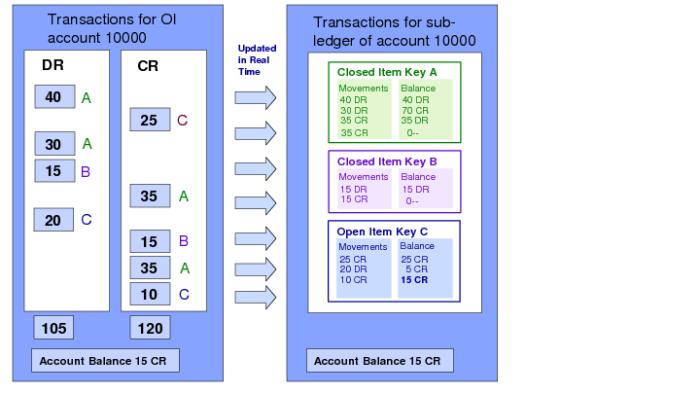
Transactions and Reconciliation for Account 10000 shows transactions for GL open item account 10000. Using allocation keys in GL Open Item Reconciliation (25.15.2.13), the outstanding debit and credit movements on account 10000 are matched, leaving an outstanding credit balance of 15 USD.
Transactions and Reconciliation for Account 10000
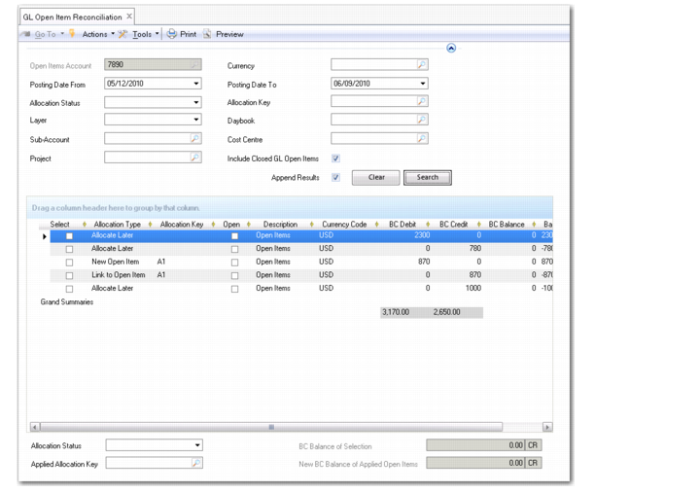
Use the filter criteria in GL Open Item Reconciliation (25.15.2.13) to locate open items for a given GL open item account. Open item movements created for that account in Journal Entry and other functions and matching the selection criteria are displayed. You also have the option to include closed GL open item movements in the search criteria. Open item movements are closed when the balance of their associated allocation key becomes zero.
GL Open Item Reconciliation
You can select one or more lines from the grid and allocate them to a new open item, or you can match items by linking them to an existing allocation key. In addition, you can deallocate allocated transactions by resetting their statuses to Allocate Later. See
Deallocating an Allocated Item.
You can view the outstanding balance of open items by selecting the items in the grid. The BC Balance of Selection field at the bottom of the screen then displays the balance of the selected items, while the New BC Balance of Applied Open Items shows the projected balance of the open item key applied to the selected lines. This balance can be different from that shown in the BC Balance of Selection field because the open item key can already have a balance from movements that are not in the current selection.
See
here and
here respectively for detailed examples of allocating to an existing open item and allocating to a new open item.
For all transactions displayed in the grid, you can drill-down and view the source transactions. See
Viewing Source Transactions. You can also view GL open items and their allocation statuses using a report and a number of views. See
GL Open Item Reports and Views.
The following section describes the fields in GL Open Item Reconciliation (25.15.2.13):
Open Items Account
Specify the GL open item account for which you want to create a reconciliation. The lookup only displays active GL accounts of type Open Items. This field is mandatory.
You can only display transactions for a single account at any time.
When the Append Results field is selected, the Open Items Account field is disabled to prevent transactions from multiple open item accounts from being displayed in the grid. See the Append Results field description for more information.
Currency
Specify the currency for which you want to search for open item movements. This field is optional.
Posting Date From
Specify the first posting date from which you want to search for GL open items. The default is the current date.
Posting Date To
Specify the last posting date up to which you want to search for GL open items. The default is the current date.
Allocation Status
Select an allocation status to search for open items with that status. The possible values are:
Blank (which means any status)
Allocated
Unallocated
Allocation Key
Specify an allocation key to search for GL open items with that key. This field is optional.
Layer Type
Specify a GL layer type to search for GL open items posted to that layer. You can post GL open items to the official, management, or transient layers. This field is optional.
Daybook
Specify a daybook to search for GL open items posted to that daybook. This field is optional.
Sub-Account
Specify a sub-account to search for GL open items posted to that sub-account. This field is optional.
Cost Center
Specify a cost center to search for GL open items posted to that cost center. This field is optional.
Project
Specify a project to search for GL open items posted to that project. This field is optional.
Include Closed GL Open Items
Select the field to include closed GL open items in your search. This option is deselected by default.
Append Results
Select the field to append the results of your searches one under another in the grid.
When the Append Results field is selected, the Open Items Account field is disabled to prevent transactions from multiple open item accounts from being displayed in the grid.
Example:
You specify a GL open item account and a posting date range of 09/07/2014 to 09/07/2014, and click Search. The grid displays any transactions on the account from that date. While those search results are displayed in the grid, you can change the posting date range (or any other search criteria), for example, to be from 01/07/2014 to 09/07/2014. Any transactions returned for the broader date range are appended to the grid results, under the transactions returned from your original search.
Grid
Select
Select the field to indicate the transactions you want to reconcile. The BC Balance of Selection field immediately displays the overall balance of the selected transactions.
If you right-click on the column header, a context menu displays where you can choose to select all transactions at once or to deselect all transactions at once.
Posting Date
This field displays the posting date of the transaction on the open item account.
Allocation Type
This field displays the allocation status of the transaction line. The possible values are:
New Open Item
Link to Open Item
Allocate Later
Daybook
This field displays the daybook to which the transaction was posted.
Voucher
The field displays the voucher assigned to the transaction.
Allocation Key
This field displays the allocation key assigned to the transaction. If the Allocation Type is Allocate Later, the Allocation Key field is blank.
Open
This field indicates if the open item key to which the movement is allocated is open. The Open field is automatically selected for movements allocated to an open item key that has an open balance.
If you include closed items in the selection, the Open field is cleared for lines belonging to the closed item key.
For unallocated transactions with a status of Allocate Later, both the Allocation Key and Open fields are blank.
Description
This field displays the GL account description of the GL open item account.
BC Debit
This column lists the debit transaction amounts.
BC Credit
This column lists the credit transaction amounts.
BC Balance
This field displays the overall balance for an allocation key. The balance value is preceded by a minus sign if the balance is a credit balance.
If the transactions have not been allocated, the BC Balance field displays zero.
Activity BC
This field displays the value of the open item transaction. The field contains a positive value for debit transactions and a negative value for credit transactions.
Additional Grid Fields
You can add more columns to the grid.
You can add any of the fields available in the GL Transactions View by right-clicking on the column headers and selecting the Columns option. Using the Columns dialog, you can add columns to the grid or remove columns from the grid by selecting or deselecting the field beside the column name.
Fields Under Grid
Allocation Status
Select the action you want to perform on the items you selected in the grid.
New Open Item: Allocate the transactions to a new open item.
Link to Open Item: Use the allocation key to link this transaction to an existing open item.
Allocate Later: Save the transactions without an allocation key. The system does not create a GL open item or a GL open item movement.
You can deallocate an allocated open item by selecting the item in the grid and then specifying Allocate Later in the Allocation Status field. See
Deallocating an Allocated Item.
Applied Allocation Key
Specify the allocation key to apply to the transactions selected in the grid.
When creating a new open item, this allocation key is assigned to the new open item. This key subsequently identifies the GL open item in browses and reports.
If you chose Link to Open Item in the Allocation Status field, click the lookup to display the allocation keys of existing open items and select the one you want to link to. Alternatively, if you know the allocation key, you can just enter it in the field, without using the lookup.
BC Balance of Selection
This field displays the balance in base currency of the open item lines you selected from the grid.
New BC Balance of Applied Open Items
This field displays the new balance in base currency of the applied allocation key. This value is the sum of all transactions linked to the allocation key specified in the Applied Allocation Key field. The balance includes all transactions for the allocation key, even if you have not selected these lines in the grid.
A GL open item is closed automatically if its balance in base currency becomes zero. However, you can select a closed item again in GL Open Item Reconciliation (25.15.2.13) and re-open it by allocating new movement lines to it or by deallocating movement lines from it.
Example:
In this example, GL Open Item Reconciliation (25.15.2.13) is used to reconcile unallocated lines to an existing open item.
GL open item account 1011 has the following transactions:
Line | Allocation | Allocation Key | BC Debit | BC Credit |
1 | New Open Item | K1 | 1100 | |
2 | Link to Open Item | K1 | | 300 |
3 | Allocate Later | Blank | 300 | |
4 | Allocate Later | Blank | | 200 |
5 | Allocate Later | Blank | | 100 |
6 | Allocate Later | Blank | | 400 |
7 | New Open Item | K2 | 500 | |
8 | Link to Open Item | K2 | | 100 |
9 | New Open Item | K3 | | 800 |
10 | Link to Open Item | K3 | 100 | |
11 | Link to Open Item | K3 | 50 | |
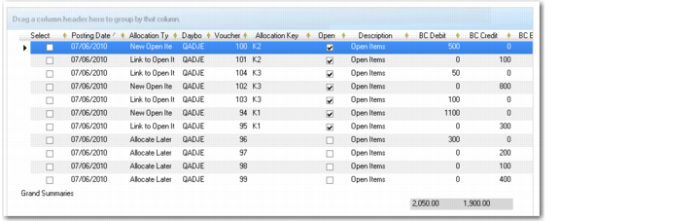
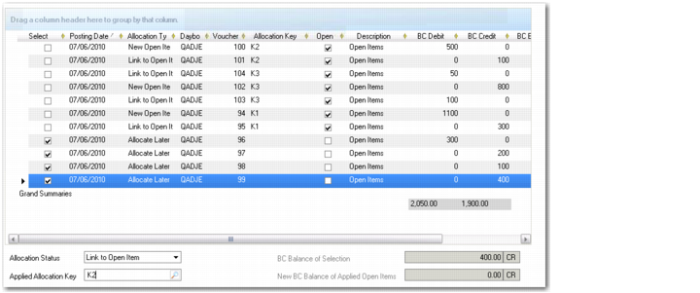
GL Open Item Reconciliation, Transactions on Account 1011 shows the transactions as they appear in the grid in GL Open Item Reconciliation (25.15.2.13).
GL Open Item Reconciliation, Transactions on Account 1011
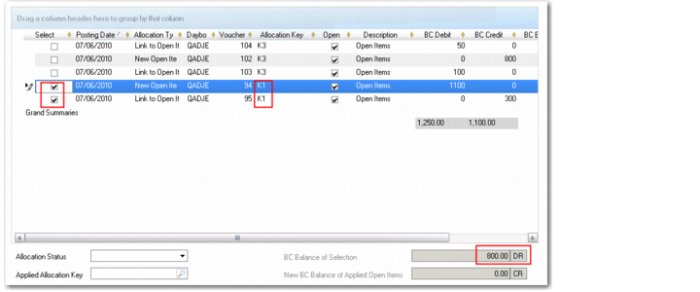
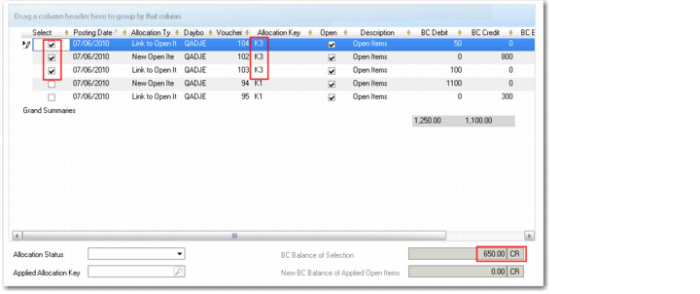
By selecting the transactions that belong to each allocation key, you can see the base currency balance for each key. The following table displays the balance of the allocation keys:
Allocation Key | BC Debit | BC Credit | BC Balance |
K1 | 1100 | 300 | 800 |
K2 | 500 | 100 | 400 |
K3 | 150 | 800 | -650 |
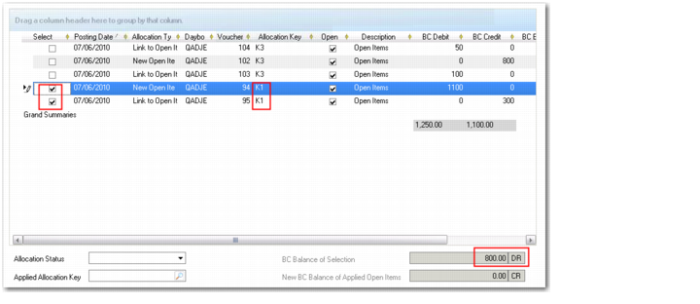
BC Balance of Allocation Key, K1
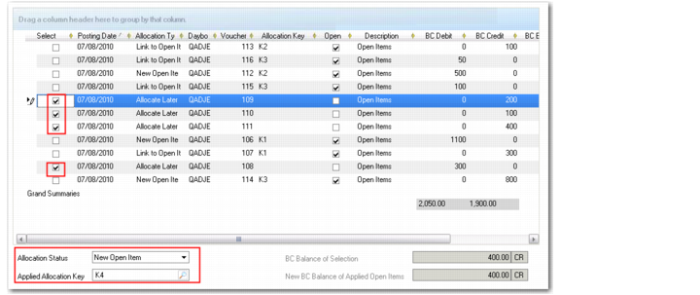
You then use GL Open Item Reconciliation (25.15.2.13) to reconcile the lines without an allocation key. You select the four unallocated lines in the grid.
In the Allocation Status field under the grid, select Link to Open Item and specify K2 in the Applied Allocation Key field.
GL Open Item Reconciliation, Linking to an Open Item
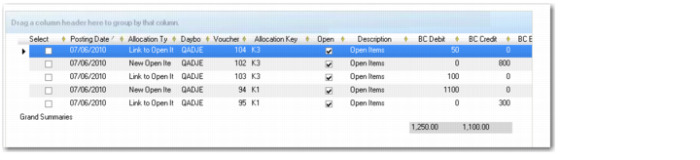
This update is reflected in the grid as follows:
GL Open Item Reconciliation, Updated Grid
As a result of the reconciliation, allocation key K2 is closed, and the following are the outstanding balances for the open allocation keys on the account:
Allocation Key | BC Debit | BC Credit | BC Balance |
K1 | 1100 | 300 | 800 |
K3 | 150 | 800 | -650 |
BC Balance of Allocation Key, K1 and
BC Balance of Allocation Key, K3 also show the outstanding balances for the two allocation keys.
BC Balance of Allocation Key, K1
BC Balance of Allocation Key, K3
Example:
This example reuses the same original transactions as the previous example. However, in this example, GL Open Item Reconciliation (25.15.2.13) is used to link the unallocated lines to a new open item with the allocation key, K4.
Line | Allocation | Allocation Key | BC Debit | BC Credit |
1 | New Open Item | K1 | 1100 | |
2 | Link to Open Item | K1 | | 300 |
3 | Link to Open Item | K4 | 300 | |
4 | Link to Open Item | K4 | | 200 |
5 | Link to Open Item | K4 | | 100 |
6 | Link to Open Item | K4 | | 400 |
7 | New Open Item | K2 | 500 | |
8 | Link to Open Item | K2 | | 100 |
9 | New Open Item | K3 | | 800 |
10 | Link to Open Item | K3 | 100 | |
11 | Link to Open Item | K3 | 50 | |
In the grid, you select the four previously unallocated items, select New Open Item in the Allocation Status field, and specify K4 in the Applied Allocation Key field, as shown in
GL OI Reconciliation.
GL OI Reconciliation
As a result of the update, the base currency balance of the open items is now:
Allocation Key | BC Debit | BC Credit | BC Balance |
K1 | 1100 | 300 | 800 |
K2 | 500 | 100 | 400 |
K3 | 150 | 800 | -650 |
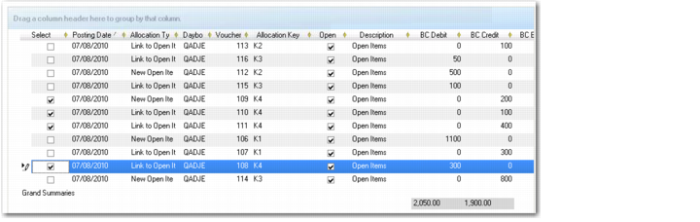
K4 | 300 | 700 | -400 |
GL Open Item Reconciliation, Updated Grid