Level Mix Workbench
Use Level Mix Workbench (17.14.1) to perform several major functions for your pacemaker processes:
• Calculate the volume of all parts that must be run each day, based on the time available and the takt time.
• Determine the mix of the various items produced in the process. The past mix is determined by analyzing historical demand to find what percentage the item represented of the total volume of items sold. Additionally, the system looks at forecasts and customer orders to calculate the percentage this item represents in terms of anticipated future volume. You can override the future mix percent of the items based on the total demand volume for the process.
• Calculate a suggested daily level schedule by shift for each item based on the established process volume, mix, pitch, EPEI, and the sequence in which items are produced by a process. This level schedule can be manipulated and modified based upon management decisions and other factors or it can be accepted as calculated. One of the factors that may influence whether the level schedule is accepted or modified is an evaluation of future inventory performance based on calculations in Supermarket Workbench.
• Update the master production schedule (MPS). Once you are satisfied that the leveled mix is within the level volume and the buffer performance is acceptable, you can send the new schedule back to the MPS in the form of updated flow schedules.
See
Pacemakers for more information.
Prerequisites
Before calculating level schedules with this workbench, be sure you have set up the following data:
• Kanban base data including:
• Kanban items using Kanban Item Master Maintenance. See
Kanban Items.
• Pacemaker processes and the items they produce using Kanban Process Maintenance. See
Define Processes.
• Kanban loops for the items produced at the pacemaker processes using Kanban Master Maintenance. See
Setting Up Kanban Loops.
• The time available at the process for each shift using Process Shift Maintenance. See
Set Up Process Shifts.
• Optionally, depending on how process items have been defined, item total setup and run times using Process Item Operation Rollup. See
Roll Up Item Data.
• Flow schedule base data, including adding the items to the production line referenced in the process record, using programs on the Flow Menu (17.21). Flow schedules may or may not already be set up for the item on the production line. See
Setting Up Flow Scheduling.
Using the Program
Important: Level Mix Workbench is designed specifically for the QAD .NET user interface. Although the program displays as a menu item in other interfaces, it runs only in QAD .NET UI.
Level Mix Workbench consists of multiple frames, as well as several control buttons that display at the bottom of the program screen. Use the vertical scroll bar to access the control buttons. Click the appropriate button to perform the following functions:
• Save: Click Save when you are finished analyzing the effects of changes and want to update the database.
• Refresh: Replace the workbench data with the original values from the database. If you modified any fields, the system prompts you to continue. If you continue the refresh without clicking Save, any changes you made in the workbench are lost.
• Recalculate Totals Only: Update calculated fields based on changes you have made without creating a level schedule.
• Recalculate: Update calculated fields based on changes you have made. This updates the workbench and calculates the level schedule, but no changes are made to the database until you click Save.
• Audit Report: View a report comparing the baseline data with updates that will take place when you click Save. The report also shows the level schedule that will be generated using the current workbench values. Use this feature to analyze the effects of your changes before modifying the database.
• Calculate Audit: After clicking Update, view a report showing the basis for the level mix calculations, including an interval-by-interval summary of how quantities were allocated to shifts.
Level Mix Workbench (17.14.1)
In the Selection Criteria frame, identify a manufacturing process by entering a combination of site and process ID.
Note: The system limits the process selection to pacemakers—processes that have Process Function set to PACE in Kanban Process Maintenance. See
Process Function.
Historical Work Days
Enter the number of days of historical data the system should use in average mix percentage calculations.
Future Days
Enter the number of days the system should use in selecting future demand records.
This value must be greater than 0 (zero) and greater than the value entered in Time Fence Days. Both of these fields default to 30 days.
Time Fence Days
Enter the number of calendar days into the future, starting from today, when flow scheduled orders are considered frozen and will not be automatically rescheduled by the workbench—although the system updates these schedules with any manual changes you save in the workbench. This value defaults from Kanban Control (17.24).
This must be less than the value entered in Future Days. When the field is 0 (zero), no schedules are frozen.
Tolerance Percent
Specify the allowable tolerance percentage between the total amount planned to be scheduled and the total amount actually scheduled. This value defaults from Kanban Control.
The system displays a warning when scheduled quantities are outside this percentage.
Schedule Time Adjustments
Optionally enter up to five reference codes related to calendar adjustments specified in Process Calendar Except Maint (17.1.14). The system validates entries against that program. See
Set Up Process Shifts.
These fields default from Kanban Control.
To modify or enter adjustments in Level Schedule Workbench, click the Level Volume and Calendar tab and subtab for the appropriate shift. You can then update hours associated with reference codes as needed. The system updates the adjustment records in Process Calendar Except Maint for each day you modify.
Time adjustments are typically used to identify such exceptions to the standard shift calendar as holidays or irregularly scheduled meetings that cannot be accounted for by shortening the shift hours.
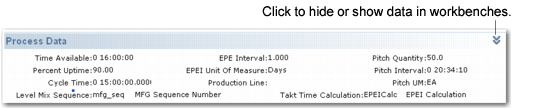
The Process Data frame summarizes information about the process from the record defined using Kanban Process Maintenance (17.1.3). See
Define Processes.
Note: If this frame does not display, click the hide/show icon on the right of the Process Data title bar to view it.
Level Mix Workbench, Process Data Frame
The Data frame displays a set of tabs that you can click to select functions within Level Mix Workbench:
• Mix Analysis: This tab is selected when you launch the program. Initially, it displays the average historical mix percent of items produced by the process.
• Individual shifts: Use these tabs to adjust quantities per item on each shift.
• All Shifts: The system displays updated per-item summaries of the total schedule for the day.
• Level Volume and Calendar: Click to display shift subtabs, which let you view calendar and volume information. Optionally, you can enter or update time adjustments for each shift.
Mix Analysis
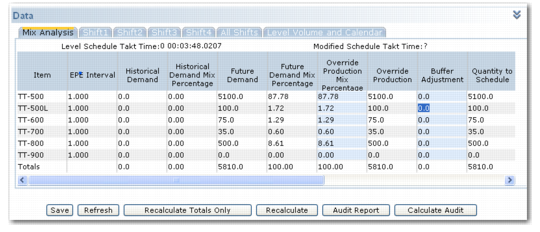
Use Mix Analysis to analyze the average historical mix percent of items produced at a process during the period specified in the Historical Days field, as well as the future mix percentages based on demand data for the period specified in Future Days. You can update the system-calculated future mix percent as needed, as well as identify a change in the buffer quantity for each item. When you click Recalculate, the system updates the workbench with a shift-by-shift level schedule to support the new mix.
Level Mix Workbench, Mix Analysis Tab
Note: When you modify an editable field, the system does not automatically update all related calculations within the Mix Analysis grid. To update all the related fields without generating a level schedule, click Recalculate Totals Only.
Mix Analysis Tab Fields summarizes the data included on the Mix Analysis tab.
Mix Analysis Tab Fields
Field | Description |
EPE Interval | Display only. The item EPEI from Kanban Process Maintenance. Unless Auto EPEI is set to No, this is the same as the process EPEI from the Process Data frame. |
Historical Demand | Display only. The total demand for the item during the period defined in Historical Days. |
Historical Demand Mix Percentage | Display only. The percent of total process demand for the specified historical period represented by this item. |
Future Demand | Display only. The total demand for this item during the period defined in Future Days. Depending on the Forecast Consumption settings in Sales Order Control (7.1.24), this might include quantities from past-due sales orders. |
Future Demand Mix Percentage | Display only. The percent of total process demand for the specified future period represented by this item. |
Override Production Mix Percentage | Defaults to percentage of total future demand for all process items represented by this item. You can update this field. The system displays a warning if the total percentage for all items does not equal 100%. When you change the value, the system updates Override Production. |
Override Production | Display only. Default is the same as Future Demand. If you update Override Production Mix Percentage, the system displays the product of the new percentage and the total process demand quantity. |
Buffer Adjustment | Defaults to 0. Optionally enter a positive or negative number that temporarily changes the quantity of this item being scheduled. For example, you can use this field to increase inventory for seasonal changes in demand. |
Quantity to Schedule | Display only. The quantity that will be included in the level schedule, calculated as the sum of Override Production and Buffer Adjustment. |
Quantity to Schedule Mix Percentage | Display only. The percentage of the total quantity to schedule represented by this item. |
Average Daily Quantity | Display only. The average quantity of this item to be produced during each work day. Calculated by dividing Quantity to Schedule by the number of work days. |
Standard Pack | Display only. This is the package size specified in Kanban Master Maintenance for the loop on which this process is the pacemaker. If there is no loop record, the value defaults to 1. |
Kanban Quantity | Display only. This is the number of items per kanban specified in Kanban Master Maintenance for the loop on which this process is the pacemaker. |
Cycle Time | Display only. The process-item cycle time from Kanban Process Maintenance. |
Number of Operators Required | Display only. Based on the current demand, this is the number of operators needed to meet the production requirements. The system calculates this value as the item work time (in seconds) divided by the process takt time. |
Shift Tabs
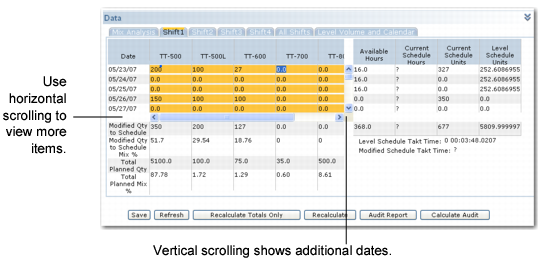
Use the individual shift tabs to view and update daily schedules for each process item. When you click Recalculate, the system updates settings on the Mix Analysis tab to reflect the new values. When you click Save, the system updates flow schedules for the production line supporting this process. Click All Shifts to view a summary by item for all shifts.
Level Mix Workbench, Shift Tab
Although the grid includes four shift tabs by default, the system only displays data for shifts that have hours defined in Process Shift Maintenance. Shifts with no hours defined display 0 (zero) values in all fields.
Note: Schedules for days within the Time Fence Days period specified in the Selection Criteria frame are shaded in yellow. The system does not update these fields when calculating a level schedule. However, you can modify the fields manually. The system updates the associated flow schedules when you save your changes.
The shift tabs include the display-only fields shown in
Shift Tab Fields.
Shift Tab Fields
Field | Description |
Modified Qty to Schedule | The total modified quantity of this item to be scheduled during the planning period. |
Modified Qty to Schedule Mix % | The total modified quantity for an item for the shift divided by the total quantity of all items scheduled for the shift during the planning period. |
Total Planned Qty | The total quantity of the item planned for the shift during the planning period. |
Total Planned Mix % | The total quantity planned for an item for the shift divided by the total quantity of all items scheduled for the shift. |
Available Hours | The total hours available for work during the shift. This is the value from the Level Volume and Calendar tab. |
Current Schedule Hours | The total hours required on this shift to meet the current schedule. |
Current Schedule Unit | The quantity of this item currently scheduled to be produced during this shift, not considering level scheduling. |
Level Schedule Units | The level-scheduled quantity of this item to be produced during this shift. |
Level Volume and Calendar Tab
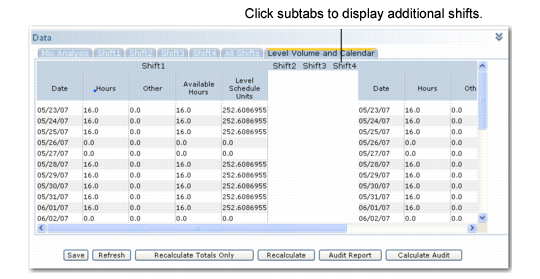
Click this tab to display a series of subtabs that let you view a level schedule summary for the selected shift or for all shifts. After you have selected a shift for viewing, click the shift number to maximize or minimize the tab. This lets you view multiple shift records at the same time; you can use horizontal scrolling to move between shifts.
Level Mix Workbench, Level Volume and Calendar Tab
For each date in the planning period specified in Future Days, the system displays the data shown in
Level Volume and Calendar Tab Fields.
Level Volume and Calendar Tab Fields
Field | Description |
Hours | The number of hours defined for the shift in Process Shift Maintenance. |
Adjustments | Up to five columns display times associated with adjustments identified in the Selection Criteria frame. These adjustments are identified in Process Shift Maintenance; the column label is the value of the Reference field specified in the adjustment record. If you modify a field and click Recalculate, the system adjusts the time available in level schedule calculations. When you click Save, the system updates the adjustment record in Process Shift Maintenance for that date. |
Other | This column includes other time adjustments defined in Process Shift Maintenance. The value includes the total of all time adjustments not shown in the other columns. For example, if you do not enter any values in Schedule Time Adjustments, the system totals all the adjustment values and displays the total in Other. This column also displays adjustments entered with Reference left blank. You cannot update this column. |
Available Hours | The system adjusts Hours by the values of time adjustments and the Other value to display the total time available to the process on this day. |
Level Schedule Units | This is the total quantity of items scheduled for the day, calculated by dividing the available hours (in minutes) by the process takt time (in minutes). |