QAD 2017 Enterprise Edition
>
User Guides
>
Lean Manufacturing
>
Kanban Overview
>
Kanban Workflow
Kanban Workflow
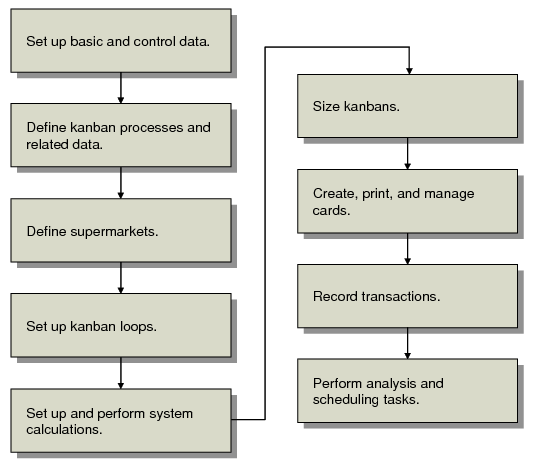
Kanban Workflow summarizes the activities for setting up and managing Kanban.
Note: You will not necessarily need to perform all of these tasks, or perform them in the exact sequence described. Kanban offers a wide range of options, and you are required to do only the activities that support your business model. For example, it is possible to size kanban loops and supermarkets manually, based on manually entered card and quantity data. In this case, setup for system calculation and analysis is unnecessary. For examples of potential ways to begin using Kanban with a minimum amount of setup, see
Setup Shortcuts.
This workflow example assumes that your business model requires you use all the tools available in the Kanban module.
Kanban Workflow
Task Summary
The following topics briefly summarize Kanban-related setup and operational activities. They include cross-references to the locations of more detailed information.
Set Up Basic and Control Data
Kanban requires the following setup information:
• Basic master data
• Settings in Kanban Control
• Generalized codes
• Kanban item master records
• Optional EDI eCommerce data
Define Kanban Processes and Related Data
If your kanban loops will be supplied by manufacturing processes, you must:
• Define kanban processes.
• Set up process work calendars.
• If your processes use routings, roll up item routing data.
Define Supermarkets
Each kanban loop supplies a supermarket with either raw materials, subassemblies, or finished products. Before you set up the loops, you need to define the supermarkets used in your system.
Set Up Kanban Loops
Set up a master definition for each loop, including the supplying source, the destination supermarket, and information about the kanban cards themselves. Optionally, you can size kanbans manually by entering the number of cards and the number of items they represent, or you can use the kanban workbenches.
Set Up and Perform System Calculations
During the kanban life cycle, the system can perform a wide variety of automated calculations related to kanban sizing and supermarket buffer size. Initially, you should:
• Set up demand calculation templates.
• Calculate average demand for kanban items, as well as safety stock levels for supermarkets.
• Calculate EPEI for kanban processes.
Size Kanbans
While you can size kanbans manually while defining the loops, you can use Kanban Sizing Workbench either as an initial sizing tool or to set up what-if scenarios to explore alternative sizing schemes.
Create, Print, and Manage Cards
Regardless of whether you size kanban loops manually or automatically, you must create and print the cards using menu programs. System calculations recommend the appropriate number of cards, but it is up to you to create and print them.
Additionally, you can add limited-use cards to kanban loops for such purposes as building initial inventory.
Record Transactions
Throughout the kanban life cycle, use programs on the Kanban Transactions menu to record and track the status of kanbans, as well as to generate dispatch lists to notify supplying sources that kanbans are ready for replenishment.
When transaction records are no longer needed online, you can archive and delete the related history.
Perform Analysis Tasks
Kanban provides several tools for scheduling and analyzing the performance of your kanban configuration. See
Analysis, Scheduling, and Reporting.
For example, you can:
• Display a preliminary report on the number of units that must be produced on each shift to meet the process takt time.
• Use a workbench to produce a detailed level schedule for your pacemaker processes, taking into account the appropriate product mix for each shift. You also can update the master production schedule with modified flow schedules based on the level schedule.
• Evaluate the historical performance of kanban supermarkets to determine how well they performed under actual conditions.
• Based on projected future demand, determine whether minimum supermarket buffer levels will avoid stock shortages without creating excessive inventory.
• Compare the kanban quantity on hand—calculated as the number of full kanbans times the quantity per kanban—with the system quantity on hand. This can give you a better idea of your actual inventory, for example, when you do not record inventory transactions at the same time you record kanban transactions.
• Export kanban data for analysis and update by external programs such as spreadsheets, and import it back. See
Using External Applications.
Setup Shortcuts
Kanban offers flexible setup alternatives that let you start recording transactions in a short time. Within the context of some minimum requirements, you can basically define a few kinds of data to get started, and use system features to complete the setup.
Note: Scenarios described here assume that you have set up certain types of base master data to support the Kanban features you are using. For example, supplier loops require that suppliers are defined in Supplier Create (28.20.1.1) and completed in Supplier Data Maintenance (2.3.1). If loops are sourced by processes and you want to roll up routing information to use in setup time, cycle time, and EPEI calculations, you must already have routings defined. You must also set up items in Item Master Maintenance (1.4.1) before you can define them as kanban items.
If your loops are supplied by an external supplier or a supermarket—rather than a process—you need only the following kanban-specific data to start recording kanban transactions:
• Kanban item records, which in the simplest case include just the item number and a default zero value for the process step. See
Kanban Items.
• Kanban master records—set up in Kanban Master Maintenance (17.1.4)—to define the supplying source and some basic information about the card. See
Setting Up Kanban Loops.
Note: Use Kanban Control (17.24) to set the most common defaults for new loop records, such as whether you want the system to warn you if cards have been recorded more than once within a specified period. See
Control Program.
Optionally, you can create kanban master records by importing a properly formatted comma-delimited file. The system combines values in the file with default values to create the new loops, which you can then further refine using Kanban Master Maintenance. See
Importing Kanban Workbench Data.
In the simplest scenario, you can manually enter the number of cards and quantity represented by each directly in Kanban Master Maintenance. Otherwise, you can use the kanban workbenches to calculate this information for you, based on demand data that you can enter manually in the loop record or even directly in the workbench. See
Using Kanban Workbenches.
• Kanban cards, generated using Kanban Create (17.3.12). Depending on whether you use physical cards to manage loops, you do not even have to print cards to track kanbans using programs on the Kanban Transactions menu. See
Create or Regenerate Cards.
Once you start using the basic functionality, you can use Kanban Sizing Workbench to model different sizing alternatives for loop records. For example, if a supermarket stocks items supplied by multiple loops, you can enter the supermarket site and ID in the workbench selection frame to view all the associated loops, then update several kinds of data for all the loops at the same time. This lets you avoid accessing each loop record individually in Kanban Master Maintenance.
If your kanban loops are sourced by manufacturing processes, you also need to set up process definitions in Kanban Process Maintenance. Like loop records, process records can be defined with a minimum of data, using defaults established in Kanban Control and Kanban Item Master Maintenance.
Based on how extensively you want to use Kanban features, you can enter cycle and setup times for items, or—if there are existing routing records—just specify operation ranges and have the system determine process item cycle and setup times by running Process Item Operation Rollup.
Next, you can optionally run Basic Process Calculations and specify which kinds of information the system calculates and updates for each process. Again, several types of process-related data can be updated in Kanban Process Workbench, so you can update it there for the process or individual items without having to use Kanban Process Maintenance.
If you use advanced features such as EPEI calculations, the system needs to know average demand for each loop—which is also used in takt time and sizing. Again, the system offers flexibility in how it obtains this data. You can:
• Enter average daily loop demand manually in Kanban Master Maintenance.
• Enter or update demand in the kanban workbenches.
• Using Demand Calculation Template Maintenance and Average Demand Calculation, have the system calculate average demand based on the past and/or future time period you select.
Kanban Master Copy (17.1.5) provides a useful setup shortcut. To set up multiple loops that have a significant amount of common data, define one, then copy it to as many additional records as you need. The copy program lets you directly access the features of Kanban Master Maintenance, so you can customize the copied loop records while you are creating them. See
Copy Kanban Data.