QAD 2017 Enterprise Edition
>
User Guides
>
Service/Support Management
>
Service Contracts
>
Contracts for End Users with Items
Contracts for End Users with Items
To design a contract for end users with items, set Item End Users to No in the contract header.
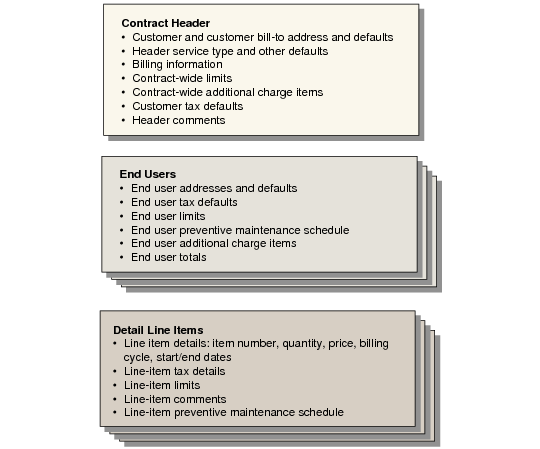
Contracts for End Users with Items illustrates the various levels of the contract and the components within each level.
Contracts for End Users with Items
The basic flow for contracts when Item End Users is No is the following:
1 Enter the contract header. Specify the contract type and other header defaults. When you complete the header, the contract is stored in the database even if you do not enter any line items.
2 If Contract Limits is Yes in SSM Accounting Control (36.9.10), optionally copy contract type limits to the contract header.
3 Enter header transaction comments.
4 Specify an end user on this contract and supply end-user default information.
5 If Contract Limits is Yes in SSM Accounting Control, optionally copy contract type or contract header limits to the end user.
6 Create end-user line items and specify associated line-item detail.
7 If Contract Limits is Yes in SSM Accounting Control, optionally copy contract type, contract header, or end-user limits to the line.
8 Enter line-item comments.
9 View and modify item preventive maintenance (PM) schedule.
Repeat steps
6 through
9 for each line item associated with an end user.
10 If End User Additional Charges is Yes in SSM Accounting Control, specify end-user additional charges and any associated comments.
11 View and modify the end-user preventive maintenance (PM) schedule.
12 If End User Totals is Yes in SSM Accounting Control, view summary totals for this end user.
Repeat steps
4 through
12 for each end user on the contract.
13 If Contract Additional Charges is Yes in SSM Accounting Control, specify contract-wide additional charges and any associated comments.
14 View contract totals and modify contract trailer information.
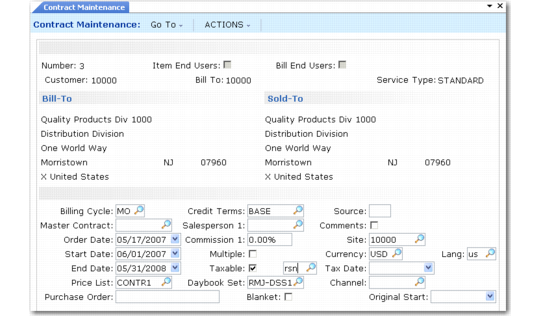
Use the following illustrations and field descriptions to understand the details of creating contracts when Item End Users is No in Contract Maintenance (11.5.13.1).
Contract Maintenance (11.5.13.1)
Contract Header
Number
Enter a number uniquely identifying a specific contract and its line items. If you leave this field blank, the system creates the next number using Next Contract Number in Contract Control (11.5.24).
Item End Users
Indicate the relationship between items and end users on this contract:
No: This contract is designed to provide coverage for one or more end users with associated items.
Note: This section displays the frame sequence when Item End Users is No.
Yes: This contract is designed to provide coverage for one or more items with associated end users.
The value you specify for this field determines the order in which frames display as you maintain the contract. You cannot change this value after a contract has been created. This field defaults from Contract Control.
Bill End Users
Indicate who should receive the invoices generated for this contract by Billing Release to Invoice:
No: Only one billing address, specified in the contract header, is associated with the contract. Billing Release to Invoice generates all contract invoices to this address.
Yes: Multiple billing addresses can be associated with the contract, one for each contract end user. At least one invoice is generated in Billing Release to Invoice for the bill-to address associated with each end user defined on the contract.
Note: The invoice for contract-wide additional charges is always sent to the header billing address, regardless of the value of Bill End Users.
When Bill End Users is Yes, each end user you specify must be defined in Customer Create. The end-user bill-to address defaults from the end-user customer record, not from the header.
This field defaults from SSM Accounting Control.
Customer, Bill To
Enter a valid, active customer defined with Customer Create. The Bill To value defaults from the customer record.
Service Type
Enter a valid contract type defined in Contract Type Maintenance. The value specified determines the default service type for each contract line.
Billing Cycle
Enter a code indicating how often to bill lines on this contract. This field defaults from the Default Billing Cycle Code value in SSM Accounting Control, but you can change it to another valid billing cycle.
The header billing cycle defaults to the next contract level, either default items or end users, based on the value of Item End Users.
You can accept the default or specify a different billing cycle code at various levels below the contract header. However, you cannot specify a cycle that indicates less frequent billing than the cycle specified on the header. For example, the header billing cycle is annual. You cannot specify a billing cycle of every two years for a contract line.
Note: Set up billing cycle codes with Billing Cycle Code Maintenance (11.5.18.1).
Master Contract
Service contracts can be set up in a hierarchy, with one contract linked to another. For example, you can link a contract for each piece of equipment in an installation to the master contract for the entire installation. In this case, enter the master contract number in this field. The master contract number can be used later as a filter when printing contracts.
Order Date
Order date defaults from the system date and is a reference-only field.
Start Date
Enter the first date that contract terms and conditions become effective. After you create the contract, the system does not recalculate the start date, even if you change the order date later.
This field defaults to the first of the month following the system date.
If you change the header start date and line items exist on the contract, you are prompted to override the start dates for each line. Respond Yes to update all lines that previously matched the contract start date. You cannot move the start date inside the range defined by limit effective dates or change it after the contract has been invoiced.
For more details on start date, see
Contract Start and End Dates.
End Date
The system adds the duration of the service type to the start date to calculate the end date. Although you can add new line items at any time to an existing contract, no end-of-coverage date can go beyond the contract header’s end date.
If the header end date is changed and line items exist on the contract, you are prompted to override the end dates for each line. Respond Yes to update the contract lines. However, you cannot move end dates inside the range defined by limit effective dates.
Price List
Enter a code identifying a type C (contract) price list to use for this contract. Price list defaults from the Contract Price List field on the service type in effect. The header price list is used to price contract-wide additional charge items. You can change the price list at any time. However, the new price list affects only new records added to the contract; existing prices are not recalculated.
The line-item price list is determined by the service type associated with the detail line.
Purchase Order
Specify a purchase order number for this contract. This field is required if the customer has been defined to require purchase orders in Customer Data Maintenance (2.1.1).
Credit Terms
Enter the credit terms code that applies to this contract. Credit terms default from the header bill-to address.
Salesperson
Enter the salesperson to receive a commission and quota credit for this contract. Salesperson defaults from the customer. The salesperson information on each line item defaults from the salesperson and commission rate entered on the header. You can change commission on each line item.
Commission
Enter the commission percentage this salesperson is to receive.
Multiple
Indicate if more than one salesperson is responsible for this customer order. If Yes, a pop-up window prompts you to enter up to four salespersons and corresponding commissions when you exit this frame.
Taxable
Enter Yes if the items on this contract are subject to tax; otherwise, enter No. Header tax fields default from the contract customer. If Item End Users is No, you can also update tax fields for each end user. End-user tax fields default from End User Create and set the default for lines.
Blanket
Enter Yes if some items on the contract have blanket coverage. Otherwise, enter No. After the contract has been saved, you cannot change this value.
This field sets the default for the same field associated with end users on the contract. Blanket must be Yes for the end user for blanket coverage to be applied. You can set up some end users with blanket coverage and some without on the contract, regardless of the value of Blanket in the header.
Source
The code in this field tells the system where to look for items to be included on the contract. The possible choices are I (installed base), S (sales orders), Q (sales quotation), and M or blank, indicating you will enter line items manually, rather than selecting them from a list.
Comments
This field defaults from Service Header Comments in Contract Control. If Yes, a page appears for recording or retrieving master comments associated with the contract. After you select or enter comments, you can specify when you want them to print.
Site
This field defaults from Contract Site in Contract Control and indicates the site responsible for supporting this contract. This is usually the site where repairs are done or repair parts are found. Item costs are based on the contract site, and GTM tax zones use the site address as the From value.
Currency
Enter the currency for this contract. Currency defaults from the bill-to address.
• When Bill End Users is No, the header currency sets the default for each end user.
• When Bill End Users is Yes, currency at the contract-line level defaults from the bill-to address associated with the end user, not the contract header.
Each end user can have a different currency, if needed.
Note: When different currencies are used, separate invoices are generated for each currency even when Bill Summary is Yes.
You can modify this value on a new contract only. After the contract has been saved, currency cannot be changed.
Contract currency sets the currency of a call for covered items. When a non-base currency is entered, an exchange rate pop-up lets you override the effective exchange rate and indicate if it is fixed or not.
Language
Language defaults from the contract customer. Language enables you to print comments on an invoice in the language appropriate for the receiver.
Tax Date
Enter the effective date associated with the tax code entered previously.
Channel
Enter an optional code identifying the distribution channel through which this contract originated. Channel can be a factor in determining default GL sales and sales discount accounts affected when you post the contract invoice.
You can modify the default sales and sales discount accounts in Contract Maintenance only when Modify Sales Accounts is Yes in SSM Accounting Control.
Note: To standardize usage, set up values for field so_channel in Generalized Codes Maintenance.
Original Start
This field is blank unless the contract has been renewed.
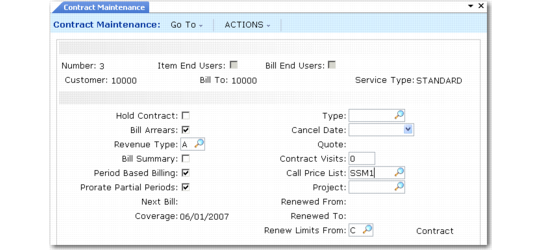
Second Header Frame
Many of the fields in the second header frame default from SSM Accounting Control (36.9.10).
Contract Maintenance, Second Header
Hold Contract
If Yes, this contract will not be released for billing. This is useful if the price for the contract is still in negotiation and is not finalized with the customer.
A contract on hold can still be used to provide coverage for service activities as in Call Maintenance. If the contract should not be considered valid for coverage, use the contract quotation process instead.
See
Contract Quotes for details.
Bill Arrears
If No, the customer is billed in advance for contract coverage. If Yes, the customer is billed for periods that have already passed—Next Bill defaults to the first day of the next billing period. This field defaults from the Bill Arrears field in SSM Accounting Control. You cannot modify it after a contract has been invoiced. The setting of Bill Arrears affects the valid contract revenue types.
Revenue Type
Enter the revenue type code to use when billing this contract. Valid values are A (Accrued Revenue), C (Cash Basis), or D (Deferred Revenue). The default is set in SSM Accounting Control. Validation depends on the setting of Bill Arrears.
Cash Basis: To post revenues upon receipt for this contract, set Revenue Type to C. In cash-basis accounting, revenue is recorded in the period it is actually received.
Accrued Revenue: To accrue revenue for this contract, set Revenue Type to A. Bill Arrears must be set to Yes. In accrual-basis accounting, revenue is recorded in the period in which it is earned, regardless of whether cash is received in that period. Run Revenue Recognition (11.5.18.21) to accrue amounts, usually monthly.
Deferred Revenue: To defer revenue for this contract, set Revenue Type to D. Bill Arrears must be set to No. Perform the normal invoicing procedure at the beginning of the contract coverage period. Collected revenue is held in a deferred account and is posted periodically over the contract duration when you run Revenue Recognition.
Bill Summary
Enter Yes to invoice this contract in summary format; otherwise, enter No. This field defaults from SSM Accounting Control.
Note: The system limits invoices to 999 lines. If the invoice to be created includes more than 999 lines, Billing Release to Invoice creates the invoice in summary format regardless of the setting of the Bill Summary field.
When Bill Summary is Yes, the details that are not printed on an invoice are stored in the database. You can view these details using Billing Detail Report (11.5.18.14).
The setting of Bill Summary interacts with Bill End Users and Item End Users.
See
Summarized or Detail Billing for the full effect of this setting.
Period Based Billing
Indicate whether contract billing is synchronized with calendar months:
Yes: Invoicing begins on the first day of the next calendar month, regardless of the start date of the contract. For example, a contract with a start date of January 23 is billed starting on February 1.
No: Billing periods for contract invoices use the actual start date of the contract header and line, without synchronizing to the start and end days of the month. A contract on a monthly cycle starting on January 23 is billed on January 23, February 23, March 23, and so on, assuming Bill Arrears is No.
Period Based Billing works in conjunction with Prorate Partial Periods.
Prorate Partial Periods
Indicate how the system should invoice for coverage periods that are less than a complete month:
Yes: Invoices are generated for partial periods based on the percentage of a month the partial period represents.
No: When Period Based Billing is Yes, partial periods are essentially given away free and no invoice is generated for them.
If Period Based Billing is Yes, partial periods are likely to occur. You can use the Prorate Partial Periods field to ensure that any partial periods are included in invoicing. If Period Based Billing is Yes and Prorate Partial Periods is No, any days in the partial period prior to the beginning of the month are essentially given away free.
Next Bill
This system displays the next date when an invoice should be generated for this contract. This field normally should not be changed and cannot be updated in Contract Maintenance. If necessary, use Billing Date Correction (11.5.18.19) to change the next billing date.
Billing Release to Invoice selects contracts for billing based on the header Next Bill date.
When a contract is created, this field is set based on the value of Bill Arrears:
• When Bill Arrears is No, Next Bill is the start date of the contract.
• When Bill Arrears is Yes, it is the day after the first billing period.
After it is initially set, Next Bill is updated by Billing Release to Invoice.
Coverage
The system displays the date when service coverage becomes effective for the next billing period, to be billed on the date recorded in Next Bill Date.
This field is updated automatically by Billing Release to Invoice (11.5.18.13) and Billing Reversal Maintenance (11.5.18.18). This field normally should not be changed and cannot be updated in Contract Maintenance. If necessary, use Billing Date Correction (11.5.18.19) to change the value.
Type
This field is used for reference only. It is a user-defined grouping code that can be set up in Generalized Codes Maintenance for the field sa_sa_type.
Cancel Date
If the contract is canceled, you can enter a date here for reference.
Quote
If you generated this contract by releasing a quote, the quote number displays here for reference.
Visits
Enter the number of preventive maintenance (PM) visits to be scheduled for each end user on this contract.
You can update this field only when Item End Users is No. When Item End Users is Yes, you can set up PM schedules for individual items, but not for end users.
Entering any non-zero number activates PM scheduling for each end user on the contract. After you enter detail items for each end user, the system displays the End User PM Schedule, which lists the system-scheduled dates for the visits.
The end-user schedule is in effect for all of the end user’s items that have PM item set to Yes and do not have individual schedules created for them. If you leave the header Visits field blank, you can still create preventive maintenance schedules for individual contract details.
Project
Enter an optional code identifying the default GL project associated with this contract. If you specify a value, it defaults to lower levels of the contract, either end users or items.
GL transactions created during contract billing reference entity, account, sub-account, cost center, and project. Each component you enter must be valid on its own and in combination with other account number components.
Call Price List
Enter the call price list code to use for items covered by this contract. You must enter a type R (repair) service price list set up with Service Pricing Maintenance (11.17.1). This fields defaults from the service type associated with the contract.
When a call is taken for an item covered by this contract, the call price list defaults to the call. Repair price lists specify prices for items consumed in a service activity, as well as for labor and expenses recorded in Call Activity Recording (CAR).
Call price lists also determine:
• Credits for items exchanged in CAR, based on the exchange UM
• Fixed prices, based on the fixed price UM
Note: Define Exchange UM and Fixed Price UM in Call Management Control (11.1.24).
If you set up an expense cost price list (type E) with the same code as the call price list, CAR also accesses that list to determine standard costs for expense items.
Renewed From, Renewed To
If this contract was renewed from a different contract, the number displays in the Renewed From field. If this contract formed the basis of another through the renewal process, this number displays in the Renewed To field.
Renew Limits From
This field defaults from Renew Limits From in SSM Accounting Control. The system examines this value when a contract is renewed or copied to determine how to manage limits:
• C (contract). The system copies the current limits from the contract and modifies the effective dates to match the new contract’s start and end dates.
• S (service type). The system copies limits from the service type, applying limits effective on the new contract’s start and end dates.
Note: This field has no effect if Contract Limits is No in SSM Accounting Control.
Header Coverage Limits
If Contract Limits is Yes in SSM Accounting Control, you can modify the limits associated with the contract service type, at all levels of the contract. If this field is No, the system uses the limits defined for the contract type. They are neither displayed nor modified.
If Contract Limits is Yes, you are prompted to copy service type limits. If you respond Yes, the system copies the limits defined for the contract type being used into the header. If you respond No, limits are not copied. You can set up new limits in the contract or define them at the line level.
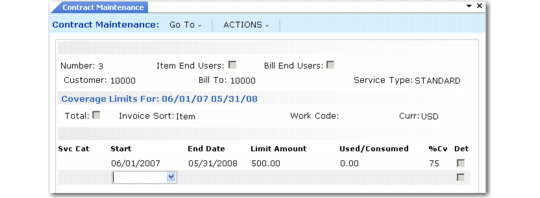
After you respond to this prompt, the Coverage Limits frame displays.
Header Coverage Limits Frame
If you copied the service type limits, you can view or modify them in this frame, which is the same as the one used to set up coverage limits in the service type.
If you have posted any amounts against limits defined on a contract or recorded any amounts against the limits in Call Activity Recording, they display in the Used/Consumed field. You cannot update this field manually. The system updates it when invoices are posted.
Note: Use Limits Consumption Inquiry and Limits Consumption Report (11.5.13.21.4 and 11.5.13.21.5) to view consumed (posted) amounts and used (unposted amounts recorded in CAR) separately. See
here for details on these reports.
End User Default
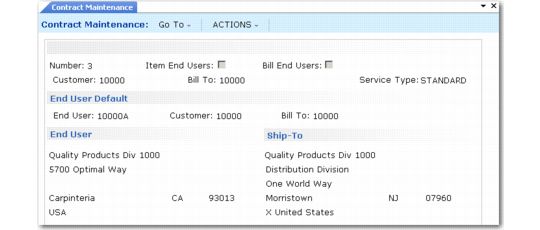
After completing header limits, you specify an end user with items on the contract.
End User Default, Address Frames
End User
Enter the address code of an end user with associated items. Address information of this end user displays.
This field is validated differently depending on the setting of Bill End Users:
• When Bill End Users is No, enter an existing or new end-user address code. If the address does not exist, you are prompted to create it. Customer and bill-to default from the header, and you cannot change them.
• When Bill End Users is Yes, enter a customer defined in Customer Create and Customer Data Maintenance. If the customer is not also defined as an end user, you are prompted to create the end-user record. The end-user customer and bill-to default from the end-user customer record. You can modify the end-user bill-to as necessary.
Bill To
When Bill End Users is Yes in the contract header, enter the address code assigned to the bill-to location for this customer. This field defaults from the end user’s customer record if a bill-to address has been defined in Customer Create. See
Billing Customers or End Users.
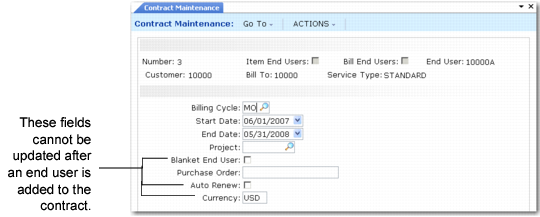
End User Default
Use this frame to modify defaults associated with the end user.
Note: When you create contracts with Item End Users set to Yes, you specify only a subset of the fields you specify here: Project, Auto Renew, Currency.
End User Default
Billing Cycle
Specify a billing cycle for the end user, which then defaults to the end user’s line items. The line-item billing cycle determines actual billing frequency. The end-user billing cycle cannot be more frequent than the contract header.
Start Date and End Date
Enter the default start and end dates for line-items associated with this end user. End-user dates must be within the range defined by the header start and end dates.
Project
Enter a default project for line-items associated with this end user.
Blanket End User
Enter Yes if this contract provides blanket coverage for items associated with this end user. Otherwise, enter No. This field defaults from the setting of Blanket on the contract header. After you have created a line for an end user, you cannot change this value.
You can set up some end users with blanket coverage and some without on the same contract, regardless of the value of Blanket in the header.
Purchase Order
Enter this end user’s purchase order (PO) number, if applicable. Whether this field is required depends on the value of the PO Required field in End User Data Maintenance (11.9.1).
Auto Renew
This field defaults from the value for the end user in End User Data Maintenance (11.9.1). If Yes, the system includes contract lines for this end user when you run Renewal Process/Report (11.5.13.10). You cannot update this field after the end user is added. See
Renewing Contracts Automatically.
Currency
Enter the currency for this end user. If Bill End Users is No, currency defaults from the contract header. If Bill End Users is Yes, currency defaults from the end-user bill-to address. The system searches for line-item prices using the end-user currency. You cannot update this field after the end user is added. See
Contract Currency for details on multiple currency contracts.
End User Coverage Limits
If Contract Limits is Yes in SSM Accounting Control, you are prompted to copy limits to the end user. If you previously copied limit detail into the contract header, you can copy limits from the header or the contract type.
The limit screen is the same as the one used for contract header limits.
Entering End User Item Details
Each end user on a contract can have multiple items, each with a different service type. The line-item service type overrides the header service type. For example, specifying a different service type might bring in a different price list or change the level of coverage. If you change the service type, you are prompted to update the price from the new price list.
If you specified a source for items earlier, the system creates detail line for the items you selected.
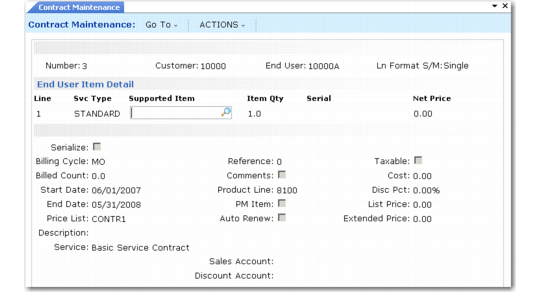
End User Item Detail
Line
Enter a number identifying a detail line or leave blank for a system-generated number. Line numbers can be up to 5 digits.
Service Type
Service type defaults from the header, but can be changed. If you modify it, the system uses the price list from the new service type for this item, and you can copy the service limits associated with the new service type if no amounts were accumulated against the current limits.
Item
Enter the number of an item to be covered by this contract. Items are validated according to the setting of Items Must Exist in Service Management Control and Items in Installed Base in Contract Control.
An item can be covered only by one contract at a time. When a call is taken for an item, the system searches first for contract lines for the specified item, serial, and reference. If they exist, the system uses the contract’s terms and conditions for coverage.
Note: After you save a line, you cannot change the item number; you must delete the existing line and add a new line with the other item number.
Item Qty, Serial
Enter the number of items covered on this contract line. If the Item Qty is 1 and this is a serialized item, enter the serial number that uniquely identifies it. If the Item Qty is greater than 1 and this is a serialized item, leave Serial blank and specify Yes to the Serialize field in the detail. You can then enter multiple serial numbers in a pop-up window.
If the item is serial-number controlled in Item Master Maintenance (1.4.1), a serial number is required unless this is a blanket contract.
Net Price
This field defaults from the price list in effect; otherwise, it is zero. You can change the price. Control price update through field security. If the net price does not default to zero, List Price is set from the Net Price and never changes. The system considers any change to the net price a discount and displays it in the Disc field in the item detail. Increasing the price creates a negative discount; decreasing it a positive discount.
If the price defaults to zero and you enter a price, the system considers it to be the list price of the item. If you change the net price later, list price is recalculated.
The net price indicates the price per unit for one month of coverage for this item. The system calculates the extended price for an item by multiplying the item quantity by the net price per unit by the number of periods of coverage—contracts are measured in months. For example, if one item is covered at a price of $10 per month for 12 months, the extended price is $120.
Line-Item Detail
Serialize
Enter Yes in this field if the line item is serial or lot-controlled and quantity is greater than 1. In this case, Serialize defaults to Yes. Specifying Yes displays a pop-up that enables you to enter individual serial or reference numbers for each item on the line. If you designate an item as lot or serial number controlled in Item Master Maintenance, enter a number for each item on the contract.
Billed Count
The system displays the total number of months that have been billed through Billing Release to Invoice.
Start Date and End Date
These fields default from the end user. Each line item can have a unique start and end date for coverage, although these cannot be outside the range defined by the end-user start and end dates.
Price List
The system displays the price list used to calculate the line-item price. If you change the service type for a line item, the price list associated with that service type is used; otherwise, the price list from the contract header is used. This is normally the price list associated with the contract type specified on the header, but it might have been changed at the header level.
Description
Enter a brief description of the item covered on this contract line. Description prints on customer documents, such as the contract and invoice.
For inventory items, the description defaults in the following order:
• If the item exists in the installed base, the description defaults from the value defined in Installed Base Item Maintenance.
• Otherwise, the first line of the description defined in Item Master Maintenance displays.
If you enter a memo item, the description defaults to Item not in item master. Since the description prints on the contract and on other reports, you should change this to something more meaningful.
For an existing line, you can clear the Description field and the system will find the default value using the search order described.
Service
The description of the service type entered in Contract Type Maintenance (11.5.10) displays and cannot be modified.
Reference
Specify an ISB reference number that uniquely identifies this item. Reference numbers uniquely identify items in the installed base without serial numbers or that are part of a lot. Enter ? (question mark) for the next system-supplied reference number.
If Items In Installed Base is Yes in Contract Control, the combination of item number, lot or serial number, and ISB reference number must exist in the installed base for this end user or an error displays.
Comments
This field defaults from the value of Service Line Comments in Contract Control. Specify Yes to enter comments for this line item.
Product Line
The product line associated with either the service type or the item displays by default. The value depends on Use Item Prod Line in SSM Accounting Control (36.9.10). The system uses the accounts of this product line for recording revenue from the sale of this contract for the associated line item.
Note: Deferred and Accrued Revenue accounts are always found using the product line of the service type, since they exist only at the contract header level. See
Revenue Accounts.
PM Item
Enter Yes to schedule preventive maintenance (PM) visits for this item. If Days between PM is any nonzero value in Service Item Maintenance (11.3.7), this field defaults to Yes. If you do not specify a different number of visits for this item, it is included on any end-user schedule.
When PM Item is Yes, the Preventive Maintenance Detail pop-up displays, enabling you to specify the number of visits to be scheduled for this item. When PM Item is No, this item is not included on the PM call generated for an end-user PM schedule.
Taxable
This field defaults from the end user. Each line item can have a different taxable status.
Cost
Cost defaults from the contract site specified on the header multiplied by the item quantity. If costs are not set up at this site, cost is zero. This field is security restricted. This field is for reference only and is not used in any contract margin calculations.
Disc Pct
The system calculates and displays a discount if the item’s net price was derived from a price list, setting the list price, and then changed. You can enter a manual discount, causing the system to recalculate the net price from the price list or the net price you entered earlier.
List Price
Output-only field. If the system found the net price from a contract price list, List Price is the initial net price. If Net Price defaulted to zero, the system sets List Price to the amount you entered for Net Price during the last edit session. In this case, List Price changes whenever you change Net Price.
Extended Price
The system calculates this by multiplying the item’s net price by the number of items and the number of months of coverage.
Sales and Discount Account, Sub-Account, Cost Center
The system displays the Sales and Sales Discount accounts for this contract line. These fields can be modified only if Modify Sales Accounts is Yes in SSM Accounting Control.
Sales and Discount Project
Enter an optional code identifying the GL project associated with the sales and sales discount amounts for this contract line. These fields default from the header. The sales and discount projects are typically the same.
The sales and sales discount projects default to the same fields in Call Activity Recording when service is provided for this item.
The system verifies that the project exists and is active and that it is valid with the other sales account components.
Preventive Maintenance Detail
If PM Item is Yes, a preventive maintenance detail pop-up displays. It shows the default number of visits for the end user. You can change the value for this line item.
Contract Accounts Pop-Up
If Display Contract Accounts is Yes in Contract Control, a pop-up window displays the Sales and Sales Discount accounts and cost centers being used and lets you modify them.
Item Detail Coverage Limits
If Contract Limits is Yes in SSM Accounting Control, the system again prompts you to copy service limits when you finish entering a line item. If you respond with Yes, you are then prompted to copy limits. You choices depend on how you responded to previous prompts:
• If end-user limits exist, you can copy these or from the service type.
• If end-user limits do not exist and header limits do, you can copy from the header or the service type.
If you set up limits for the line item, amounts accumulate against these limits, not limits at the end-user or contract-header level.
The limit screen is the same as the one used for contract header limits.
PM Schedules
If PM Item is Yes for the line item and a separate schedule exists for the item, the PM Schedule for Line: n displays the scheduled dates. When you click Next after confirming these dates, the End User PM Schedule frame displays if an end-user schedule exists.
End User Additional Charges
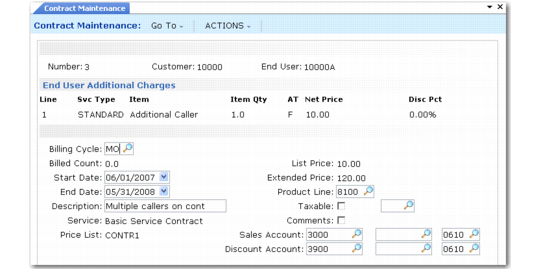
If End User Additional Charges is Yes in SSM Accounting Control, you can associate additional charge items with each end user. These items are defined in Contract Additional Charges (11.5.7). Each charge is added as a separate line item with its own pricing information.
Adding additional charges is similar to adding contract items, with some exceptions. Only the fields that differ are described.
Additional charges appear in a separate section of the printed contract.
End User Additional Charges in Contract Maintenance
Item
Enter an additional charge item set up with Contract Additional Charges for use with the current service type or with all service types.
Item Qty
This field is editable only if the additional charge item has an amount type of F (fixed). In this case, quantity specifies the number of fixed fees to be added. A negative quantity indicates an amount to be subtracted from the contract total.
For example, you may have a fixed fee for an additional caller and enter a quantity of 3 for three additional callers. Or you may provide a site discount based on the number of sites. In this case you could enter –3 to provide a discount amount for three sites.
If the additional charge item is an amount type of P, Item Qty cannot be edited. The system determines whether the percentage is a discount or markup based on the amount type of the price list used. If a price does not exist on a price list, a percentage additional charge is treated as an uplift.
AT
This output-only field displays the amount type from the definition of the additional charge item: either F (fixed) or P (percentage).
• A fixed price additional charge is an amount added to or subtracted from the contract trailer.
• A percentage additional charge is a markup or discount applied to the total for the items covered on the contract.
Net Price
This field defaults from the price list in effect; otherwise, it is zero. Define contract price lists with Service Pricing Maintenance. You can change this value. If the net price does not default to zero, List Price is the net price. The system considers any change to the net price a discount and displays it in the Disc field in the item detail.
If the price defaults to zero and you enter a price, the system considers it the list price of the item but recalculates list price if you change the net price.
Note: Price update can be controlled through field security.
Disc Pct
The system calculates and displays a discount when the item’s net price was derived from a price list—setting the list price—and then changed. You can also enter a discount manually, causing the system to recalculate the net price from the price list or the net price you entered, after you click Next to continue.
Note: Click Next at the Discount field for the system-calculated amount to display.
When you enter a positive discount, the system applies it so the customer benefits from a lower price. In the case of percentage additional charges, this works slightly differently depending on whether the charge is an uplift or a discount.
When you have an uplift additional charge and enter a positive discount, the net price decreases; if you enter a negative discount, the net price increases. Conversely, when you have a discount additional charge and enter a positive discount, the net price increases to provide a greater discount to the customer; if you enter a negative discount, the net price decreases.
Billing Cycle
The billing cycle does not apply to percentage (type P) additional charges. The percentage is applied to every amount billed, regardless of the billing cycle.
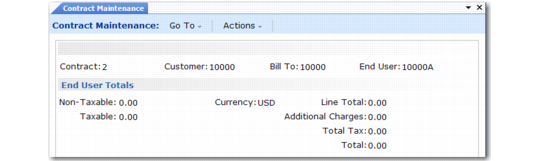
End User Total
If End User Totals is Yes in SSM Accounting Control, the following frame displays with summary information about the detail lines for this end user.
End User Total in Contract Maintenance
The fields in this frame are similar to those that display in the contract trailer, but apply to amounts for the current end user only.
End User Default
After you complete an entire sequence for one end user, the End User Default frame displays for input of another end user with items on this contract. Enter another end user or click Back to complete the contract.
Contract Additional Charges
If Contract Additional Charges is Yes in SSM Accounting Control, you can associate additional charge items with the contract. Each charge is added as a separate line item with its own pricing information.
When Bill End Users is Yes, a separate invoice is generated for the contract header customer for contract-wide additional charge items, since these apply to the entire contract.
If you plan to renew contracts by end user, you should be careful about adding fixed additional charges to the contract.
Important: When you renew parts of a contract, any contract-level additional charges are applied to each contract generated, with amounts unchanged. You many need to adjust a fixed-amount charge.
This same warning applies to releasing contract quote lines by end user.
The Contract Additional Charges frame is the same as the End User Additional Charges frame.
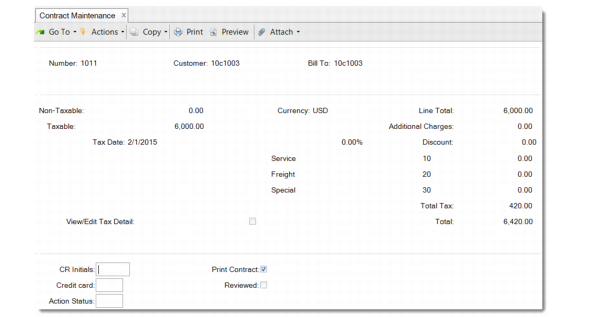
Contract Trailer
The contract trailer is similar to that of a standard sales order. The Line Total field is the sum of the extended prices for each line item. The Additional Charges field displays the total of either fixed or percentage uplift additional charges. You can add an overall discount percentage here for the entire order, along with miscellaneous charges.
Taxable and nontaxable trailer codes default from SSM Accounting Control, if defined.
The Total field represents the total billable amount on the contract. This may be divided among end users if Bill End Users is Yes. Billing may occur at one time, or the invoice amount may be divided, depending on the contract billing cycle—yearly, quarterly, monthly.
Contract Maintenance Trailer
Cr Initials, Credit Card
Enter optional user-defined codes defined with Generalized Codes Maintenance.
Action Status
If the header customer is on credit hold, a specified code or HD displays in the action status field. The effect of this status depends on Credit Hold Option and Use Action Status in SO Accounting Control in SSM Accounting Control. See
Contracts and Customer Credit.
Print Contract
This field defaults from Print Sales Contracts in Contract Control and indicates whether the contract should be printed. Contract Print includes only contracts with a Yes in this field and sets the field to No when an entire contract is printed successfully in one execution. If you want to reprint a contract, reset this field to Yes.
Note: If you print only sections of a contract, for example, only lines for a particular end user, this field is never set to No by the system.