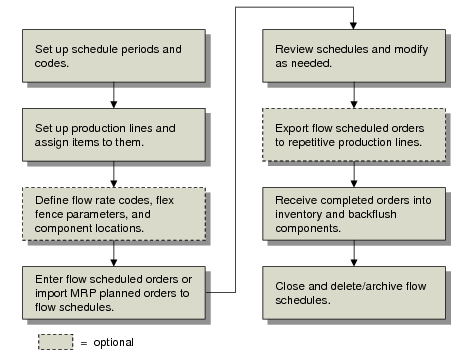
Flow Scheduling Life Cycle
Flow Scheduling Work Flow summarizes the steps for setting up and using flow schedules.
Flow Scheduling Work Flow
Setting Up Required Data
Along with standard base data, such as sites, items, and locations, you must define several additional types of data specific to flow schedules using the following programs:
• Set up generalized codes for validated fields in Generalized Codes Maintenance (36.2.13). See
here.
• Define schedule periods in Schedule Period Maintenance (17.21.1.1). See
here.
• Set up information related to dates, rate expressions, and data displays in Schedule Code Maintenance (17.21.1.19). See
here.
• Set up production lines in Production Line Maintenance (17.21.1.4). See
here.
• Associate items with production lines in Production Line Item Maintenance (17.21.1.7). See
here.
Depending on how you use flow schedules, you can also define several kinds of optional data:
• Set up flex fence parameters in Flex Fence Maintenance (17.21.1.10). See
here.
• Define rates used in alternative production line scenarios in Rate Code by Item Maintenance (17.21.1.13) or Rate Code by Type/Group Maintenance (17.21.1.16). Specify in Flow Control (17.21.24) whether the latter program uses item types or item groups. See
here.
• Set up links between work centers and the locations that supply them with component materials in Work Center/Location Maintenance (17.21.1.22). See
here.
• Use Item Master Maintenance (1.4.1), Item Planning Maintenance (1.4.7), or Item-Site Planning Maintenance (1.4.17) to specify a purchase/manufacture code of W (flow) for items that are typically produced using flow schedules. See
here.
Creating Flow Scheduled Orders
You can initially enter flow scheduled orders in three ways:
• Manually, using Flow Schedule Maintenance (17.21.3). You can optionally add references to existing work orders and demand orders, including sales orders, customer scheduled orders, return material authorization (RMA) issue lines, and material orders. See
here.
• Automatically, using Import MRP Orders to Schedule (17.21.9). You can optionally limit the import to items that have a purchase/manufacture code of W (flow). See
here.
• By copying an existing schedule to a new date range using Flow Schedule Copy (17.21.5). See
here.
Analyzing and Adjusting the Flow Schedule
Once the schedule for a planning period has been entered, use Flow Schedule Maintenance to adjust the sequence in which the flow production line will schedule work for each day in the period.
Based on settings defined in Schedule Code Maintenance, the system can display a variety of calculated data when you enter or maintain flow schedules:
• On all schedules, the system calculates and displays physical usage—the percentage of overall production line target and maximum capacity represented by the requirements of the current schedule. See
here.
• When the associated schedule code has Display Flex Fence Recap set to Yes and appropriate setup records are available in Flex Fence Maintenance, the system calculates whether the production rate for the current schedule is within a user-defined variance from the overall schedule. See
here.
• The system can display calculated usage statistics based on alternate resource scenarios, such as an increase in the flow rate that would result from adding an extra machine or person to the production line. Alternate flow rates are set up using Rate Code by Item Maintenance or Rate Code by Type/Group Maintenance. Depending on the results, you can adjust your production line resources as needed before committing to a production schedule. See
here.
Associating System-Maintained Work Orders
The system automatically associates system-maintained type W work orders with flow scheduled orders for the following:
• Orders that were entered directly in Flow Schedule Maintenance and do not reference a valid existing work order number and ID. The system creates a new type blank work order for each such flow scheduled order.
• Orders that were added to the flow schedule by running Import MRP Orders to Schedule. The system changes the work order type from blank to W.
The status of the type W work orders is set to E (exploded), and the system creates work order bill and routing records based on item setup data just as it does in standard work order processing.
Completing Flow Scheduled Orders
Depending on your company’s manufacturing process, the life cycle of flow scheduled orders then takes one of the following paths:
• For a flow scheduled order that does not reference a standard work order:
• Use Flow Schedule Receipts (17.21.7) to receive the quantity completed into inventory, as well as to backflush components used to manufacture the completed items and record labor based on routings. The system updates the Completed field on flow schedule records with the quantity received. See
Receiving Completed Flow Scheduled Orders.
• When the entire quantity has been completed, close the orders using Flow Schedule Close (17.21.19).
• Closed orders continue to display in Flow Schedule Maintenance until you run Flow Delete/Archive (17.21.23).
Note: You cannot make changes to system-generated type W orders or record completion data using any of the programs on the Work Orders or Shop Floor Control menus.
• For a flow scheduled order that references an existing work order, use standard work order processing to release work orders to production. You can change the quantity either in Flow Schedule Maintenance or Work Order Maintenance (16.1). The system synchronizes changes made in either program with the other. However, due dates can be modified only in Flow Schedule Maintenance, which also updates Work Order Maintenance.
• If you use the Repetitive or Advanced Repetitive module, use Export Schedule to Repetitive (17.21.10) to transfer open flow scheduled orders with a quantity greater than zero to repetitive schedules. Optionally, you can limit the export to items with a purchase/manufacture code of L (line manufactured). Once you have exported a flow scheduled order, the system sets the Posted to Rep field to Yes, and you can no longer use flow scheduling functions for that order. All receiving and reporting transactions use programs in the Repetitive or Advanced Repetitive module. See
Exporting Flow Schedules to Repetitive.